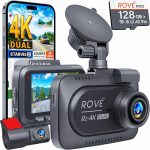
Imagine you are driving your Tesla down the highway when a driver suddenly swerves into your lane, forcing you to brake hard. Later, you notice a mysterious scratch on your bumper. Without a witness, it is your word against theirs. This is the exact moment when knowing how to save Tesla dash cam footage becomes your most valuable skill. Your Tesla is equipped with a powerful built-in dash cam system using its Autopilot cameras, but the footage is useless if you cannot retrieve it before it is overwritten.
In 2026, Tesla’s Sentry Mode and Dashcam features are more advanced than ever, but the process for saving footage remains a common point of confusion for owners. Whether you need to capture a road rage incident, a parking lot hit-and-run, or simply beautiful scenic drive, this guide will walk you through every method available. From using the touchscreen and voice commands to understanding the new USB-C storage requirements, you will learn exactly how to protect your evidence and never lose a critical recording again.
Key Takeaways
- ✓ Always save footage immediately after an incident by tapping the dash cam icon or using the voice command “Save dashcam footage” to prevent overwriting.
- ✓ Use a high-speed USB-C SSD with at least 256GB capacity and a “TeslaCam” partition for reliable recording in 2026.
- ✓ Enable “Auto-Save on Honk” in settings to automatically capture the last ten minutes when you honk the horn.
- ✓ Safely eject the USB drive from the car’s touchscreen before removing it to avoid file corruption.
- ✓ Review and transfer saved footage to your computer using the TeslaCam Viewer app for a synchronized multi-camera view.
Frequently Asked Questions
How long does my Tesla keep dash cam footage if I don’t save it?
Without manual saving, your Tesla overwrites the oldest footage once the USB drive is full. For a 256GB drive, this typically means 4-6 hours of continuous driving before older clips are deleted. If you drive less, clips may last for days, but it is never guaranteed. Always save important clips immediately.
Can I save dash cam footage without a USB drive?
No, a USB drive or SSD is required. Tesla does not store footage internally due to storage and privacy constraints. In 2026, the car will warn you if no drive is detected, and the dash cam icon will have a slash through it. You can purchase a Tesla-branded drive from the online shop or any high-speed USB-C SSD.
Why is my saved footage blurry or missing camera angles?
Blurry footage is often caused by dirty camera lenses. Clean the cameras with a microfiber cloth, especially the side repeaters. Missing angles usually indicate a camera calibration issue. Go to Controls > Service > Camera Calibration and recalibrate. In 2026, Tesla has also added a “Camera Health” check in the service menu.
Can I view dash cam footage on my phone?
Not directly from the car. Tesla does not stream dash cam footage to the mobile app due to bandwidth and privacy concerns. However, you can use a third-party accessory like a USB-C to Lightning or USB-C to USB-C adapter to plug the drive into your phone and view files using a file manager app. The TeslaCam Viewer app also available on iOS and Android in 202.
Does Sentry Mode footage save automatically?
Sentry Mode saves footage automatically when it detects a threat (e.g., someone leaning on the car or a collision). These clips are stored in the “SentryClips” folder are not overwritten until the drive is full. However, if the drive is nearly full, Sentry Mode may stop recording. It is best to check your drive weekly and transfer important Sentry clips to a computer.
Conclusion
Saving Tesla dash cam footage in 2026 is a straightforward process once you understand the system. Whether you use the touchscreen, voice commands, or the auto-save on honk feature, the key is to act quickly. Always keep a high-quality USB drive inserted, regularly check for storage warnings, and safely eject the drive before removing it. By following the methods outlined in this guide, you can ensure that you never lose critical evidence from a road incident or parking lot mishap.
Now is the time to take action. Go to your Tesla, check that your USB drive is properly formatted and has enough free space. Enable the “Auto-Save on Honk” feature in your settings. Practice using the voice command “Save dashcam footage” so it becomes second nature. A few minutes of preparation today could save you thousands of dollars and countless headaches tomorrow. Drive safe, and remember: your Tesla is always watching, but only you can save the footage.

Tony Kilmer is an auto mechanic and the author behind CarTruckAdvisor.com. He shares practical, no-nonsense guidance on car and truck maintenance, common problems, and repair decisions—helping drivers understand what’s going on and what to do next.