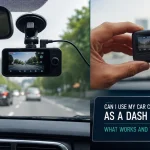
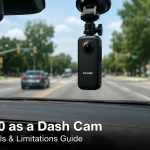
Imagine capturing every mile of your daily commute with crystal-clear 4K video, wide-angle views of the road, and the peace of mind that comes from having a reliable witness in your glovebox. While dedicated dash cams are popular, many drivers are discovering a powerful alternative: repurposing their GoPro action camera. With a few strategic tweaks and accessories, your GoPro can outperform many standard dash cams, offering superior video quality, durability, and versatility. In 2026, as dash cam technology evolves, the GoPro remains a top-tier option for drivers who want professional-grade footage without buying a second device.
This guide will walk you through everything you need to know about converting your GoPro into a dash cam. From selecting the right model and mounting it securely to optimizing settings for continuous recording and managing power, you will learn practical steps to turn your action camera into a reliable road companion. Whether you are a road trip enthusiast, a rideshare driver, or simply someone who wants added security on the road, this article provides actionable advice to get the most out of your GoPro as a dash cam in 2026.
Why Use a GoPro as a Dash Cam in 2026?
The primary advantage of using a GoPro as a dash cam is video quality. Most dedicated dash cams record in 1080p or 1440p, but even entry-level GoPro models like the Hero 11 Black can capture 5.3K video at 60 frames per second. This higher resolution means you can read license plates, road signs, and details in low light far more clearly than with a standard dash cam. For example, if you are involved in an incident, the extra clarity can be the difference between identifying a hit-and-run driver or having a blurry mess. Additionally, GoPros feature HyperSmooth stabilization, which eliminates the shakiness common in older dash cams, ensuring your footage is steady even on bumpy roads.
Another compelling reason is durability. GoPros are built to withstand extreme conditions—heat, cold, vibration, and even water immersion. A standard dash cam might overheat and shut down on a scorching summer day, but a GoPro is designed for action sports and can handle temperatures from -10°F to 113°F without issue. This makes it ideal for long road trips or daily commutes in harsh climates. Furthermore, GoPros are modular. You can swap out batteries, use external power banks, or attach different mounts, giving you flexibility that fixed dash cams lack. For instance, you can easily move the GoPro from your car to your bicycle or use it as a handheld camera for recording police interactions.
Finally, cost-effectiveness plays a role. If you already own a GoPro, the only additional expense is a mount and a memory card—often under $50 total. Compare that to a high-end dash cam that costs $200 to $400, and the savings are significant. However, there are trade-offs. GoPros lack built-in features like parking mode, GPS speed logging, and automatic loop recording without manual setup. But with the right configuration, you can overcome these limitations. In 2026, firmware updates and third-party accessories have made this conversion easier than ever, making the GoPro a viable dash cam for budget-conscious drivers who refuse to compromise on quality.
Choosing the Right GoPro Model and Accessories
Not all GoPro models are equally suited for dash cam duty. The best choices are the Hero 11 Black, Hero 12 Black, and the Hero 13 Black (released in late 2025). These models support high-bitrate video, have excellent low-light performance, and include features like TimeWarp and scheduled recording. Avoid older models like the Hero 5 or Hero 6, as they lack stabilization and have smaller batteries that drain quickly. The Hero 13 Black, in particular, offers a new "Dash Cam Mode" in its 2026 firmware update, which automatically enables loop recording and power management when connected to a car charger—a game-changer for this use case.
Essential accessories include a sturdy suction cup mount, a USB-C car charger with a long cable, and a high-endurance microSD card. For the mount, choose one with a locking mechanism to prevent the camera from falling during sharp turns. The GoPro Suction Cup Mount is reliable, but third-party options like the Delkin Fat Gecko offer stronger grip for off-road driving. For power, a 12V to USB-C adapter with at least 2.4 amps output is critical. GoPros drain batteries quickly when recording in 4K, so a continuous power source is non-negotiable. A 256GB or 512GB microSD card rated for high write speeds (U3 or V30) is recommended to handle 4K footage without buffering.
Optional accessories can enhance functionality. A polarizing filter reduces windshield glare, improving footage clarity on sunny days. A protective housing (like the GoPro Protective Housing) adds an extra layer of security against theft and UV damage. For parking mode, consider a battery pack like the GoPro Supercharger or a hardwired power kit that connects to your car's fuse box. In 2026, companies like TELESIN and Smatree offer dedicated dash cam kits for GoPros, including mounts with built-in GPS modules that log speed and location data directly into the video metadata. Investing in these accessories transforms your GoPro from a simple camera into a fully functional dash cam system.
Step-by-Step Setup: Configuring Your GoPro for Dash Cam Use
Start by mounting the GoPro securely on your windshield. Position it behind the rearview mirror to avoid obstructing your view and to keep it out of direct sunlight, which can cause overheating. Use the suction cup mount and press it firmly against a clean, dry windshield. For a permanent installation, consider a adhesive mount, but suction cups offer flexibility if you want to remove the camera. Angle the lens slightly downward to capture both the road ahead and your dashboard, ensuring you record any incidents inside the vehicle as well. Test the angle by reviewing a short clip to confirm the horizon is level and the license plates of cars ahead are readable.
Next, configure the video settings. Set the resolution to 4K at 30 frames per second (fps) for the best balance of quality and file size. 5.3K is overkill for dash cam use and fills memory cards quickly. Enable HyperSmooth stabilization to reduce vibration, but turn off features like Voice Control and Wi-Fi to save battery. The most critical setting is loop recording. On GoPro models, this is called "Looping Video" and is found in the Preferences menu. Set it to 5-minute or 10-minute intervals—this automatically overwrites old footage when the memory card is full, so you never run out of space. In 2026, the Hero 13 Black's Dash Cam Mode automates this, but for older models, you must enable it manually.
Finally, manage power and storage. Connect the USB-C cable to the GoPro and plug it into your car's charger. The camera will power on automatically when the car starts (if the charger is always on) or manually. To avoid draining your car battery, use a charger that turns off with the ignition. For parking mode, you need a battery pack or a hardwired kit that keeps the camera running for a few hours after the engine is off. Format your microSD card in the GoPro before first use to ensure compatibility. Set the card to "Continuous" recording mode, and periodically check for firmware updates, as GoPro often releases dash cam-specific improvements. With these steps, your GoPro will function as a reliable dash cam that starts recording the moment you drive.
Overcoming Common Challenges: Battery Life, Heat, and Legal Issues
Battery life is the biggest hurdle when using a GoPro as a dash cam. Even with a high-capacity battery, a GoPro recording in 4K will last only 60 to 90 minutes on a single charge. The solution is to use an external power source. A dedicated car charger with a long cable keeps the camera running indefinitely, but you must ensure the cable is routed safely away from gear shifters and pedals. For parking mode, consider a portable power bank with pass-through charging, such as the Anker PowerCore 20100, which can power the GoPro for 8 to 10 hours. Alternatively, hardwire a USB-C adapter to your car's fuse box using a kit like the Viofo HK3, which allows the camera to draw power only when the car is on or for a set period after parking.
Heat management is another concern. GoPros can overheat in direct sunlight, especially in summer, leading to shutdowns. To mitigate this, mount the camera away from the windshield's direct sun exposure, such as behind the rearview mirror. Use a sunshade or a small reflective cover when parked. The Hero 13 Black includes a built-in heat sink and a "High Temperature" mode that reduces frame rates to prevent overheating. If you live in a hot climate, lower the resolution to 1080p at 30fps, which generates less heat. Also, avoid using the waterproof housing unless necessary, as it traps heat. The open-frame design of the standard GoPro case allows better airflow.
Legal considerations vary by region. In many places, recording video on public roads is legal, but audio recording may require consent from all parties. Check your local laws regarding dash cam placement—some jurisdictions prohibit mounting cameras on the windshield if they obstruct the driver's view. In 2026, several U.S. states have updated laws to explicitly allow dash cams, but you should still avoid pointing the camera at passengers without their knowledge. Additionally, if you use your GoPro for rideshare driving, inform passengers that you are recording for safety purposes. To stay compliant, disable audio recording in the GoPro settings, or use a sticker on your window indicating that video recording is in progress. These steps ensure you enjoy the benefits of a dash cam without legal headaches.
Advanced Tips and Future Trends for GoPro Dash Cams in 2026
For power users, there are advanced techniques to maximize your GoPro dash cam. Use the GoPro Quik app to wirelessly transfer clips to your phone after a trip, but disable Wi-Fi during driving to save battery. Enable GPS tagging in the settings to embed speed and location data into your videos—this can be invaluable for insurance claims. For night driving, switch to "Night Lapse" mode with a 1-second interval, which captures clear footage of dark roads without excessive noise. Some users also install a second GoPro facing the rear window for full 360-degree coverage, syncing the footage using the app's multi-camera feature.
In 2026, GoPro has introduced AI-powered features that benefit dash cam users. The Hero 13 Black includes "Incident Detection," which uses the accelerometer to automatically save footage when it detects a collision or hard braking. This footage is tagged and protected from being overwritten by loop recording. Additionally, cloud backup services like GoPro Subscription now offer automatic uploads of dash cam clips to the cloud when the camera connects to Wi-Fi at home, providing off-site storage in case the camera is stolen or damaged. These features bridge the gap between GoPros and dedicated dash cams, making the conversion more seamless than ever.
Looking ahead, the trend is toward integration. Third-party developers are creating apps that turn GoPros into smart dash cams with features like lane departure warnings and traffic sign recognition. In 2026, a company called DashGo released a firmware mod that adds a "Parking Guard" mode, using the GoPro's motion sensor to start recording when it detects movement near the car. While still niche, these innovations suggest that the GoPro dash cam conversion will only become more powerful. For now, the key is to stay updated with firmware releases and invest in quality accessories. By following these advanced tips, you can turn your GoPro into a cam that rivals—or even surpasses—dedicated units on the market.
Key Takeaways
- ✓ GoPro offers superior video quality (4K to 5.3K) and stabilization compared to most standard dash cams, making it ideal for capturing clear evidence.
- ✓ Essential accessories include a suction cup mount, a high-amperage car charger, and a high-endurance microSD card for reliable operation.
- ✓ Configure loop recording and disable unnecessary features like Wi-Fi and voice control to optimize battery life and storage management.
- ✓ Overcome heat and battery challenges by mounting the camera away from direct sunlight and using an external power source for continuous recording.
- ✓ Stay informed about local dash cam laws and disable audio recording if required, while leveraging new 2026 features like incident detection and cloud backup.
Frequently Asked Questions
Can I use any GoPro model as a dash cam?
While you can use most GoPro models, the best results come from the Hero 11 Black, Hero 12 Black, or Hero 13 Black. models support high-bitrate 4K video, excellent stabilization, and include loop recording features. Older models like the Hero 5 or Hero 6 lack these capabilities and have shorter battery life, making them less practical for daily dash cam use.
How do I prevent my GoPro from overheating in the car?
Mount the GoPro behind the rearview mirror to avoid direct sunlight, and use a sunshade when parked. Lower the resolution to 1080p at 30fps in hot weather, and avoid using the waterproof housing, which traps heat. The Hero 13 Black includes a dedicated High Temperature mode that automatically reduces frame rates to prevent shutdowns.
Will using a GoPro as a dash cam drain my car battery?
If you plug the GoPro into a 12V charger that turns off with the ignition, it will not drain your car battery. For parking mode, use a hardwired power kit that draws power only for a set period after the engine is off, or use a portable power bank. Avoid leaving the camera connected to an always-on power source overnight.
How do I enable loop recording on my GoPro for dash cam use?
On GoPro models, go to Preferences and select "Looping Video." Choose a duration (5 or 10 minutes is recommended). This setting automatically overwrites the oldest footage when the memory card is full, ensuring continuous recording. On the Hero 13 Black, the new Dash Cam Mode enables this automatically when connected to a car charger.
Is it legal to use a GoPro as a dash cam in my state or country?
In most places, recording video on public roads is legal, but audio recording may require consent from all parties. Check local laws regarding windshield placement—some jurisdictions prohibit mounting cameras that obstruct the driver's view. For rideshare drivers, inform passengers about recording. To stay safe, disable audio recording in the GoPro settings.
Conclusion
Turning your GoPro into a dash cam is a practical, cost-effective way to capture high-quality footage of your drives. By choosing the right model, investing in essential accessories, and configuring settings like loop recording and power management, you can create a system that rivals dedicated dash cams. In 2026, with new features like incident detection and cloud backup, the GoPro has become an even more compelling option for drivers who want professional-grade video without the premium price tag. Whether you are protecting yourself from false insurance claims, documenting scenic road trips, or simply adding a layer of security to your daily commute, this conversion delivers reliable results.
Now is the time to put this knowledge into action. Start by checking your GoPro model and ordering a suction cup mount and car charger. Spend 30 minutes configuring the settings as outlined in this guide, and take a test drive to review the footage. You will likely be impressed by the clarity and stability. As dash cam technology continues to evolve, your GoPro will remain a versatile tool that adapts to your needs. So mount it, power it, and drive with confidence knowing that every mile is captured in stunning detail.

Tony Kilmer is an auto mechanic and the author behind CarTruckAdvisor.com. He shares practical, no-nonsense guidance on car and truck maintenance, common problems, and repair decisions—helping drivers understand what’s going on and what to do next.