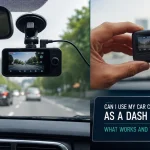
You just unboxed your new Redtiger F7NP dash cam, and the first thing you notice is the sleek 3-inch IPS screen and the promise of 4K recording. But now, staring at the power cables, the suction mount, and the tiny buttons, you might feel a bit overwhelmed. You are not alone. Many drivers purchase a dash cam for peace of mind, only to leave it sitting in the glovebox because the initial setup feels too technical. This guide is designed to change that, walking you through every step from unboxing to your first recorded drive.
Understanding how to properly set up your Redtiger F7NP is critical for ensuring you capture clear, usable footage in the event of an accident or unexpected road event. A poorly installed dash cam can miss crucial angles, record over important files, or even drain your car battery. In this comprehensive guide, you will learn the exact steps for physical mounting, hardwiring for 24/7 parking mode, configuring the menu settings for optimal video quality, and troubleshooting common issues. By the end, you will have a fully operational dash cam that gives you confidence every time you turn the key.
Unboxing and Understanding Your Redtiger F7NP Components
Before you start sticking anything to your windshield, take a moment to inventory every component in the box. The Redtiger F7NP package typically includes the dash cam unit itself, a 3M adhesive mount (plus a spare), a suction cup mount, a 12V cigarette lighter power adapter with a 3.5-meter USB-C cable, a rear camera with its own 6-meter cable, a trim removal tool, and a user manual. Some bundles may also include a 32GB or 64GB microSD card, but you should verify this immediately. If no card is included, you will need to purchase a high-endurance microSD card rated for continuous recording, such as a Samsung Pro Endurance or SanDisk Max Endurance, with a capacity between 64GB and 256GB.
The first practical step is to insert the microSD card into the slot located on the top or side of the main unit. Ensure the gold contacts face the correct direction and push until you hear a click. Next, familiarize yourself with the button layout. On the F7NP, the power button is typically on the top, while the mode (M) button, menu button, and directional buttons are on the bottom edge. The rear camera port is a round AV-IN jack, and the power port is a USB-C connection. Do not plug anything in yet. Instead, lay all the cables out flat to remove any kinks, as this will make routing them through your car’s headliner much easier later.
Finally, decide which mounting method suits your vehicle. The suction cup mount is excellent for temporary use or rental cars, as it is easy to remove and reposition. However, it can be bulky and may fall off in extreme heat. 3M adhesive mount permanent and provides a much lower profile, sitting flush against the windshield. For most users, the adhesive mount is the superior choice for long-term stability. Clean the designated area on your windshield with the included alcohol wipe or isopropyl alcohol to remove any oils or residue. Let it dry completely before attaching the mount.
Physical Installation: Mounting the Front and Rear Cameras
With your mount prepared, it is time to position the front camera. The ideal location is behind the rearview mirror, on the passenger side. This placement keeps the camera out of your direct line of sight while providing a clear, unobstructed view of the road. Press the adhesive mount firmly against the glass and hold it for 30 seconds to ensure a strong bond. Slide the Redtiger F7NP onto the mount until it clicks into place. Before routing any cables, temporarily plug in the power cable and turn on the car to verify the camera is level and captures the horizon correctly. Adjust the angle by tilting the camera body up or down.
Now, for the rear camera. The F7NP rear camera is waterproof and designed for exterior mounting, typically above your rear license plate. However, you can also mount it inside the rear window if you prefer a simpler installation. For exterior mounting, use the included screws to attach the bracket to your vehicle’s trim near the license plate. Route the rear camera cable through the trunk lid, using existing rubber grommets to pass the wire into the cabin. This is the most challenging part of the installation. Use the trim removal tool to gently pry off interior panels along the roofline, tucking the cable under the headliner. Continue running the cable along the driver or passenger side A-pillar, down to the dashboard where the main unit is located.
For interior rear window mounting, simply clean the glass and use the included 3M tape to attach the rear camera. Route the cable along the headliner in the same manner, but you will have an easier time since you do not need to the vehicle. Plug the rear camera’s AV-IN cable into the main unit. Once connected, the F7NP should automatically detect the rear camera and display a split-screen or picture-in-picture view. If you do not see the rear image, check that the cable is fully inserted and that the rear camera lens cover has been removed.
Power Options: Cigarette Lighter vs. Hardwiring for Parking Mode
Configuring the Menu Settings for Optimal Video Quality
With the camera mounted and powered, it is time to dive into the settings menu. Press the Menu button on the side of the F7NP to enter the main menu. The first and most important setting is video resolution. Set the front camera to 4K at 30 frames per second (fps) for the highest detail. If you prefer smoother motion, you can drop to 2K at 60fps. For the rear camera, set it to 1080p at 30fps. Ensure that the loop recording feature is enabled and set to 3 minutes. This creates manageable file sizes and ensures that old footage is automatically overwritten when the memory card is full. Never disable loop recording, as this will fill your card and stop the camera from recording.
Next, adjust the exposure and EV (exposure value) settings. In bright sunlight, an EV setting of -0.3 or -0.7 can prevent the sky from washing out. In darker conditions or tunnels, set the EV to +0.3 to brighten the image. The F7NP also has a WDR (Wide Dynamic Range) feature. Keep this enabled at all times, as it balances bright and dark areas in the same frame, such as headlights against a dark road. For the G-sensor (gravity sensor), which detects collisions, set it to Medium sensitivity. A high setting may cause false triggers from potholes or slamming doors, while a low setting might miss a real accident.
Finally, configure the parking mode settings. If you have hardwired the camera, navigate to the Parking Mode submenu. You will typically have three options: Motion Detection, Time Lapse (1fps), and Low Bitrate Recording. Time Lapse is the most reliable for 24/7 coverage, as it records continuously at a low frame rate without missing events. Set the parking mode recording duration to 24 hours or unlimited, depending on your battery’s capacity. Do not forget to format your microSD card inside the camera every two weeks. The F7NP has a built-in format function in the menu, which helps prevent file corruption and ensures smooth operation.
Troubleshooting Common Issues and Firmware Updates
Even with a perfect setup, you may encounter issues. The most common problem is the camera not turning on. First, check that the power cable is firmly connected to both the camera and the power source. If using the cigarette lighter, ensure the adapter’s LED light is on. If hardwired, verify the fuse connections with a multimeter. Another frequent issue is the camera repeatedly beeping or saying “Card Error.” This almost always means the microSD card is not compatible or needs formatting. Use a high-endurance card and format it within the camera’s menu, not on your computer. If the error persists, try a different brand of card.
If your rear camera shows a blue screen or no signal, the AV-IN cable is likely loose or damaged. Unplug and re-plug the cable at both ends. Check for any kinks or cuts in the cable, especially where it passes through door jambs. If the image is blurry, remove the protective plastic film from the lens. You would be surprised how many people forget this step. For blurry footage after installation, clean the lens with a microfiber cloth and ensure the focus ring on the front lens is not loose. The F7NP has a fixed focus, so if it is consistently blurry, the unit may be defective.
Keeping your firmware updated is essential for performance and new features. Visit the official Redtiger website and navigate to the Support or Download section for the F7NP model. Download the latest firmware file, which will be a .bin file. Copy this file to the root directory of a formatted microSD card. Insert the card into the camera, turn on the power, and the camera will automatically detect the update. Do not turn off the camera during the update process, as this can brick the device. After the update, reset the camera to factory defaults and reconfigure your settings. This process typically takes less than five minutes and can resolve many software-related glitches.
Key Takeaways
- ✓ Always use a high-endurance microSD card (64GB to 256GB) and format it inside the camera for reliable performance.
- ✓ Mount the front camera behind the rearview mirror on the passenger side for an unobstructed view and minimal driver distraction.
- ✓ Hardwiring the F7NP with a low-voltage cutoff kit is essential for using parking mode without draining your car battery.
- ✓ Set video resolution to 4K at 30fps, enable WDR, and set loop recording to 3 minutes for the best balance of quality and storage.
- ✓ Regularly check for firmware updates on the Redtiger website and format your memory card every two weeks to prevent errors.
Frequently Asked Questions
Does the Redtiger F7NP require a professional to install?
No, the basic installation using the cigarette lighter adapter is a simple DIY task that anyone can do in about 15 minutes. However, if you want to hardwire the camera for parking mode, it involves connecting wires to your car’s fuse box. While many car owners can do this with basic tools and a multimeter, if you are not comfortable working with your vehicle’s electrical system, it is wise to hire a professional installer at a car audio shop. The cost is usually between $50 and $100.
What size microSD card is recommended for the F7NP?
The Redtiger F7NP officially supports microSD cards up to 256GB. For 4K recording, a 128GB card will give you roughly 6 to 8 hours of continuous loop recording before overwriting. A 256GB card doubles that time. It is critical to use a high-endurance card, such as the Samsung Pro Endurance or SanDisk Max Endurance, as these are designed to handle the constant read/write cycles of dash cam recording. Standard SD cards will fail quickly.
How do I view footage from my Redtiger F7NP on my phone?
The F7NP does not have built-in Wi-Fi. To view footage, you must remove the microSD card from the camera and insert it into a computer using an SD card adapter. Alternatively, you can connect the camera directly to a computer via the USB-C cable, and it will appear as an external drive. There is no smartphone app for this specific model, so all file management is done manually through a computer.
Why does my F7NP keep turning off while I am driving?
This is usually a power connection issue. If you are using the cigarette lighter adapter, check that it is firmly plugged in and that the adapter’s LED light is on. The USB-C cable may also be loose at the camera end. If you are hardwired, the low-voltage cutoff may be set too high, causing the camera to shut off when your battery voltage drops slightly. Check the hardwire kit’s voltage dial and set it to 12.0V or 11.8V. Also, inspect the fuse tap connection to ensure it is secure.
Can I use the parking mode without hardwiring?
No, the parking mode feature on the Redtiger F7NP requires a constant power source to operate when the engine is off. The standard cigarette lighter adapter only provides power when the car is on. To use parking mode, you hardwire the camera to a constant fuse in your vehicle’s fuse box The hardwire kit includes a voltage monitor that protects your car battery from draining completely.
Conclusion
Setting up your Redtiger F7NP dash cam is a straightforward process that pays dividends in safety and peace of mind. By this guide, you have learned how to properly mount both the front and rear cameras, choose between simple plug-in power and advanced hardwiring, and fine-tune the video settings to capture crystal-clear evidence. You also now know how to troubleshoot common issues like card errors and blurry footage, and how to keep your camera running smoothly with regular firmware updates. The key is to take your time during the initial installation, especially when routing cables, to ensure a clean and professional look.
Now that your dash cam is fully operational, make it a habit to check the footage after your first few drives to confirm the angle and quality are correct. Set a monthly reminder to format your memory card and check for new firmware. Your Redtiger F7NP is a powerful tool, but it only works if it is properly maintained. Do not wait until you need the footage to discover a problem. Take the next step today: go for a test drive, review the video on your computer, and enjoy the confidence that comes with knowing every mile is recorded.

Tony Kilmer is an auto mechanic and the author behind CarTruckAdvisor.com. He shares practical, no-nonsense guidance on car and truck maintenance, common problems, and repair decisions—helping drivers understand what’s going on and what to do next.