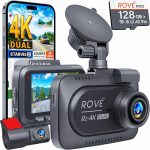
You are driving home after a long day, and suddenly, a car swerves into your lane. Your Nexar dash cam is your silent witness, but what happens when that witness stops recording, freezes on a single frame, or refuses to connect to your phone? Before you panic and consider buying a new unit, there is a simple solution that can fix the vast majority of these issues: a proper reset. Knowing how to reset your Nexar dash cam is not just a troubleshooting skill; it is the first line of defense against corrupted files, software glitches, and connectivity headaches.
In this comprehensive guide, we will walk you through every method of resetting your Nexar dash cam, from a simple soft reboot to a full factory reset. Whether you own the Nexar Beam, Nexar Pro, Nexar One, or an older model, the steps are largely consistent. By the end of this article, you understand exactly when to use each reset method, how to preserve your critical footage, and what to do if a reset does not solve the problem. This knowledge will save you time, money, and the frustration of losing important driving evidence.
Understanding Why Your Nexar Dash Cam Needs a Reset
Modern dash cams are essentially miniature computers. They run operating systems, manage storage on microSD cards, and maintain constant Wi-Fi or Bluetooth connections to your smartphone. Like any computer, they can encounter software bugs, memory leaks, or file system errors. The most common symptom is the device freezing on the Nexar logo screen, failing to start recording, or displaying a persistent "SD Card Error" message. A reset clears the temporary memory (RAM) and forces the software to reload from scratch, often resolving these transient issues without losing your saved videos.
Another frequent reason for a reset is connectivity failure. Nexar dash cams rely on a stable Wi-Fi connection to stream live footage to your phone and upload clips to the cloud. If you change your home Wi-Fi password, switch to a new phone, or experience network interference, the dash cam may get stuck trying to connect to an old network. A reset clears these stored network credentials, allowing you to set up a fresh connection. This is particularly common after a smartphone operating system update, which can sometimes break the pairing protocol between the phone and the camera.
Finally, you might need to reset your Nexar dash cam if you are selling the vehicle or giving the device to another person. A factory reset ensures that all your personal data, including saved Wi-Fi passwords, account information, and paired devices, is completely erased. This protects your privacy and gives the new owner a clean slate for setup. It is also a recommended step if you are experiencing persistent issues that do not respond to simpler troubleshooting like formatting the SD card or updating the firmware through the app.
The Soft Reset: The Quickest Fix for Minor Glitches
The soft reset, also known as a power cycle, is the easiest and safest method to try first. It does not delete any of your recorded footage, settings, or paired devices. To perform a soft reset on any Nexar dash cam model, simply unplug the power cable from the camera or the vehicle’s cigarette lighter port. Wait for at least 30 seconds to allow all internal capacitors to discharge completely. Then, plug the power cable back in. The camera should boot up normally, and the status light should turn solid green or blue, indicating it is recording.
If the camera is completely frozen and unresponsive to unplugging, you may need to use the physical reset button. On most Nexar models, this is a small, pinhole-sized button located on the side or bottom of the unit. You will need a paperclip or a SIM card ejector tool to press it. Gently insert the tool into the hole and press the button for about 5 seconds. The camera will immediately power off. Release the button, wait 10 seconds, and then plug the camera back into power. This is the equivalent of holding the power button on a frozen computer and is highly effective for unresponsive screens.
It is important to note that a soft reset should be your go-to solution for issues that occur during a single drive. For example, if the camera fails to start recording when you turn on the car, a soft reset usually fixes it. However, if the same problem happens repeatedly over several days, a soft reset is only a temporary bandage. In that case, you will need to move on to a more thorough reset method. Always try the soft reset first, as it is non-destructive and takes less than a minute to complete.
The Factory Reset: Wiping the Slate Clean
A factory reset, also called a hard reset or master reset, restores the dash cam to its original out-of-the-box state. This process erases all user settings, including video resolution preferences, parking mode configurations, Wi-Fi network names and passwords, and any paired phone connections. Importantly, a factory reset does not delete the video files stored on the microSD card, but it will reset the folder structure and file naming conventions. You should perform a factory reset only when a soft reset has failed to resolve persistent issues, or when you are preparing the device for a new user.
The most reliable way to perform a factory reset is through the Nexar mobile app. Open the app on your smartphone and ensure your dash cam is connected via Wi-Fi. Navigate to the device settings menu, usually found by tapping the gear icon on the camera’s live view screen. Scroll down to find the option labeled "Factory Reset," "Reset Camera," or "Erase All Settings." The app will ask you to confirm your choice, warning that all settings will be lost. Confirm the action, and the camera will reboot automatically. This process takes about 60 seconds, after which the camera will enter pairing mode, indicated by a flashing blue light.
If you cannot connect to the camera via the app because it is frozen or unresponsive, you can perform a factory reset manually. With the camera powered on, locate the physical reset button (the same pinhole used for the soft reset). Instead of a quick press, you will need to hold the button down for a longer duration. For most Nexar models, holding the reset button for 15 to 20 seconds will trigger a factory reset. The camera’s LED light will flash rapidly, and you may hear a beep. Release the button and wait for the camera to reboot. It will now be in its default state, ready for a fresh setup through the app.
Resetting the SD Card: A Critical Step Often Overlooked
Many dash cam problems are not actually caused by the camera itself, but by the microSD card. Dash cams write data constantly in a loop, which puts immense stress on the card. Over time, file fragments accumulate, and the card’s file system can become corrupted. This often manifests as the camera repeatedly beeping, displaying "SD Card Error," or failing to save clips. Resetting the SD card is a separate process from resetting the camera, and it is essential for maintaining long-term reliability. The best practice is to format the SD card inside the camera, not on a computer.
To reset or format your SD card using the Nexar app, connect to your dash cam and go to the device settings. Look for an option called "Format SD Card" or "Erase Card." The app will warn you that this deletes all footage currently stored on the card. Confirm the action, and the camera will format the card using the correct file system (usually FAT32 or exFAT). This process takes about 30 seconds. After formatting, the camera will automatically begin recording new footage. You should perform this format at least once every two months to prevent file system errors.
If you cannot access the app, you can format the card manually. First, safely eject the microSD card from the dash cam. Insert it into a computer using an SD card adapter. Open "This PC" (Windows) or "Disk Utility" (Mac), right-click on the drive representing the SD card, and select "Format." Choose FAT32 as the file system and set the allocation unit size to "Default." Uncheck "Quick Format" for a thorough clean. Click Start. Once complete, reinsert the card into the dash cam. This manual format is a powerful troubleshooting step that can resolve issues that even a factory reset cannot fix, such as persistent recording interruptions or corrupted video files.
Troubleshooting After a Reset: What to Do If Problems Persist
You have performed a soft reset, a factory reset, and even formatted the SD card, but your Nexar dash cam is still acting up. Do not give up yet. The next step is to check the power source. A common culprit is a faulty 12V cigarette lighter adapter or a damaged USB cable. Try using a different power cable and adapter, or plug the camera into a different USB port in your car. If the camera works with a different power source, the original cable or adapter is defective and needs replacement. Also, ensure that your vehicle’s cigarette lighter socket is clean and provides consistent power.
Another frequent issue is outdated firmware. Nexar regularly releases firmware updates to fix bugs and improve performance. After a reset, the camera may revert to an older firmware version. Open the Nexar app and check for firmware updates in the device settings. If an update is available, download and install it. This process requires a stable Wi-Fi connection and takes about 5 to 10 minutes. Do not interrupt the update by turning off the car or closing the app. A successful firmware update often resolves the exact problems that led you to reset the device in the first place.
If you have tried all the above steps and the camera still freezes, fails to record, or will not connect, the issue may be hardware-related. Check the microSD card for physical damage. If the card is old (over two years), it may have reached its write cycle limit. Replace it with a high-endurance card specifically designed for dash cams, such as a Samsung Pro Endurance or SanDisk Endurance. If a new card does not fix the problem, contact Nexar customer support. Your camera may be under warranty, and they can guide you through advanced diagnostics or arrange a replacement. Remember to have your purchase receipt and the camera’s serial number ready.
Key Takeaways
- ✓ A soft reset (unplugging power or pressing the pinhole button for 5 seconds) is the first step for minor glitches and does not delete any data.
- ✓ A factory reset through the Nexar app or by holding the reset button for 15-20 seconds erases all settings but preserves your video files.
- ✓ Formatting the microSD card inside the camera every two months prevents file corruption and is often the solution for "SD Card Error" messages.
- ✓ Persistent issues after a reset are often caused by a faulty power cable, outdated firmware, or a worn-out microSD card.
- ✓ If all troubleshooting fails, contact Nexar support for warranty service or consider replacing the microSD card with a high-endurance model.
Frequently Asked Questions
Will resetting my Nexar dash cam delete my saved videos?
No, a standard soft reset or factory reset does not delete the video files stored on your microSD card., formatting the SD card will erase all footage. Always back up important clips to your phone or cloud before formatting.
How do I reset my Nexar dash cam without the app?
You can perform a hard reset without the app by locating the small pinhole reset button on the camera. Use a paperclip to press and hold the button for 15-20 seconds. The camera will reboot and return to factory default settings.
My Nexar dash cam keeps saying "SD Card Error" even after formatting. What should I do?
This usually indicates the microSD card is failing or is incompatible. Try a different card, specifically a high-endurance card rated for continuous recording (U3 or V30 speed class). If the error persists with a new card, the camera’s card reader may be faulty.
How often should I reset my Nexar dash cam?
You do not need to reset it on a schedule. Only reset the camera when you encounter specific problems like freezing, connectivity loss, or after changing your home Wi-Fi network. However, formatting the SD card every two months is recommended for preventative maintenance.
Can I reset my Nexar dash cam remotely?
No, there is no remote reset feature. You must have physical access to the camera to unplug it or press the reset button. The factory reset option in the app requires the camera to be connected to your phone via Wi-Fi.
Conclusion
Resetting your Nexar dash cam is a straightforward process that can solve the vast majority of common issues, from frozen screens to lost Wi-Fi connections. By understanding the difference between a soft reset, a factory reset, and an SD card format, you can quickly diagnose and fix problems without needing professional help. Remember to always try the simplest solution first—unplugging the power—before moving on to more drastic measures. Keeping your firmware updated and your SD card healthy will minimize the need for frequent resets.
Now that you have this knowledge, take a moment to test your dash cam. If it has been acting sluggish, perform a soft reset. If you have not formatted your SD card in a while, do it today. These small maintenance steps will ensure your Nexar dash cam remains a reliable guardian on the road, ready to capture every important moment. Do not wait for a critical incident to discover your camera is not working—reset it now and drive with confidence.

Tony Kilmer is an auto mechanic and the author behind CarTruckAdvisor.com. He shares practical, no-nonsense guidance on car and truck maintenance, common problems, and repair decisions—helping drivers understand what’s going on and what to do next.