Yes, you can see your dash cam live on your phone if your camera supports Wi-Fi, LTE, or cloud connectivity through its companion app. However, the way you access the live feed depends on your dash cam’s features, whether you’re nearby or away from your vehicle, and whether your camera supports remote viewing.
If you’ve recently bought a dash cam or you’re thinking about upgrading, you’ve probably wondered whether you can check your vehicle’s camera feed directly from your smartphone. I had the same question when I started using smart dash cameras, and the answer turned out to be more nuanced than a simple yes or no.
In this guide, I’ll explain exactly how live dash cam viewing works, which dash cams support it, how to connect your phone, common troubleshooting tips, and what you need if you want to monitor your parked vehicle from anywhere.
What Does It Mean to View a Dash Cam Live on Your Phone?
Many people confuse live viewing with watching recorded videos. While both are useful, they work differently.
Live viewing means your smartphone displays what the dash cam is recording in real time. You can use it to:
- Check your surroundings before driving.
- Adjust the camera angle during installation.
- Monitor your parked vehicle.
- Watch your vehicle remotely (on supported models).
- Verify parking mode alerts.
On the other hand, watching recorded footage means viewing videos that have already been saved to the memory card or cloud storage.
Understanding this difference helps you choose the right dash cam for your needs.
Can Every Dash Cam Stream Live to a Phone?
No. Not every dash cam supports live streaming.
Basic dash cams simply record video onto a microSD card. To watch recordings, you usually remove the card or connect the camera to a computer.
More advanced models include wireless connectivity that allows you to view the camera from your phone.
| Dash Cam Type | Live View Nearby | Live View Anywhere |
|---|---|---|
| Basic Dash Cam | No | No |
| Wi-Fi Dash Cam | Yes | Usually No |
| Bluetooth Dash Cam | Limited | No |
| LTE/Cloud Dash Cam | Yes | Yes |
If live viewing is important to you, make sure the product description specifically mentions:
- Live View
- Wi-Fi App
- LTE Connectivity
- Cloud Access
- Remote Monitoring
Nearby Live View vs Remote Live View
This is one of the biggest misunderstandings among dash cam owners.
Many people assume that if their dash cam has Wi-Fi, they can watch it from anywhere in the world. Unfortunately, that’s not how most Wi-Fi dash cams work.

Nearby Live View
With a Wi-Fi dash cam, your phone connects directly to the camera’s wireless network.
Requirements:
- You’re close to the vehicle.
- Wi-Fi is enabled.
- The manufacturer’s app is installed.
- The dash cam is powered on.
Typical range:
- Around 30–100 feet (10–30 meters), depending on obstacles and signal strength.
This setup is perfect for:
- Downloading videos
- Changing camera settings
- Checking camera alignment
- Watching a live feed while standing near your car
Remote Live View
Remote viewing is different.
Instead of connecting directly to the camera, the dash cam uploads data through an LTE or 4G cellular connection.
This allows you to:
- View your car from another city.
- Receive instant alerts.
- Watch parking events.
- Access cloud recordings.
For remote viewing, you’ll usually need:
- LTE-enabled dash cam
- Cellular data connection
- Cloud service
- Mobile app
- Sometimes a monthly subscription
How to Watch Your Dash Cam Live on Your Phone
The setup process is usually straightforward.
Step 1: Download the Dash Cam App
Every manufacturer provides its own mobile application.
Examples include:
- Garmin Drive
- BlackVue App
- Thinkware Dash Cam Link
- Nextbase App
- Vantrue App
Always install the official app for your camera model.
Step 2: Turn On the Camera
Power your dash cam using:
- Vehicle ignition
- Hardwire kit
- External battery pack
Wait until the camera finishes booting.
Step 3: Enable Wi-Fi
Open your dash cam settings.
Turn on:
- Wi-Fi
- Wireless Connection
- Mobile Connection
Some cameras display a Wi-Fi name and password on the screen.
Step 4: Connect Your Phone
On your smartphone:
- Open Wi-Fi Settings.
- Connect to the dash cam’s Wi-Fi.
- Enter the password.
- Return to the dash cam app.
The app should automatically detect your camera.
Step 5: Open Live View
Inside the app, tap:
- Live View
- Camera View
- Real-Time View
Within a few seconds, you should see exactly what the camera sees.
Can You Watch Your Dash Cam Live From Anywhere?
Yes—but only with the right hardware.
Here’s a quick comparison.
| Feature | Wi-Fi Dash Cam | LTE Dash Cam |
|---|---|---|
| Live View Nearby | ✅ | ✅ |
| Remote Viewing | ❌ | ✅ |
| Cloud Storage | Sometimes | Usually |
| Internet Required | No | Yes |
| Monthly Subscription | No | Often |
If your goal is checking your parked car while you’re at work or on vacation, a Wi-Fi-only dash cam isn’t enough.
You’ll need an LTE-enabled model with cloud support.
What Features Do You Need for Live Viewing?
Not every dash cam includes the same capabilities.
Here are the features that make live viewing easier and more reliable.
Wi-Fi Connectivity
Allows your phone to connect directly to the camera while you’re nearby.
Perfect for:
- Live preview
- Settings
- Video downloads
LTE Connectivity
Provides internet access without requiring your phone nearby.
Ideal for:
- Remote monitoring
- Fleet management
- Business vehicles
- Travelers
Cloud Storage
Cloud storage automatically uploads important videos.
Benefits include:
- Backup after accidents
- Remote downloads
- Event history
- Easier evidence sharing
Parking Mode
Parking mode keeps monitoring your vehicle after you turn off the engine.
It can detect:
- Motion
- Vandalism
- Impacts
- Break-in attempts
Many premium dash cams send instant notifications to your phone when an event occurs.
GPS Tracking
GPS doesn’t affect live viewing directly, but it records:
- Vehicle location
- Speed
- Driving route
- Travel history
This information can be extremely useful after an accident.
Can You See Your Parked Car Live From Your Phone?
Yes—but only under specific conditions.
If your dash cam supports:
- LTE connectivity
- Cloud services
- Parking mode
- Continuous power
you can often view your parked vehicle remotely.
This feature is especially useful for:
- Apartment parking lots
- Airport parking
- Shopping centers
- Office parking garages
- Street parking
Instead of wondering what’s happening around your vehicle, you can simply open the app and check the live feed.
Some premium systems even send alerts when:
- Someone approaches the car.
- A collision occurs.
- Motion is detected.
- The camera detects suspicious activity.
Can You Watch Your Dash Cam Without Wi-Fi?
Yes, but it depends on the camera.
Here’s how different technologies compare.
Wi-Fi Dash Cam
Requires nearby Wi-Fi between the camera and your phone.
No internet connection is needed.
LTE Dash Cam
Uses a cellular network.
You can watch the camera from almost anywhere with mobile coverage.
Memory Card Only
No live viewing is available.
You’ll need to remove the SD card or connect the camera to a computer to watch recordings.
Do You Need Internet to Watch Your Dash Cam?
Not always.
Many people assume internet access is required for every live view feature, but that’s not true.
When Internet Is NOT Required
You don’t need internet if:
- Your dash cam creates its own Wi-Fi network.
- You’re standing near the vehicle.
- You’re simply viewing the live camera feed.
Your phone connects directly to the dash cam instead of using your home or mobile internet.
When Internet IS Required
Internet becomes necessary if you want to:
- Watch your vehicle remotely.
- Receive cloud notifications.
- Download cloud recordings.
- Track your car from another location.
- Access live video while traveling.
If remote monitoring is one of your priorities, make sure the dash cam supports LTE or cloud connectivity before purchasing.
Which Dash Cams Support Live Viewing?
Not every brand offers the same live-view experience. Some focus on simple Wi-Fi connectivity, while others provide full remote monitoring with LTE and cloud services.
Generally, these brands are known for offering models with live-view capabilities:
- Garmin
- BlackVue
- Thinkware
- Nextbase
- Vantrue
- VIOFO
- ROVE
- REDTIGER
Before buying, always check the product specifications to confirm whether the model supports:
- Live View
- Remote Viewing
- Cloud Connectivity
- Parking Mode
- LTE (if remote access is important)
Why Can’t I See My Dash Cam Live on My Phone?
If your dash cam supports live viewing but the feature isn’t working, don’t panic. Most connection problems are easy to fix.
Here are the most common reasons.
Your Phone Isn’t Connected to the Dash Cam
Most Wi-Fi dash cams create their own wireless network. If your phone is still connected to your home Wi-Fi or mobile data, the app may not find the camera.
Solution: Open your phone’s Wi-Fi settings and connect directly to your dash cam’s network before opening the app.
The Dash Cam’s Wi-Fi Is Turned Off
Some cameras automatically disable Wi-Fi after a period of inactivity to save power.
Solution: Turn Wi-Fi back on using the dash cam’s menu or physical Wi-Fi button.
You’re Too Far Away
Wi-Fi dash cams have a limited range.
If you’re inside a building while your vehicle is parked outside, your phone probably won’t detect the camera.
Solution: Move closer to the vehicle or use an LTE-enabled dash cam if remote viewing is important.
You’re Using the Wrong Mobile App
Many manufacturers have multiple apps for different camera models.
Solution: Download and use the official app designed specifically for your dash cam model.
The Firmware Is Outdated
Older firmware can cause compatibility issues with newer smartphones.
Solution: Update both the dash cam firmware and the companion mobile app to the latest versions.
Phone Permissions Are Disabled
The app may require access to:
- Wi-Fi
- Bluetooth
- Location
- Local Network (especially on iPhones)
- Notifications
Without these permissions, the connection may fail.
The Camera Is in Sleep Mode
Some dash cams enter sleep mode after the vehicle is turned off.
Solution: Enable Parking Mode or provide continuous power using a hardwire kit if your camera supports it.
How to Fix Dash Cam Live View Problems
Follow these steps in order.
Step 1: Restart Everything
Restart:
- Dash cam
- Smartphone
- Mobile app
Many temporary connection issues disappear after a reboot.
Step 2: Forget and Reconnect Wi-Fi
On your phone:
- Open Wi-Fi Settings.
- Forget the dash cam network.
- Reconnect using the correct password.
Step 3: Update the App
Visit your device’s app store and install the latest version.
Manufacturers frequently release updates that improve connectivity and stability.
Step 4: Update the Camera Firmware
Firmware updates often include:
- Better Wi-Fi performance
- Faster app connections
- Security improvements
- Bug fixes
Step 5: Check the Memory Card
Some dash cams behave unexpectedly when using a damaged or unsupported microSD card.
If necessary:
- Format the card.
- Replace it with a compatible high-endurance card recommended by the manufacturer.
Step 6: Reset the Dash Cam
If nothing else works, perform a factory reset.
After resetting:
- Pair the phone again.
- Configure Wi-Fi.
- Restore your preferred settings.
Does Live Viewing Use Mobile Data?
It depends on how you’re connected.
Wi-Fi Dash Cam
Mobile data usage: None.
Your phone communicates directly with the camera.
LTE Dash Cam
Mobile data usage: Yes.
Since the camera sends video through a cellular network, data consumption depends on:
- Video quality
- Viewing duration
- Resolution
- Bitrate
Watching live video frequently can use a significant amount of mobile data, so check your data plan if your dash cam relies on LTE.
Does Live Viewing Drain the Battery?
Yes, but the impact varies.
Battery usage depends on:
- Video resolution
- Wi-Fi activity
- LTE connection
- Parking Mode
- Ambient temperature
A dash cam connected only while driving usually won’t create battery concerns.
However, continuous parking surveillance requires a reliable power source, such as:
- Hardwire kit
- External dash cam battery
- Dedicated battery management system
Many premium dash cams include low-voltage protection to help prevent your vehicle’s battery from being discharged.
Is Live Viewing Free?
Sometimes.
Free Features
Many Wi-Fi dash cams include:
- Live View
- Video playback
- Settings management
- Video downloads
These features usually don’t require ongoing fees.
Paid Features
Cloud-enabled cameras may charge for:
- Remote live viewing
- Cloud storage
- Event backups
- Extended recording history
- Push notifications
- Fleet management features
Always check whether a subscription is required before purchasing.
Can Multiple Phones Connect to One Dash Cam?
Usually, yes—but not always at the same time.
Depending on the manufacturer, you may be able to:
- Pair multiple devices
- Switch between users
- Share access with family members
- Manage company vehicles
However, most Wi-Fi dash cams only allow one active live connection at a time.
If several people need access regularly, review the manufacturer’s specifications before buying.
Can I Watch My Dash Cam While Someone Else Is Driving?
Yes, if your dash cam supports remote viewing through LTE or cloud services.
This can be especially useful for:
- Parents monitoring teen drivers
- Fleet managers tracking company vehicles
- Delivery businesses
- Rideshare operators
- Long-distance travelers
Remember that monitoring should always comply with local privacy laws and any applicable workplace policies.
Is It Safe to Watch a Dash Cam While Driving?
No.
Watching a live video feed while driving can distract you from the road and increase the risk of an accident.
The safest practice is to:
- Set up the camera before driving.
- Review recordings after you’ve parked.
- Let a passenger monitor the live feed if necessary.
Always follow local laws regarding mobile device use while operating a vehicle.
iPhone vs. Android: Is There a Difference?
Most modern dash cam apps are available for both iPhone and Android devices.
The overall experience is similar, but there are a few differences.
iPhone
You may need to allow:
- Local Network access
- Bluetooth
- Location services
- Notifications
Without these permissions, the app may not detect the camera correctly.
Android
Android devices generally provide more flexibility with Wi-Fi connections, although menu options vary by manufacturer.
Keeping your operating system and the dash cam app updated helps ensure the best performance.
Is Watching Your Dash Cam Live Secure?
Generally, yes—provided you follow good security practices.
To protect your account and vehicle data:
- Use a strong, unique password.
- Enable two-factor authentication if available.
- Keep the firmware updated.
- Avoid using public Wi-Fi when accessing cloud features.
- Download only the official companion app.
If your dash cam supports cloud services, review the manufacturer’s privacy policy to understand how your recordings are stored and protected.
Pros and Cons of Viewing Your Dash Cam on Your Phone
| Pros | Cons |
|---|---|
| Real-time monitoring | Premium features may require a subscription |
| Easy camera setup | Wi-Fi range is limited |
| Quick access to recordings | LTE models cost more |
| Convenient video downloads | Remote viewing depends on internet access |
| Helpful parking surveillance | Continuous monitoring can increase power consumption |
| Instant event notifications | Cloud services may have ongoing fees |
Frequently Asked Questions on Can I See My Dash Cam Live on My Phone
Can I connect my dash cam to my phone?
Yes. Most modern Wi-Fi and LTE dash cams allow you to connect using the manufacturer’s official mobile app.
Can I watch my dash cam remotely?
Yes, but only if your dash cam supports LTE or cloud-based remote viewing. Standard Wi-Fi models generally require you to be close to the vehicle.
Do all dash cams have live view?
No. Entry-level dash cams usually record to a memory card without offering live streaming.
Can I watch my parked car from my phone?
Yes, provided your dash cam supports Parking Mode, cloud services, and remote connectivity.
Do I need a subscription?
Not always. Basic Wi-Fi live viewing is often free, while cloud storage and remote monitoring may require a paid subscription.
Can two phones use the same dash cam?
Many dash cams allow multiple paired devices, although most only support one active live-view connection at a time.
Why won’t my phone connect to my dash cam?
Common causes include disabled Wi-Fi, incorrect app selection, outdated firmware, insufficient permissions, or being outside the camera’s wireless range.
How far does a Wi-Fi dash cam work?
Most Wi-Fi dash cams work reliably within approximately 30 to 100 feet (10 to 30 meters), depending on environmental conditions and obstacles.
Does live viewing record video?
No. Live viewing simply displays the camera’s current video feed. Recording is managed separately by the dash cam and is usually stored on a microSD card or in cloud storage.
Can I download videos directly to my phone?
Yes. Most Wi-Fi and cloud-enabled dash cams let you download recorded clips directly through the companion app.
Final Verdict
Yes, you can see your dash cam live on your phone—but the experience depends entirely on the type of dash cam you own.
If you only want to adjust settings, check camera alignment, or review footage while standing near your vehicle, a Wi-Fi dash cam is usually all you need.
If your priority is monitoring a parked vehicle, receiving instant alerts, or checking your car from work, while traveling, or from another city, an LTE-enabled dash cam with cloud connectivity is the better investment.
Before purchasing any dash cam, confirm that it supports the features you actually need, such as Live View, Parking Mode, Cloud Storage, Remote Access, and a reliable mobile app. Choosing the right model from the beginning can save you money, reduce frustration, and give you greater peace of mind every time you leave your vehicle unattended.
Whether you’re a daily commuter, rideshare driver, parent, traveler, or fleet manager, understanding how live dash cam viewing works will help you choose a camera that matches your driving habits and security expectations. A well-equipped dash cam does more than record the road, it can also keep you connected to your vehicle whenever it matters most.
-
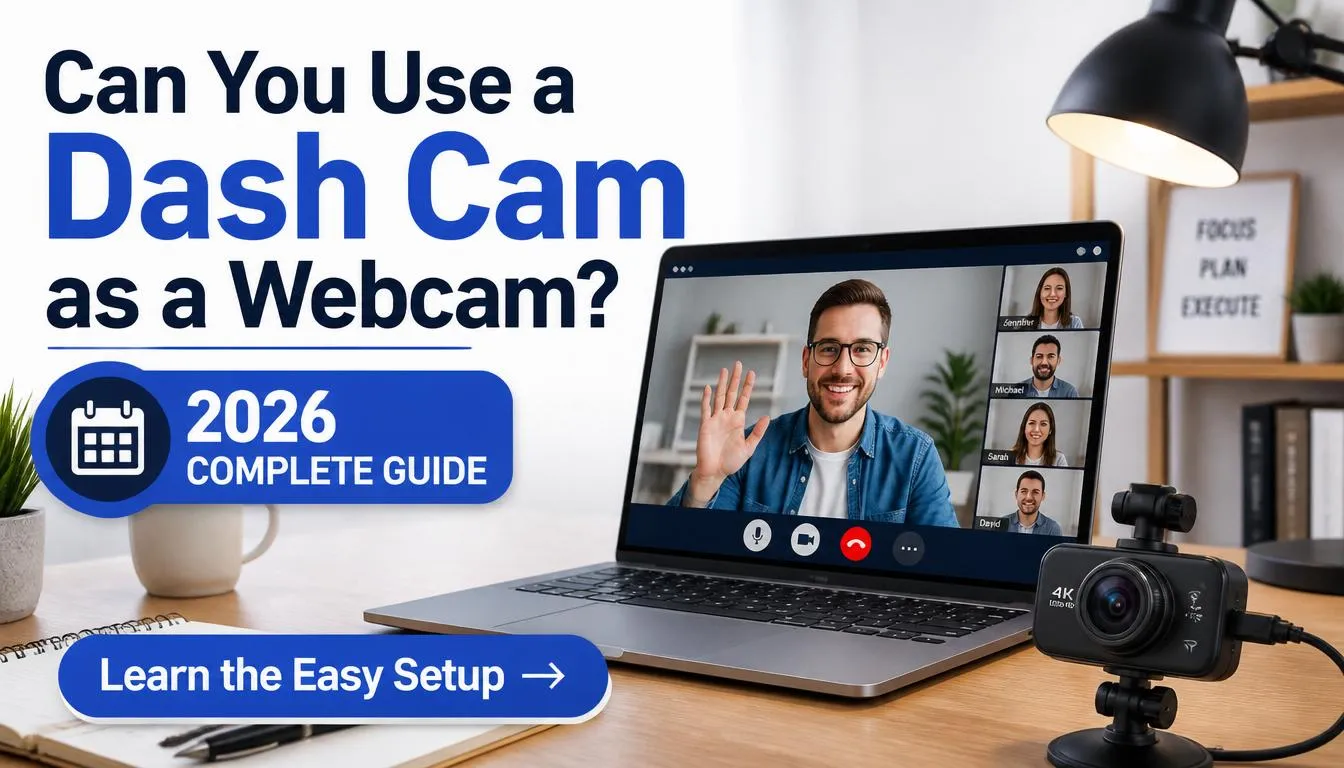
Can I Use a Dash Cam as a Webcam? Complete Guide (2026)
Yes, you can use a dash cam as a webcam, but it depends on the model and its video output capabilities. Some dash cams support webcam mode natively, while others require a USB video connection, an HDMI capture card, or streaming software to work with your computer. If you’re wondering whether you can save money…
-
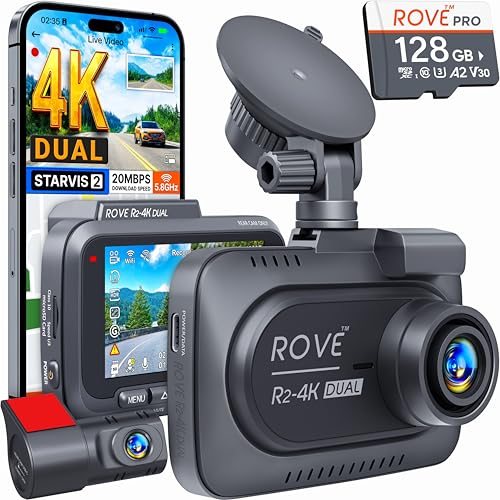
Best Dash Cams 2026: Crystal-Clear Protection for Every Drive
A dash cam is no longer a luxury add-on; it’s an essential piece of safety gear for any driver. From capturing unexpected road incidents to providing crucial evidence in an accident, a reliable dash cam offers peace of mind that’s hard to put a price on. After spending weeks testing the latest models on everything…
-
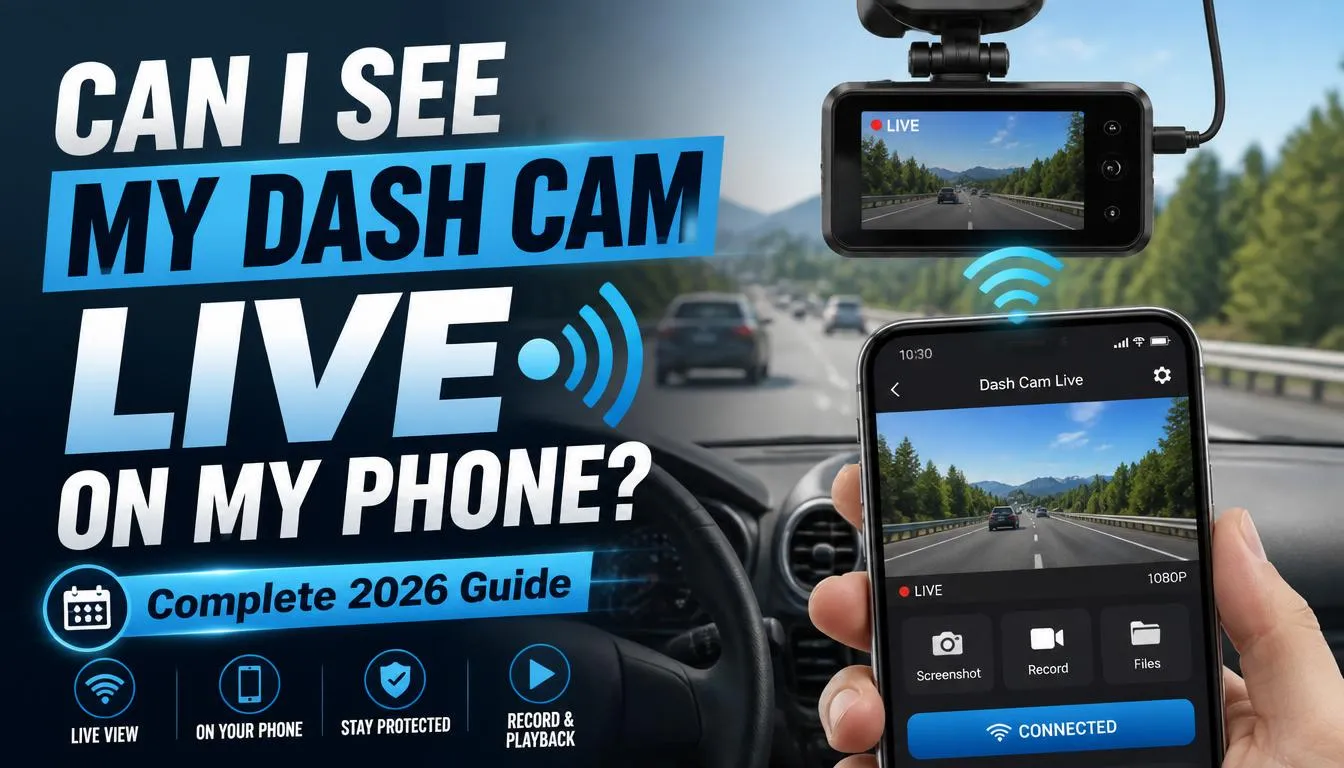
Can I See My Dash Cam Live on My Phone? Complete Guide (2026)
Yes, you can see your dash cam live on your phone if your camera supports Wi-Fi, LTE, or cloud connectivity through its companion app. However, the way you access the live feed depends on your dash cam’s features, whether you’re nearby or away from your vehicle, and whether your camera supports remote viewing. If you’ve…

Tony Kilmer is an auto mechanic and the author behind CarTruckAdvisor.com. He shares practical, no-nonsense guidance on car and truck maintenance, common problems, and repair decisions—helping drivers understand what’s going on and what to do next.