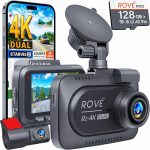
You just had a close call on the highway, or perhaps you returned to your parked car to find a mysterious dent in the bumper. Your dash cam was recording the entire time, but now you are staring at the small screen on the device, wondering how to actually see what it captured. This is a moment of truth for millions of drivers who install dash cams for security but never learn the essential skill of retrieving and viewing the footage. In 2026, with dash cams becoming standard equipment in many vehicles and resolutions reaching 4K and beyond, knowing how to access your recordings is no longer optional—it is a critical part of being a responsible driver.
Understanding how to view dash cam footage can mean the difference between proving your innocence in an accident and facing a costly insurance dispute. This guide will walk you through every method available in 2026, direct playback on the device to wireless streaming on your smartphone, and even advanced cloud-based retrieval systems. Whether you own a budget-friendly model or a high-end smart dash cam, you will learn the exact steps to locate, play, and manage your video files. By the end of this article, you will be confident in your ability to access your footage in any situation, ensuring you never miss a crucial piece of evidence.
Direct Playback on the Dash Cam Screen
The most straightforward method for viewing dash cam footage is using the built-in screen on the device itself. Most modern dash cams, especially those manufactured after 2020, come equipped with a small LCD display ranging from 1.5 to 3 inches. To begin, ensure your dash cam is powered on, either through its internal battery or by plugging it into your vehicle's 12V outlet. Locate the "Playback" or "Mode" button, which is typically marked with a triangle icon or the word "PLAY." Press this button to enter the video library, where you will see a list of files organized by date and time. Use the arrow buttons to scroll through the recordings, and press the "OK" or "Select" button to start playing a specific clip.
One important consideration is that dash cams use loop recording, meaning they overwrite the oldest footage when the memory card becomes full. This means you should view important footage as soon as possible after an incident. Many devices also have a "Lock" or "Protect" feature that prevents critical files from being deleted. If you witness an accident or a suspicious event, press the lock button immediately to save that segment permanently. For example, the popular VIOFO A139 Pro allows you to lock footage by pressing the emergency record button, which creates a separate folder that is immune to loop recording. This simple action ensures your evidence remains intact even if you forget to view it right away.
While direct playback is convenient, it has limitations. The small screen size makes it difficult to see fine details like license plates or street signs, and the audio quality from the built-in speaker is often poor. Additionally, navigating through dozens of files on a tiny interface can be time-consuming. For these reasons, most users prefer to transfer the footage to a larger screen for detailed analysis. However, direct playback remains the fastest way to confirm that your dash cam captured an event, especially when you are still in your car and need immediate confirmation. Always carry a small notepad or use your phone's notes app to jot down the file name and timestamp of any important clip before you leave the vehicle.
Removing the Memory Card and Using a Computer
For the highest quality viewing experience, removing the microSD memory card and inserting it into a computer is the gold standard method. This approach gives you access to the full resolution of your footage, allows you to use powerful video players, and makes it easy to save, edit, or share clips. Start by safely ejecting the memory card from your dash cam. Most devices have a small recessed slot that requires you to push the card in slightly until it clicks and pops out. Be careful not to touch the gold contacts on the card, as oils from your fingers can cause connectivity issues. Once removed, insert the card into a microSD card adapter or directly into your computer's SD card slot if it has one.
Once the card is connected, your computer will recognize it as a removable drive. Open the drive and you will typically find several folders, often named "DCIM," "VIDEO," or "RECORD." Inside these folders, files are usually organized by date, with names like "2026_03_15_14_30_45.MP4." The file format is almost always MP4, which is compatible with virtually every media player on Windows, macOS, and Linux. For the best playback, use a dedicated video player like VLC Media Player, which handles high-bitrate 4K footage smoothly and allows you to adjust playback speed, brightness, and contrast. If you need to capture a specific frame, VLC also has a screenshot feature that saves a still image without any loss of quality.
A common issue users face is that their computer does not recognize the memory card. This is often due to the card being formatted in a file system like exFAT or FAT32, which is standard for dash cams. If your computer prompts you to format the card, do not do it—this will erase all your footage. Instead, try using a different USB card reader or a different port on your computer. In 2026, many laptops have dropped SD card slots entirely, so a reliable external USB-C card reader is a worthwhile investment. Once you have successfully accessed the files, copy the entire folder of relevant footage to your computer's hard drive before doing anything else. This creates a backup and ensures you do not accidentally delete the files when you reinsert the card into the dash cam. Remember to format the card in the dash cam after transferring files to maintain optimal performance and prevent corruption.
Wireless Viewing via Smartphone App (Wi-Fi and Bluetooth)
The most convenient method for viewing dash cam footage in 2026 is through a dedicated smartphone app using Wi-Fi or Bluetooth connectivity. Most modern dash cams, including brands like Garmin, Nextbase, and Thinkware, come with built-in Wi-Fi that creates a local network between the camera and your phone. To get started, download the manufacturer's app from the App Store or Google Play. Then, turn on your dash cam and enable its Wi-Fi feature, which is usually found in the settings menu. On your phone, go to Wi-Fi settings and connect to the network name displayed on the dash cam's screen. The default password is often "12345678" or listed in the user manual, but you can change it for security.
Once connected, open the app and you will see a live view from the camera, as well as access to the recorded footage library. The app interface typically allows you to browse files by date, preview thumbnails, and download clips directly to your phone's storage. For example, the Nextbase iQ app in 2026 offers a "Timeline" view that shows a visual timeline of your entire trip, with red markers indicating events like hard braking or impact detection. You can tap on any marker to instantly play the corresponding footage. This feature is incredibly useful for quickly finding the exact moment of an incident without scrolling through hours of video. Many apps also allow you to share clips directly to social media or email, which is handy for reporting road hazards or sharing scenic drives.
Bluetooth is less common for video transfer due to its slower speeds, but it is used for basic functions like changing settings or receiving notifications. For actual video viewing, Wi-Fi is essential. However, there is a catch: the Wi-Fi connection between your phone and dash cam is a direct peer-to-peer link, meaning your phone will not have internet access while connected. This can be frustrating if you need to look up directions or send a message. Some premium dash cams in 2026, like the Garmin Dash Cam 67W, offer a "Dual-Band" Wi-Fi feature that allows simultaneous connection to both the dash cam and your home network, but this is still rare. To work around this, download the footage you need while connected, then disconnect from the dash cam's Wi-Fi to regain internet access. Always ensure your phone has enough storage space before downloading large 4K files, as a single minute of footage can be over 200 MB.
Cloud-Based Viewing and Remote Access
The cutting-edge method for viewing dash cam footage in 2026 is through cloud-based systems that allow you to access your recordings from anywhere in the world. This technology is typically found in high-end dash cams with built-in cellular connectivity, such as the Nextbase iQ or the BlackVue DR900X-Plus. These devices use a built-in eSIM or a physical SIM card to connect to 4G LTE or 5G, uploading footage to a secure cloud server automatically. To view your footage, you simply log into the manufacturer's cloud portal or app from any device—your phone, tablet, or laptop—and browse your library as if the files were stored locally. This is a game-changer for fleet managers, parents monitoring teen drivers, or anyone who wants real-time access to their vehicle's surroundings.
One of the most powerful features of cloud dash cams is event-triggered uploads. When the camera detects a collision, sudden movement, or even a loud noise, it automatically uploads the relevant footage to the cloud. This means that even if your car is stolen or the dash cam is damaged, the evidence is already safe and accessible. For example, the BlackVue Cloud service in 2026 offers "Live View" functionality, allowing you to watch a real-time feed of your parked car from thousands of miles away. You can also set up geofencing alerts, so you receive a notification and a video clip if your car enters or leaves a designated area. This level of security was once reserved for commercial vehicles, but it is now available to everyday drivers for a monthly subscription fee ranging from $5 to $20.
However, cloud-based viewing has significant drawbacks. The most obvious is the cost: the dash cam hardware itself is more expensive, and the monthly data plan adds a recurring expense. Additionally, video quality is often compressed during upload to save bandwidth, meaning the cloud footage may not be as sharp as the original file stored on the memory card. Data caps are another concern; a single 4K video clip can consume hundreds of megabytes, so heavy users may quickly exceed their plan's limit. Finally, privacy is a legitimate worry. Storing footage of your daily commutes and parking locations on a third-party server raises questions about who has access to that data. Always read the privacy policy carefully and choose a provider that offers end-to-end encryption. For most drivers, cloud viewing is best used as a backup for critical events rather than a primary method for everyday footage review.
Troubleshooting Common Viewing Problems and Best Practices
Even with the best equipment, you will inevitably encounter issues when trying to view dash cam footage. The most common problem is a corrupted or unreadable memory card. This often happens when the card is removed while the dash cam is still recording, or when the card has been used for years without being formatted. If your computer or dash cam cannot read the card, do not panic. First, try using data recovery software like Recuva or EaseUS Data Recovery Wizard. These programs can often retrieve files from a corrupted card, even if the card appears empty. Insert the card into your computer, run the recovery software, and scan for deleted or lost files. In many cases, you will recover the footage intact. If that fails, the card may be physically damaged, and professional data recovery services may be your only option, though this can be expensive.
Another frequent issue is that the video files play but have no audio, or the audio is out of sync. This is usually a codec problem. Dash cams often use compressed audio formats like AAC or PCM, and some media players may not support them properly. The solution is to use a versatile player like VLC Media Player, which includes built-in codecs for virtually every format. If the audio is still missing, check the dash cam's settings to ensure the microphone was enabled during recording. Many dash cams have a physical mute button that can be accidentally pressed. For syncing issues, try converting the file using a free tool like HandBrake, which can re-encode the video and audio streams into a standard format. Always test your dash cam's audio and video quality immediately after installation, and perform a weekly check to ensure everything is functioning correctly.
Best practices for hassle-free viewing start with your memory card. Use a high-endurance card specifically designed for dash cams, such as the Samsung Pro Endurance or SanDisk Max Endurance. These cards built to withstand the constant writing and rewriting of loop recording, and they are less prone to failure. Format the card inside the dash cam every two to four weeks to clear out file system errors. Additionally, keep a dedicated USB card reader in your glove compartment so you can quickly transfer footage to a laptop if needed. Finally, develop a routine: after any significant driving event, take two minutes to review the footage using your preferred method. This habit ensures you never miss a critical piece of evidence and keeps you prepared for any situation on the road.
Frequently Asked Questions
Why is my dash cam footage not showing up on my computer?
This is usually a connection or formatting issue. First, ensure you are using a compatible card reader and that the card is properly inserted. If the computer does not recognize the card, try a different USB port or reader. The card is likely formatted in exFAT or FAT32, which Windows and macOS can read, but some older systems may require a driver update. If the card appears empty, it may be corrupted. Use data recovery software like Recuva to scan for hidden files. Never format the card in your computer, as this will erase all footage. Always format the card inside the dash cam itself to maintain the correct file structure.
Can I view dash cam footage on my iPhone without removing the card?
Yes, if your dash cam has built-in Wi-Fi. Download the manufacturer's app from the App Store, connect your iPhone to the dash cam's Wi-Fi network, and open the app. You can then browse, preview, and download footage directly to your phone. Note that your iPhone will not have internet access while connected to the dash cam's Wi-Fi. For dash cams without Wi-Fi, you will need a Lightning-to-SD card reader accessory, which allows you to plug the memory card directly into your iPhone. Apple's official Lightning to SD Card Camera Reader works well for this purpose.
How do I view footage from a dash cam that has no screen and no Wi-Fi?
This is the most basic type of dash cam, and the only way to view footage is by removing the microSD card. Use a microSD to SD card adapter and insert it into a computer's SD card slot or a USB card reader. The files will be in the DCIM or VIDEO folder. If you do not have a computer you can use a smartphone with an OTG (On-The-Go) adapter. For Android phones, plug the card reader into the OTG adapter, then use a file manager app to browse the files. For iPhones, you will need the Lightning to SD Card Camera Reader. This method is slower but reliable.
Why is my dash cam footage choppy or stuttering when I play it?
Choppy playback is almost always a performance issue with your playback device. Dash cams record at high bitrates, especially in 4K, which requires a powerful processor to decode smoothly. On a computer, close other applications and use a lightweight player like VLC Media Player, which is optimized for high-bitrate video. On a smartphone, ensure you have downloaded the file to your device rather than streaming it over Wi-Fi, as streaming can cause buffering. If the footage is still choppy, the memory card may be too slow. Use a card with a U3 or V30 speed rating, which guarantees minimum write speeds of 30 MB/s. Older or counterfeit cards often cause recording and playback issues.
How long does dash cam footage stay on the memory card before it is deleted?
This depends on your memory card size, video resolution, and loop recording settings. For example, a 128GB card recording in 1080p at 30fps can hold approximately 10 to 12 hours of footage before the oldest files are overwritten. At 4K resolution, that drops to about 3 to 4 hours. Most dash cams allow you to set the loop recording length, typically 1, 3, or 5 minutes per file. Locked or protected files are never overwritten, so they will remain on the card until you manually delete them. To maximize storage, use a 256GB or 512GB high-endurance card, and regularly transfer important footage to a computer or cloud storage.
Conclusion
Viewing dash cam footage in 2026 easier than ever, with options ranging from simple on-screen playback to sophisticated cloud-based systems that let you check your car from anywhere in the world. The key is to understand which method works best for your specific dash cam model and your personal needs. For quick checks, the built-in screen or smartphone app is ideal. For detailed analysis and evidence preservation, removing the memory card and using a computer remains the most reliable approach. And for those who want ultimate convenience and security, cloud-connected dash cams offer peace of mind that your footage is safe even if the camera is destroyed.
No matter which method you choose, the most important step is to test your system before you need it. Take ten minutes this week to practice viewing a short clip using each available method. Familiarize yourself with the buttons, the app interface, and the file structure. Keep a spare memory card and a card reader in your glove box. By being proactive, you transform your dash cam from a passive recording device into an active tool for safety and accountability. The next time an unexpected event occurs on the road, you will be ready to access, review, and share your footage with confidence.

Tony Kilmer is an auto mechanic and the author behind CarTruckAdvisor.com. He shares practical, no-nonsense guidance on car and truck maintenance, common problems, and repair decisions—helping drivers understand what’s going on and what to do next.