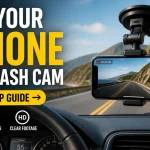
You have just unboxed your new Red Tiger dash cam, and the promise of crystal-clear 4K footage and reliable parking mode protection is exciting. However, that excitement can quickly turn to frustration when you are faced with a tangle of wires, a sticky windshield, and a confusing user manual. Installing a dash cam correctly is not just about sticking it to the glass; it is about ensuring optimal performance, legal compliance, and long-term reliability. A poor installation can lead to obstructed views, dead batteries, or even a camera that falls off on a hot day.
This guide is designed to walk you through every step of the installation process for your Red Tiger dash cam in 2026. Whether you own a front-only model like the Red Tiger F7N or a dual-camera system like the A26, this article covers everything from choosing the perfect mounting location to hardwiring the device for 24/7 surveillance. By the end, you will have the confidence to install your dash cam like a professional, ensuring you capture every mile safely and securely.
Pre-Installation Preparation: Tools and Placement Strategy
Before you touch the camera, you must prepare your workspace and your vehicle. The most common mistake people make is rushing to mount the camera without planning the cable route. For a Red Tiger dash cam, you will need a few basic tools: a plastic trim removal tool (to tuck wires behind panels), a microfiber cloth, isopropyl alcohol wipes, and optionally, a multimeter if you plan to hardwire the unit. If you are using the included 12V cigarette lighter adapter, ensure your vehicle’s fuse box is accessible as a backup plan.
The placement of the camera is critical for both video quality and legal safety. In most regions, including the US and Europe, it is illegal to mount anything in the driver’s primary field of view. For the front camera, the ideal spot is behind the rearview mirror, on the passenger side of the center console. This location keeps the camera out of your line of sight while providing a wide, unobstructed view of the road. For the rear camera (if you have a dual-channel model), mount it on the rear windshield, ideally at the top center, ensuring the lens is not blocked by the rear window defroster lines.
Finally, test the camera’s angle before you peel the adhesive. Red Tiger cameras often have a wide 170-degree lens, which can cause a fisheye effect if tilted too far down. Sit in the driver’s seat and adjust the camera so that the horizon line sits roughly one-third of the way from the top of the frame. This ensures you capture both the road ahead and the dashboard, which is crucial for proving you were not distracted in an accident. Clean the mounting area thoroughly with the alcohol wipe and let it dry completely before applying the 3M adhesive pad.
Step-by-Step Hardwiring: The Professional Installation Method
While plugging the dash cam into your cigarette lighter is simple, it leaves a dangling wire and occupies your only power port. Hardwiring your Red Tiger dash cam into your vehicle’s fuse box is the superior method for a clean, permanent installation. Most Red Tiger models, such as the F7N and A26, come with a hardwire kit that includes a voltage regulator. This regulator is essential because it prevents your car battery from draining below a safe level (usually 11.8V or 12.4V) when the car is off.
To begin hardwiring, locate your vehicle’s interior fuse box. This is typically under the dashboard on the driver’s side or inside the glove compartment. Use your owner’s manual to identify a fuse that is switched (only active when the car is on) for the ACC (accessory) wire, and a constant power fuse for the B+ wire. A common choice for ACC is the cigarette lighter or windshield wiper fuse. For constant power, use the interior light or door lock fuse. Use a multimeter to confirm which fuse slots are live with the key off and which are live only with the key on.
Connect the red wire from the Red Tiger hardwire kit to the ACC fuse slot using an add-a-circuit fuse tap. Connect the yellow wire (or the second red wire, depending on your kit) to the constant power slot. The black wire is the ground; attach it to a bare metal bolt on the vehicle’s chassis, such as one near the fuse box. Once connected, route the cable from the fuse box up the A-pillar. Tuck the wire behind the weather stripping and use the trim tool to hide it under the headliner. Finally, plug the hardwire kit’s barrel connector into the dash cam. The camera should power on when you start the car and enter parking mode when you turn it off.
Configuring the Red Tiger App and Camera Settings
With the camera physically installed, the next step is to configure the software. Red Tiger dash cams are designed to work with the "RoadCam" or "RedTiger" app (depending on your model year). Download the correct app from the iOS App Store or Google Play Store. Do not use a third-party app, as it may not support the specific features of your 2026 model, such as the new HDR night vision or the upgraded parking mode sensitivity.
To connect, turn on the camera and enable its Wi-Fi hotspot. This is usually done by pressing the "Menu" button for 3 seconds or navigating to the Wi-Fi settings on the camera’s screen. The camera will broadcast a network name (e.g., "RedTiger_XXXX"). Connect your phone to this network. The password is typically "12345678" or found on the camera’s sticker. Once connected, open the app. You will be prompted to set the date, time, and time zone. This is crucial because a dash cam with the wrong timestamp is useless as evidence.
Inside the app, you should adjust the video resolution. For 2026 models, set the front camera to 4K at 30fps for the best balance of detail and file size. For the rear camera, 1080p at 30fps is sufficient. Enable the "G-Sensor" but set it to "Medium" sensitivity. High sensitivity can cause the camera to lock files when you hit a pothole, filling up the memory card quickly. Finally, configure the parking mode. If you hardwired the camera, select "Time Lapse" or "Motion Detection" mode. Time lapse is recommended for continuous coverage, while motion detection saves battery life by only recording when something moves in front of the lens.
Memory Card Selection and File Management
Your Red Tiger dash cam is only as good as the memory card inside it. A common point of failure is using a cheap, slow SD card. Red Tiger cameras, especially those recording in 4K, require a high-endurance microSD card. Standard cards are not designed for the constant overwriting and heat exposure inside a vehicle. In 2026, the recommended specification is a U3 (UHS Speed Class 3) or V30 (Video Speed Class 30) card with a capacity between 64GB and 256GB. Brands like SanDisk High Endurance, Samsung Pro Endurance, or Kingston Industrial are ideal.
Before inserting the card, you must format it inside the camera. Do not format it on your computer. Insert the card into the camera, turn it on, and navigate to the "Format" option in the settings menu. Formatting clears the card and creates the correct file structure (DCIM folder) that the camera recognizes. You should format the card every two to four weeks to prevent file corruption. The camera will overwrite the oldest footage when the card is full, but formatting helps maintain file system integrity.
File management is also about knowing what to keep. The camera saves files into three folders: "Normal" (continuous loop recording), "Event" (locked files from G-Sensor or manual button press), and "Parking" (recordings from parking mode). If you witness an accident, press the "Lock" button on the camera immediately to save file from being overwritten. To transfer files to your phone, use the app’s Wi-Fi download feature. For large files, it is faster to remove the SD card and use a USB card reader connected to your computer. Remember that 4K footage takes up about 400MB per minute, so a 128GB card holds roughly 5 hours of continuous driving footage.
Troubleshooting Common Tiger Installation Issues
Even with careful installation, you may encounter issues. The most frequent problem is the camera turning off randomly or not entering parking mode. This is almost always a power connection issue. If you used the hardwire kit, check the fuse taps. A loose connection in the fuse box can cause intermittent power loss. Also, verify that the voltage cutoff setting in the hardwire kit is not set too high. If it is set to 12.4V, the camera will shut off to protect the battery after only a few minutes of parking. Lower it to 12.0V or 11.8V if you have a healthy car battery.
Another common issue is the "Lens Blur" or "Foggy" image. This happens when the camera is mounted too close to the windshield or when the air conditioning vents blow directly onto the lens. The temperature difference causes condensation. To fix this, ensure there is a 1-2mm gap between the camera lens and the glass. If the problem persists, use a defogger wipe on the inside of the windshield. If the image is blurry but not foggy, clean the lens with a dry microfiber cloth. The adhesive on the mount can also fail in extreme heat. If your camera falls off, use the included spare 3M pad, but first clean the glass with alcohol and warm the pad with a hairdryer for better adhesion.
Finally, if the Wi-Fi connection keeps dropping, it is usually a phone compatibility issue. Turn off your phone’s mobile data while connected to the camera’s Wi-Fi, as some phones try to switch to a cellular network with internet access. If the app says "No Signal," ensure the camera is not in "Screen Off" mode. Press the power button to wake the screen. For persistent errors, perform a factory reset by holding the "Reset" button (usually a pinhole on the side) with a paperclip for 10 seconds. This will clear all settings and often resolves software glitches.
Key Takeaways
- ✓ Mount the camera behind the rearview mirror on the passenger side to avoid obstructing your view and to comply with traffic laws.
- ✓ Hardwiring the dash cam using a fuse tap and a voltage regulator is the best method for a clean look and reliable 24/7 parking mode.
- ✓ Always format a new high-endurance U3/V30 microSD card inside the camera before first use to prevent file errors.
- ✓ Set the G-Sensor sensitivity to "Medium" to avoid locking unnecessary files from bumps and potholes.
- ✓ If the camera turns off unexpectedly, check the hardwire kit’s voltage cutoff setting and ensure all fuse connections are tight.
Frequently Asked Questions
Can I install a Red Tiger dash cam without hardwiring it?
Yes, absolutely. You can use the included 12V cigarette lighter adapter. Simply plug it into your car’s power outlet and route the cable along the headliner and A-pillar. This method is easier but leaves the cable visible near the dashboard and does not support parking mode unless your car’s outlet stays powered when the engine is off.
How do I hide the wire for the rear camera?
For a clean installation, run the rear camera cable along the headliner on the driver’s side. Use a plastic trim tool to tuck the wire under the rubber weather stripping of the door frame. Continue the wire along the top of the rear window and down to the rear camera mount. You may need to feed the wire through a rubber grommet if you have a hatchback or SUV.
Why does my Red Tiger dash cam keep beeping or saying "Card Error"?
This is usually caused by a slow or incompatible memory card. Ensure you are using a high-endurance U3 or V30 card. If the card is compatible, remove it, insert it into a computer, and run a full format (not quick format) to FAT32 or exFAT. Then, re-insert it into the camera and format it again using the camera’s menu.
How do I turn on parking mode on my Red Tiger dash cam?
Parking mode requires a hardwire kit connection to function properly. Once hardwired, go to the camera’s settings menu and find "Parking Mode." Select either "Time Lapse" (records one frame per second) or "Motion Detection" (records only when movement is detected). The camera will automatically switch to this mode when it detects the car’s ignition is off.
The video footage is very shaky. What can I do?
Shaky footage is often due to the camera not being mounted securely. Check that the adhesive pad is firmly attached to the glass and that the camera is clicked fully into the mount. If the mount is loose, replace the adhesive pad. Some Red Tiger models have a built-in EIS (Electronic Image Stabilization) feature; enable this in the video settings to reduce minor vibrations.
Conclusion
Installing a Red Tiger dash cam in 2026 is a straightforward process that dramatically improves your driving security and peace of mind. From the initial planning of the mount location to the final configuration of the app, each step is designed to ensure you capture high-quality, reliable footage. By choosing to hardwire the camera, you unlock the full potential of parking mode surveillance, protecting your vehicle even when you are not inside. Remember that the key to a successful installation lies in the preparation: using the right tools, selecting a high-endurance memory card, and taking the time to route cables neatly.
Now that you have the complete guide, it is time to take action. Gather your tools, park your car in a well-lit area, and follow the steps outlined above. Do not be afraid to test the camera’s angle and settings before you finalize the cable routing. A properly installed dash cam is an investment in your safety and a powerful tool for resolving disputes on the road. Start your installation today, and drive with the confidence that every moment is being recorded.

Tony Kilmer is an auto mechanic and the author behind CarTruckAdvisor.com. He shares practical, no-nonsense guidance on car and truck maintenance, common problems, and repair decisions—helping drivers understand what’s going on and what to do next.