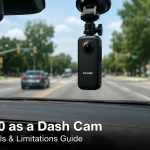
You have just installed your Viidure dash cam, and the small red light is blinking reassuringly on your windshield. But are you truly getting the most out of this powerful piece of technology? In 2026, dash cams have evolved far beyond simple recording devices; they are now intelligent witnesses that can protect you from insurance fraud, capture breathtaking road trips, and even monitor your parked car. The Viidure brand, known for its balance of affordability and high-end features like 4K resolution and parking mode, is a popular choice for drivers worldwide. However, without proper setup and understanding, you might be missing critical footage or draining your car battery unnecessarily.
This comprehensive guide is designed to transform you from a casual user into a Viidure expert. We will walk you through every step, from the initial unboxing and optimal mounting position to mastering advanced settings like loop recording, G-sensor sensitivity, and parking mode. You will learn how to retrieve and manage your footage, troubleshoot common issues like blurry video or "SD Card Error" messages, and ensure your device is always ready to capture the unexpected. By the end of this article, you will have the confidence to use your Viidure dash cam as a reliable guardian for every journey.
Unboxing and Physical Installation: Getting It Right the First Time
Before you even plug in your Viidure dash cam, proper physical installation is the single most important factor for long-term reliability. Start by carefully unboxing the contents: the camera unit, a long USB power cable, a car charger adapter (typically a 12V/24V cigarette lighter plug), a static sticker for mounting, and a trim removal tool if you plan to hide the cables. The most common mistake is mounting the camera too low on the windshield, which can obstruct your view and violate traffic laws in some regions. The ideal position is behind the rearview mirror, on the passenger side, ensuring the lens has a clear, unobstructed view of the road ahead without blocking your line of sight.
For a clean, professional installation, you will want to route the power cable along the headliner and down the A-pillar. Use the included trim removal tool to gently tuck the cable into the gap between the headliner and the windshield. Continue routing the cable down the side of the dashboard, behind the glove compartment, and finally to your cigarette lighter or OBD-II port. If your Viidure model supports a hardwire kit (sold separately), this is the best option for enabling 24/7 parking mode. A hardwire installation connects the camera directly to your car's fuse box, allowing it to draw power even when the engine is off, while a built-in voltage cutoff protects your battery from draining completely.
Once the cable is routed, clean your windshield area thoroughly with the included alcohol wipe or a microfiber cloth. Apply the static sticker to the glass first, then mount the camera onto the sticker. This allows you to remove the camera later without leaving a sticky residue. Adjust the camera angle so that the horizon line is roughly in the middle of the frame, with about 60% of the view showing the road and 40% showing the sky. Finally, plug in the power cable and start the car. You should hear a startup chime or see the screen illuminate. Do not fully tighten the camera's adjustment knob until you have verified the angle is perfect during a short test drive.
Key Takeaways
- ✓ Mount the camera behind the rearview mirror for optimal field of view and legal compliance, and route cables neatly using the included trim tool.
- ✓ Configure critical settings immediately: set date/time, enable loop recording at 3 minutes, activate WDR/HDR, and set G-sensor to medium sensitivity.
- ✓ Use the Lock File button immediately after an incident to preserve footage, and format your microSD card inside the camera every 2-4 weeks.
- ✓ For 24/7 protection, install a hardwire kit with a voltage cutoff set to 12.0V, and test your parking mode regularly to ensure it activates on impact.
- ✓ Troubleshoot blurry video by cleaning the lens and checking focus; resolve battery drain by verifying your power source; fix SD card errors by using a high-endurance U3 card and formatting in-camera.
Frequently Asked Questions
Why is my Viidure dash cam not recording in parking mode?
Parking mode requires a constant power source. If you are using the standard cigarette lighter adapter, the camera will turn off when the car is off. You need a hardwire kit connected to your fuse box. Also, ensure parking mode is enabled in the settings and that the voltage cutoff is not set too high, which would shut off the camera prematurely. Finally, check that the motion detection or impact sensitivity is not set too low.
How do I view my Viidure dash cam footage on my phone?
Most Viidure models have built-in Wi-Fi. the official Viidure app from the App Store or Google Play. Turn on the camera, then go to your phone's Wi-Fi settings and connect to the camera's network (the SSID and password are usually printed on the camera or in the manual). Open the app, and you can browse, download, and share your videos. If your model does not have Wi-Fi, you must remove the microSD card and use a card reader with your phone or computer.
What size microSD card does my Viidure dash cam support?
Most Viidure models support cards up to 128GB or 256GB, but always check your specific model's manual. It is critical to use a high-endurance card with a U3 or V30 speed rating. Standard cards will fail quickly due to the constant rewriting. A 64GB card is a good starting point, offering about 4-6 hours of 4K footage. Larger cards hold more footage but can take longer to format.
My video is very shaky or blurry. What is wrong?
Shaky video is usually caused by a loose mount. Check that the suction cup or adhesive mount is firmly attached to the windshield and that the camera is locked into the mount securely. Blurry video is often a dirty lens or a protective film that was not removed. Clean the lens with a microfiber cloth. If the image is still out of focus, your model may have a manual focus ring that has been bumped. Gently rotate it while viewing the live feed until the image is sharp.
How do I prevent my car battery from dying when using the dash cam?
If you are using the cigarette lighter, check if your car's outlet is always-on or switched. If it is always-on, unplug the camera when parked, or use a smart USB adapter with a timer. For hardwire installations, the built-in voltage cutoff is your best defense. Set it to 12.0V for lead-acid batteries. This will automatically shut off the camera when the battery voltage drops to a safe level, ensuring you can still start your car.
Conclusion
Your Viidure dash cam is a powerful tool for safety, security, and peace of mind, but its true value is unlocked only through proper setup and understanding. From the initial mounting and cable routing to configuring advanced features like parking mode and GPS, every step you take ensures that your camera is ready to capture the unexpected. We have covered the essential settings, file management strategies, and common troubleshooting steps that will keep your device running smoothly for years. Remember, the key to reliable performance is regular maintenance: format your card monthly, update your firmware, and test your parking mode periodically.
Now that you have this knowledge, take action. Go to your car and verify your current settings. Is your date and time correct? Is your G-sensor sensitivity set appropriately? Have you tested your parking mode recently? If you have been putting off a hardwire installation, consider making that upgrade for 24/7 protection. Your Viidure dash cam is an investment in your safety and your driving record. By mastering its features, you are not just a driver; you are a prepared, informed motorist ready for whatever the road throws your way. Drive confidently, knowing your digital witness is always on duty.

Tony Kilmer is an auto mechanic and the author behind CarTruckAdvisor.com. He shares practical, no-nonsense guidance on car and truck maintenance, common problems, and repair decisions—helping drivers understand what’s going on and what to do next.