Yes, you can use a dash cam as a webcam, but it depends on the model and its video output capabilities. Some dash cams support webcam mode natively, while others require a USB video connection, an HDMI capture card, or streaming software to work with your computer.
If you’re wondering whether you can save money by using your dash cam for Zoom meetings, online classes, live streaming, or video conferencing, this guide explains everything you need to know. I’ll walk you through compatible setups, supported devices, common problems, and the best methods to turn your dash cam into a functional webcam.
Can You Really Use a Dash Cam as a Webcam?
The short answer is yes—but not every dash cam is designed for this purpose.
Many people already own a dash cam and wonder whether they can avoid buying a separate webcam. In some cases, the answer is yes. Modern dash cams often include high-resolution sensors capable of recording sharp 1080p, 2K, or even 4K video. However, recording high-quality footage isn’t the same as sending live video to a computer.
Whether your dash cam can function as a webcam depends on several factors:
- Whether it supports USB Video Class (UVC) or a dedicated webcam mode
- Whether it offers HDMI video output
- Whether your computer can recognize it as a video input device
- Whether you have the necessary accessories, such as a capture card
- Whether the manufacturer’s firmware allows live video streaming
Some premium dash cams work almost like plug-and-play webcams, while others require additional hardware and software.
When Using a Dash Cam as a Webcam Makes Sense
Using your dash cam as a webcam can be a smart solution if you:
- Already own a high-quality dash cam
- Occasionally attend Zoom or Microsoft Teams meetings
- Want to avoid purchasing another camera
- Need a temporary webcam for remote work or online classes
- Stream through OBS Studio
- Travel frequently and want one camera for multiple purposes
When It Doesn’t Make Sense
A dedicated webcam is usually the better choice if you:
- Attend video meetings every day
- Need reliable autofocus
- Require automatic exposure adjustment
- Want built-in background blur features
- Need seamless plug-and-play compatibility
- Frequently use facial tracking or AI enhancements
Understanding these differences will help you decide whether repurposing your dash cam is practical or if investing in a webcam is the better long-term option.
How Does a Dash Cam Differ from a Webcam?
Although both devices capture video, they are built for completely different purposes.
A dash cam is designed to continuously record the road while driving. A webcam is specifically made for real-time video communication through a computer.
Here’s a quick comparison.
| Feature | Dash Cam | Webcam |
|---|---|---|
| Primary Purpose | Driving footage | Video calls and streaming |
| Live Video Support | Some models | Yes |
| USB Webcam Mode | Limited models | Standard |
| HDMI Output | Some premium models | Rare |
| Autofocus | Usually fixed focus | Often automatic |
| Built-in Microphone | Yes | Yes |
| Computer Compatibility | Limited | Excellent |
| Plug-and-Play | Rare | Yes |
| Continuous Recording | Excellent | Not designed for recording while driving |
| AI Features | Minimal | Often included |
Image Quality
Many people assume that because a dash cam records in 4K, it will outperform a webcam.
In reality, that’s not always true.
A dash cam is optimized for:
- Bright outdoor environments
- Wide-angle road coverage
- License plate recognition
- Motion recording
A webcam is optimized for:
- Indoor lighting
- Face exposure
- Skin tones
- Stable frame rates
- Eye contact during meetings
This is why a good 1080p webcam may actually produce a better video call than a 4K dash cam.
Can Every Dash Cam Work as a Webcam?
No.
This is one of the biggest misconceptions.
Most dash cams cannot function as webcams simply by connecting them to a computer with a USB cable.
When connected via USB, many dash cams enter one of these modes:
- Charging mode
- File transfer mode
- SD card reader mode
None of these modes send live video to your computer.
To function as a webcam, the dash cam must support one of the following:
1. Native Webcam Mode
Some manufacturers include dedicated firmware that allows the dash cam to appear as a webcam.
This is the easiest option because no extra hardware is required.
2. USB Video Class (UVC)
Dash cams supporting UVC behave like standard webcams.
When connected, Windows or macOS recognizes the camera automatically.
No capture card is needed.
3. HDMI Live Output
Many premium dash cams provide a clean HDMI signal.
Using an HDMI capture card, your computer recognizes this signal as a webcam.
This method often delivers the highest image quality.
4. Wi-Fi Live Streaming
Some Wi-Fi-enabled dash cams can stream live video to a mobile app.
With additional software, that live feed can sometimes be routed into OBS or another streaming application.
Although this approach requires more setup, it can work well for advanced users.
Which Dash Cams Support Webcam Mode?
Support varies significantly by manufacturer and model.
Some brands offer official webcam functionality, while others only provide video playback or mobile streaming.
Below is a general overview.
| Brand | Webcam Mode | HDMI Output | USB Video | Suitable for Webcam Use |
|---|---|---|---|---|
| Garmin | Limited Models | Some | Limited | Good |
| Nextbase | Selected Models | Some | Limited | Good |
| Vantrue | Limited | Yes | No | Good with Capture Card |
| VIOFO | Rare | Yes | No | Possible |
| BlackVue | App Streaming | Limited | No | Moderate |
| Thinkware | App Streaming | Some | No | Moderate |
| Redtiger | Varies | Some | Limited | Moderate |
| Rexing | Limited | Some | Limited | Moderate |
Always check the product specifications before purchasing if webcam functionality is important to you.
Video Quality: Can a Dash Cam Match a Webcam?
The answer depends on how you plan to use it.
For occasional meetings, a quality dash cam can deliver surprisingly sharp video. Many modern models record in Full HD, 2K, or even 4K, making them more than capable of producing clear images.
However, raw resolution isn’t everything.
Several factors affect the overall experience:
Lens Design
Dash cams use ultra-wide-angle lenses to capture as much of the road as possible.
During video calls, this can create:
- Distorted facial proportions
- Extra background distractions
- A less professional appearance
Low-Light Performance
Dash cams are designed for driving during the day and at night, but indoor lighting presents different challenges.
Without proper lighting, you may notice:
- Increased image noise
- Washed-out colors
- Dark shadows on your face
Autofocus
Most dash cams use fixed-focus lenses.
That works well inside a vehicle because the road is always several feet away.
During a video meeting, however, fixed focus may not produce the same crisp facial detail as a webcam with continuous autofocus.
Frame Rate
Most dash cams record at:
- 30 FPS
- 60 FPS
Both are suitable for smooth video calls.
Higher frame rates are especially useful for live streaming and content creation.
Color Accuracy
Dedicated webcams generally produce:
- Better white balance
- More natural skin tones
- Improved exposure adjustments
- Better HDR processing
If your primary goal is professional-looking meetings, a webcam still has the advantage.
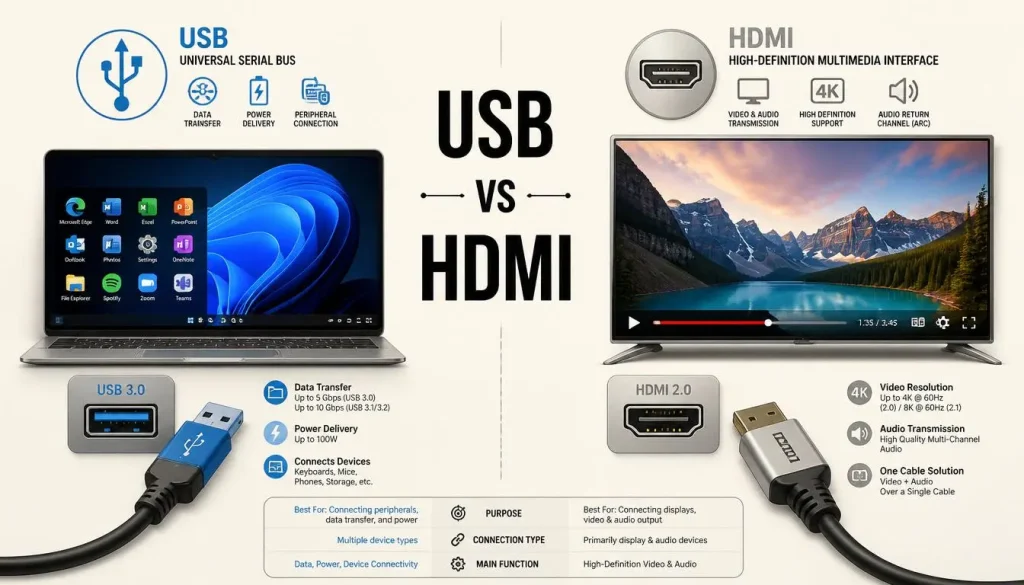
USB vs. HDMI: Which Connection Works Best?
One of the biggest questions people ask is whether they should connect their dash cam using USB or HDMI.
The right choice depends on your dash cam’s hardware and supported features.
USB Connection
Advantages
- Simple setup
- Fewer cables
- No capture card required (if UVC is supported)
- Lower overall cost
Disadvantages
- Many dash cams only support charging or file transfer over USB.
- Compatibility varies widely between manufacturers.
HDMI Connection
Advantages
- Higher-quality live video
- More stable signal
- Works with many professional streaming setups
- Ideal for OBS Studio and live broadcasting
Disadvantages
- Requires an HDMI capture card
- Additional cost
- More cables and setup time
Which Should You Choose?
If your dash cam includes a true USB webcam mode, USB is the simplest and most affordable option.
If it only offers clean HDMI output, using an HDMI capture card will usually provide the best video quality and the most reliable connection.
Can You Use a Dash Cam as a Webcam Without a Capture Card?
Yes, but only if your dash cam supports native webcam mode or USB Video Class (UVC). This is one of the most common questions people ask because a capture card adds extra cost.
Here’s what to expect based on your dash cam’s capabilities.
| Dash Cam Feature | Capture Card Needed? |
|---|---|
| Native Webcam Mode | No |
| USB Video Class (UVC) | No |
| HDMI Video Output Only | Yes |
| Wi-Fi Live Streaming | Usually No (Software Required) |
| USB File Transfer Only | Not Possible |
When You Don’t Need a Capture Card
If your dash cam is recognized by Windows or macOS as a standard camera after connecting it with a USB cable, you’re ready to use it in applications like:
- Zoom
- Google Meet
- Microsoft Teams
- Skype
- Discord
No additional hardware is required.
When You Do Need One
If your dash cam only outputs live video through HDMI, your computer won’t recognize it directly.
You’ll need:
- An HDMI cable
- A USB HDMI capture card
- Video conferencing or streaming software
This setup is commonly used by YouTubers and livestreamers because it provides excellent image quality.
Operating System Compatibility
Not every operating system handles external cameras in the same way. Before spending time troubleshooting, make sure your computer supports your dash cam.
Windows 11
Windows 11 offers the best compatibility.
If your dash cam supports webcam mode or UVC:
- Plug it into a USB port.
- Wait for Windows to install the driver automatically.
- Open the Camera app to confirm it’s detected.
- Select it inside Zoom or Teams.
If you’re using HDMI:
- Connect the dash cam to the capture card.
- Plug the capture card into your PC.
- Select the capture card as your webcam.
Windows 10
The process is nearly identical.
Most compatibility issues on Windows 10 are caused by:
- Outdated USB drivers
- Faulty USB cables
- Unsupported dash cam firmware
- Privacy settings blocking camera access
Always enable camera permissions in Windows Settings before troubleshooting further.
macOS
Modern versions of macOS recognize many USB webcams automatically.
However, some dash cams require:
- Manufacturer software
- Firmware updates
- OBS Virtual Camera
- HDMI capture devices
Mac users should always check whether their dash cam officially supports macOS.
Chromebook
Chromebooks have limited support for external cameras.
If the dash cam supports USB webcam mode, it may work immediately.
HDMI capture devices are also supported by many recent Chromebooks, making them a good alternative.
Linux
Linux compatibility varies depending on the distribution.
Many UVC-compatible dash cams work immediately without installing additional drivers.
Advanced users can also use:
- OBS Studio
- FFmpeg
- VLC
- GStreamer
for custom streaming setups.
Ways to Use a Dash Cam as a Webcam
There isn’t just one method.
Depending on your dash cam, you may have several options.
Method 1: Native Webcam Mode (Best Option)
Some manufacturers include official webcam firmware.
Setup is simple.
- Connect the dash cam via USB.
- Switch to Webcam Mode.
- Wait for your computer to recognize it.
- Open your meeting software.
- Select the dash cam.
Best for:
- Beginners
- Remote workers
- Students
- Video meetings
Method 2: USB Video Class (UVC)
Some dash cams behave like traditional webcams.
The operating system automatically detects the device.
Advantages include:
- Fast setup
- Low latency
- Stable connection
- No capture card required
Method 3: HDMI Capture Card (Highest Quality)
If your dash cam provides clean HDMI output, this is often the best solution.
Setup process:
- Connect HDMI from the dash cam.
- Plug HDMI into the capture card.
- Connect the capture card to your computer.
- Open Zoom or OBS.
- Select the capture device.
Advantages include:
- Excellent video quality
- Reliable signal
- Ideal for streaming
- Compatible with most platforms
Method 4: OBS Studio
OBS Studio acts as a bridge between your dash cam and video conferencing software.
This method works particularly well for livestreaming.
Benefits include:
- Scene switching
- Text overlays
- Backgrounds
- Picture-in-picture
- Recording
- Live streaming
Once configured, enable OBS Virtual Camera so Zoom or Teams recognizes it as a webcam.
Method 5: Wi-Fi Streaming
Some Wi-Fi-enabled dash cams stream live video to a smartphone application.
Advanced users can forward this feed into OBS using screen capture or network streaming tools.
Although setup is more complicated, it avoids additional hardware.
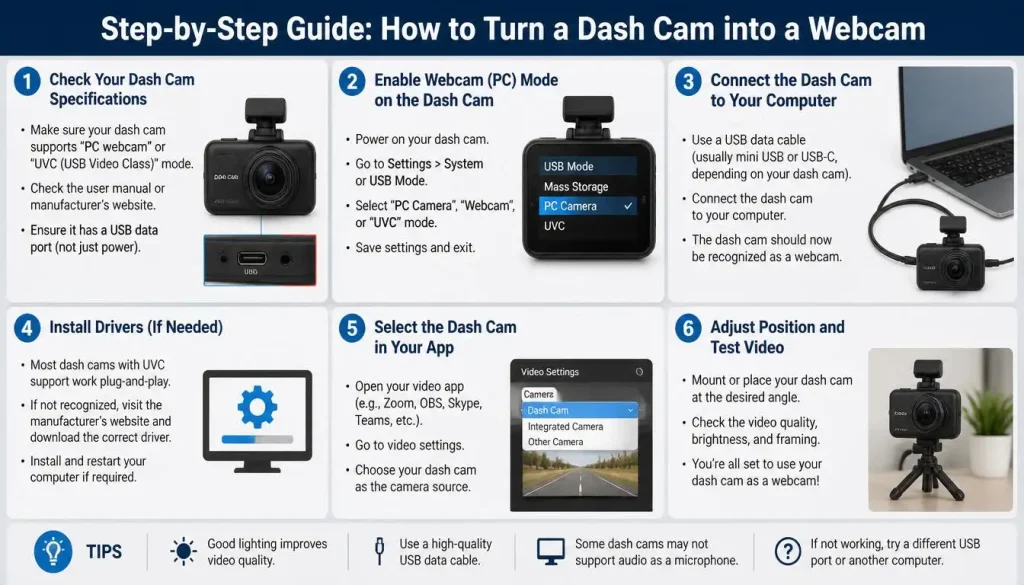
Step-by-Step Guide: How to Turn a Dash Cam into a Webcam
If you’re new to this process, follow these steps carefully.
Step 1: Check Your Dash Cam Specifications
Before buying cables or software, verify that your dash cam supports at least one of these:
- Webcam Mode
- USB Video
- HDMI Live Output
- Wi-Fi Live View
If none of these features are available, the dash cam cannot function as a webcam.
Step 2: Gather the Necessary Equipment
Depending on your setup, you may need:
- Dash cam
- USB cable
- HDMI cable
- HDMI capture card
- Computer
- Stable power source
- Mount or tripod
Step 3: Connect the Dash Cam
Choose the appropriate connection method:
- USB
- HDMI
- Wi-Fi
Avoid using damaged or low-quality cables, as they can cause random disconnects.
Step 4: Install Required Software
Some manufacturers provide dedicated webcam utilities.
Others require software such as:
- OBS Studio
- Camera utility applications
- Firmware updates
Always download software from the manufacturer’s official website.
Step 5: Test the Camera
Open your preferred application.
Examples include:
- Zoom
- Google Meet
- Microsoft Teams
- Discord
- Skype
Select the dash cam from the camera settings.
Verify:
- Video quality
- Frame rate
- Brightness
- Audio
- Stability
Step 6: Optimize Camera Position
Unlike webcams, dash cams have ultra-wide lenses.
Position the camera:
- At eye level
- Approximately 2–3 feet away
- With adequate lighting
- Against a clean background
This dramatically improves the professional appearance of your video calls.
Extra Equipment You May Need
Many first-time users assume only a USB cable is necessary.
Depending on your dash cam, additional equipment can improve compatibility and image quality.
| Equipment | Purpose |
|---|---|
| USB Cable | Connects directly to the PC |
| HDMI Cable | Transfers live video |
| HDMI Capture Card | Converts HDMI into a webcam source |
| Tripod or Mount | Better camera positioning |
| USB Power Adapter | Continuous power |
| OBS Studio | Streaming and webcam software |
| Extension Cable | Flexible placement |
You may not need every item, but having the right accessories can save time and reduce troubleshooting.
Can You Use a Dash Cam With Popular Video Apps?
One of the biggest reasons people repurpose a dash cam is to use it for meetings or content creation.
Here’s how it works with the most common platforms.
Zoom
If your computer recognizes the dash cam as a webcam:
- Open Zoom.
- Go to Settings > Video.
- Select your dash cam or capture card.
- Preview the image before joining a meeting.
Microsoft Teams
Teams detects most USB webcams automatically.
Simply choose your dash cam under Devices > Camera.
Google Meet
Google Meet runs in your browser.
When joining a meeting:
- Click Settings
- Open Video
- Choose your dash cam
If using OBS Virtual Camera, select OBS instead.
Discord
Discord works well with:
- USB webcam mode
- HDMI capture cards
- OBS Virtual Camera
For streaming communities, OBS often provides the most flexibility.
OBS Studio
OBS is one of the most powerful tools for using a dash cam as a webcam.
You can:
- Record videos
- Livestream
- Add overlays
- Mix multiple cameras
- Create professional scenes
- Improve lighting with filters
It is especially useful if you’re creating YouTube videos or streaming on Twitch.
Streamlabs
Streamlabs recognizes most capture devices and OBS Virtual Camera.
This makes it another excellent option for creators who want to use a dash cam for live broadcasts.
Best Dash Cams That Can Work as Webcams
If you’re planning to buy a dash cam that can also serve as a webcam, choosing the right model is important. While not every dash cam offers dedicated webcam functionality, several premium models provide features like HDMI output, Wi-Fi live view, or USB video support that make them suitable for video calls and streaming.
The table below gives you a general comparison.
| Dash Cam Brand | Webcam Mode | HDMI Output | Wi-Fi Live View | Best For |
|---|---|---|---|---|
| Garmin | Limited Models | Some Models | Yes | Everyday users |
| Nextbase | Selected Models | Some Models | Yes | Remote work and travel |
| Vantrue | No Native Mode | Yes | Limited | HDMI capture setups |
| VIOFO | Limited | Yes | Some Models | High video quality |
| BlackVue | No Native Mode | Limited | Excellent | Live monitoring |
| Thinkware | Limited | Some Models | Excellent | Cloud-connected users |
| Redtiger | Varies | Some Models | Yes | Budget-conscious buyers |
| Rexing | Limited | Some Models | Limited | Occasional webcam use |
Before purchasing, always check the latest specifications from the manufacturer because features can change with firmware updates or newer hardware revisions.
Can a Dash Cam Record While Being Used as a Webcam?
This depends entirely on the dash cam model.
Some dash cams disable recording when they switch into webcam mode, while others allow simultaneous recording and live video output.
Generally speaking:
Simultaneous Recording Is More Likely If:
- The dash cam uses HDMI output.
- The processor supports dual video streams.
- The manufacturer specifically advertises this feature.
Recording May Stop If:
- The camera enters dedicated webcam mode.
- USB bandwidth is limited.
- The firmware disables recording to improve live streaming performance.
If continuous recording is important, test your setup before relying on it during an important meeting or livestream.
Can You Live Stream Using a Dash Cam?
Yes, many dash cams can be used for live streaming if they provide a compatible video output.
Common streaming platforms include:
- YouTube Live
- Twitch
- Facebook Live
- Kick
- OBS Studio
- Streamlabs
A typical setup looks like this:
Dash Cam → HDMI Output → Capture Card → Computer → OBS Studio → Streaming Platform
This configuration provides a stable, high-quality video feed and is commonly used by creators who already own a capable dash cam.
Keep in mind that a wide-angle lens may capture more of your surroundings than you intend. Position the camera carefully to maintain a professional appearance.
Can You Use the Dash Cam Microphone Too?
Most dash cams include a built-in microphone, but using it during video calls isn’t always straightforward.
Whether your computer recognizes the microphone depends on the camera’s hardware and firmware.
The Microphone Usually Works If:
- The dash cam supports USB webcam mode with audio.
- The manufacturer includes audio drivers.
- The capture device transfers both video and audio.
The Microphone May Not Work If:
- You’re only using HDMI video output.
- Audio isn’t supported by the capture device.
- The firmware only sends video.
For professional meetings, an external USB microphone or headset usually delivers clearer voice quality and better noise reduction.
Common Problems and How to Fix Them
Even with the correct equipment, you may encounter a few issues during setup. Fortunately, most problems have simple solutions.
Dash Cam Isn’t Detected
Possible causes:
- USB cable only supports charging.
- Webcam mode isn’t enabled.
- Outdated firmware.
- Unsupported dash cam model.
Solution:
- Use a data-capable USB cable.
- Enable webcam mode if available.
- Update the camera firmware.
- Restart both the camera and computer.
Black Screen
Possible causes:
- Loose HDMI cable.
- Unsupported resolution.
- Capture card issue.
Solution:
- Reconnect all cables.
- Lower the video resolution.
- Test the capture card with another HDMI device.
Poor Video Quality
Possible causes:
- Low lighting.
- Dirty lens.
- Incorrect camera position.
Solution:
- Improve room lighting.
- Clean the lens.
- Position the camera at eye level.
- Reduce digital zoom if available.
Audio Doesn’t Work
Possible causes:
- Microphone not supported.
- Incorrect audio source selected.
Solution:
- Select the correct microphone in your meeting software.
- Use an external USB microphone if necessary.
OBS Doesn’t Recognize the Camera
Possible causes:
- Capture device driver issue.
- Camera already in use by another application.
Solution:
- Close other camera applications.
- Restart OBS.
- Update capture card drivers.
Pros and Cons of Using a Dash Cam as a Webcam
Every setup has advantages and disadvantages.
Pros
- Saves money if you already own a dash cam.
- High-resolution image on many models.
- Useful for occasional meetings.
- Can double as a streaming camera.
- Portable and travel-friendly.
- Supports multiple connection methods on some models.
Cons
- Not all dash cams support webcam mode.
- Wide-angle lens may distort your face.
- Autofocus is often limited.
- Setup can require additional hardware.
- Built-in microphones may not perform well.
- Compatibility varies between brands and operating systems.
Dash Cam vs. Webcam: Which Should You Choose?
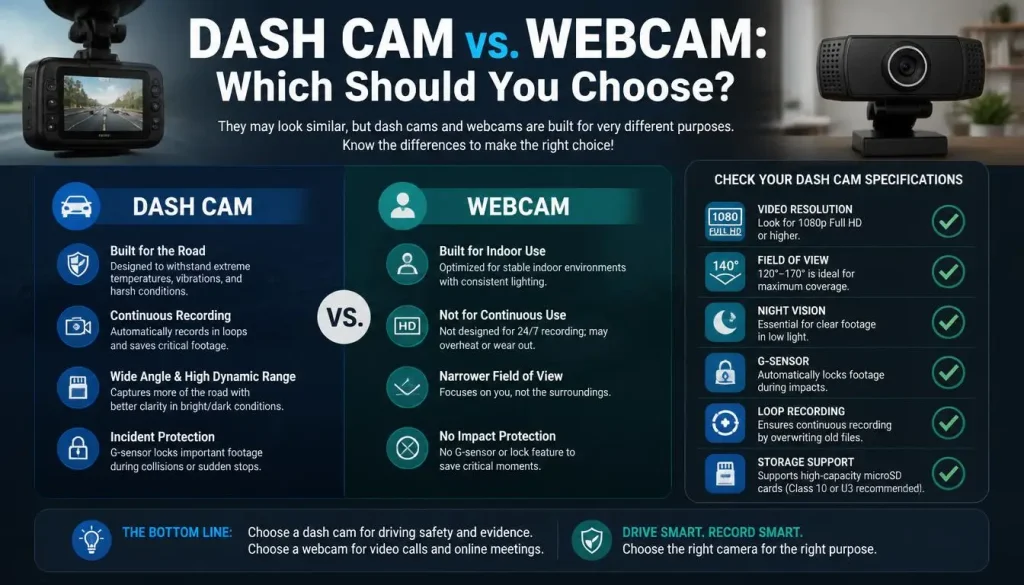
Choosing between a dash cam and a dedicated webcam depends on how you plan to use it.
| Situation | Better Choice |
|---|---|
| Daily remote work | Webcam |
| Online classes | Webcam |
| Occasional Zoom meetings | Dash Cam |
| Travel setup | Dash Cam |
| YouTube livestreaming | Either, depending on setup |
| Professional presentations | Webcam |
| Emergency backup camera | Dash Cam |
If you attend video meetings every day, a quality webcam remains the better investment.
If you already own a compatible dash cam and only need a camera occasionally, using it as a webcam can be a practical and cost-effective solution.
Who Should Use a Dash Cam as a Webcam?
Using a dash cam as a webcam isn’t the right choice for everyone.
It can be an excellent option for:
- Remote workers who already own a compatible dash cam.
- College students attending occasional online classes.
- Travelers who want one camera for multiple purposes.
- Content creators experimenting with OBS Studio.
- Budget-conscious users who don’t want to buy another device.
On the other hand, if your job depends on professional video quality every day, a dedicated webcam is usually the better long-term investment.
Expert Tips for Better Webcam Performance
After testing different camera setups over the years, I’ve found that small adjustments often make a bigger difference than buying more expensive hardware.
Here are a few practical tips:
- Position the camera at eye level instead of below your face.
- Use soft lighting in front of you rather than bright light behind you.
- Keep the camera about 2–3 feet (60–90 cm) away for a natural perspective.
- Clean the dash cam lens before every important meeting.
- Use a stable power source to avoid unexpected shutdowns.
- Close unnecessary applications to reduce CPU usage during video calls.
- Update your dash cam firmware whenever the manufacturer releases improvements.
These simple changes can noticeably improve your video quality without spending extra money.
Frequently Asked Questions
Can I use a dash cam as a webcam without a capture card?
Yes, if the dash cam supports native webcam mode or USB Video Class (UVC). Otherwise, you’ll typically need an HDMI capture card.
Can I connect my dash cam directly to my computer?
Only if the dash cam supports live video output over USB or webcam mode. Many models only support charging or file transfer when connected via USB.
Can I use a dash cam for Zoom meetings?
Yes. Once your computer recognizes the dash cam or capture card as a webcam, you can select it in Zoom’s video settings.
Will Google Meet recognize my dash cam?
If your operating system detects the dash cam as a webcam, Google Meet can usually use it through your browser.
Can I use a dash cam with OBS Studio?
Yes. OBS Studio works well with USB webcam mode, HDMI capture cards, and many virtual camera setups.
Does every dash cam support webcam mode?
No. Support varies by brand and model, so always check the product specifications before purchasing.
Can I livestream with a dash cam?
Yes. Many compatible dash cams work well for livestreaming through OBS Studio, Streamlabs, or similar software.
Is a dash cam better than a webcam?
Not usually. A dedicated webcam is generally optimized for video calls, while a dash cam is designed primarily for recording the road. However, a compatible dash cam can still be an excellent backup solution.
Final Verdict
So, can you use a dash cam as a webcam? In many cases, yes—but the experience depends on the features built into your specific dash cam.
If your model supports webcam mode, USB Video Class (UVC), or clean HDMI output, it can serve as a capable webcam for Zoom meetings, Google Meet, Microsoft Teams, livestreaming, or content creation. For occasional use, repurposing your dash cam can save money and reduce the need for another device.
However, if you rely on video conferencing every day, need advanced autofocus, AI enhancements, or effortless plug-and-play performance, a dedicated webcam remains the better choice.
Before purchasing extra accessories, confirm your dash cam’s specifications and choose the connection method that best matches your needs. With the right setup, your dash cam can become a surprisingly effective webcam for work, study, and streaming.
Get Update Info on Dash Cam
-
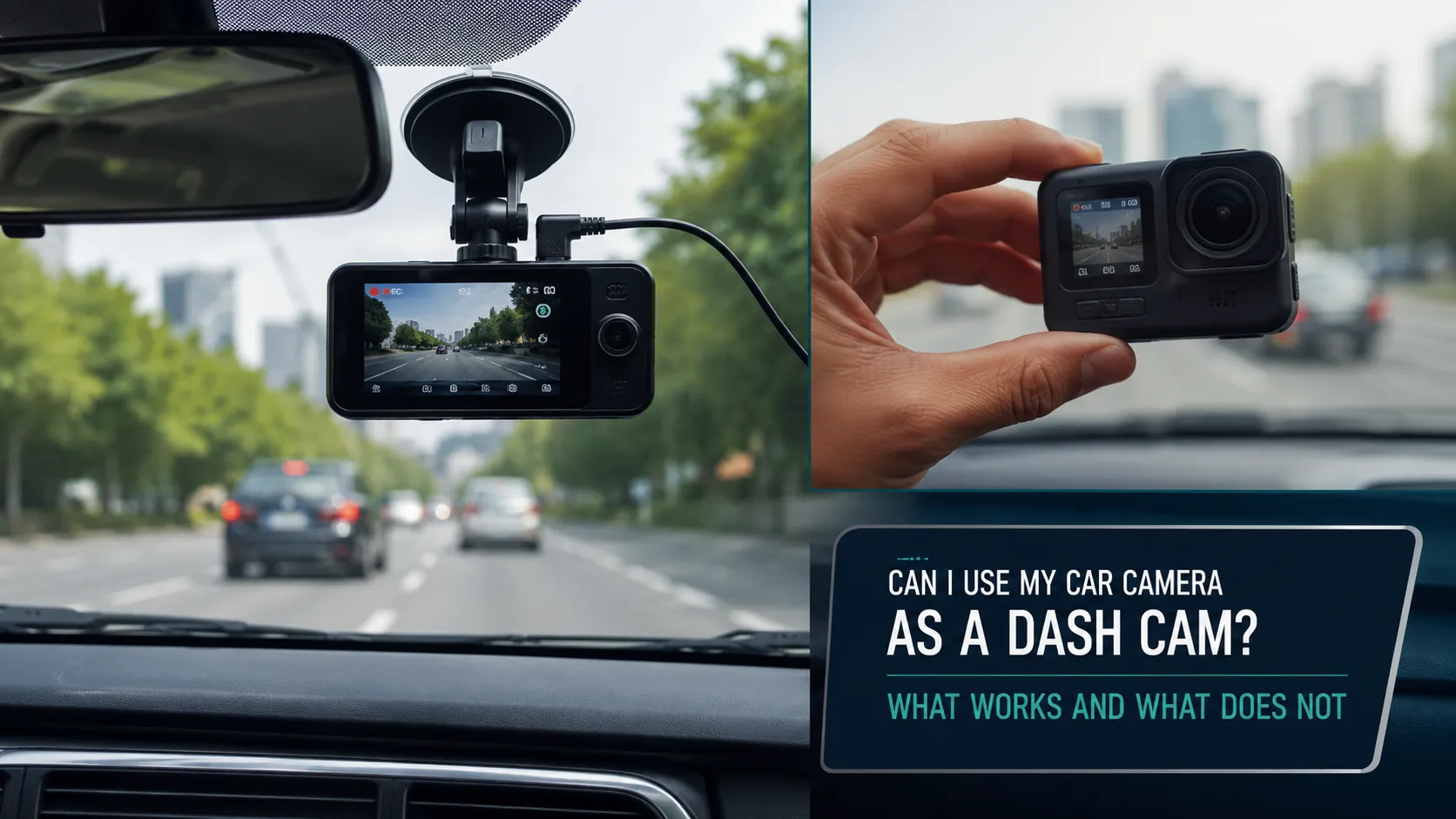
Can I Use My Car Camera as a Dash Cam? What Works and What Does Not
Yes, you may be able to use your car camera as a dash cam, but only if the camera system can record, store and export video footage. Simply having a front, rear or 360-degree camera does not mean your vehicle has dash cam functionality. Many factory-installed cameras are designed for reversing, parking assistance, lane keeping…
-
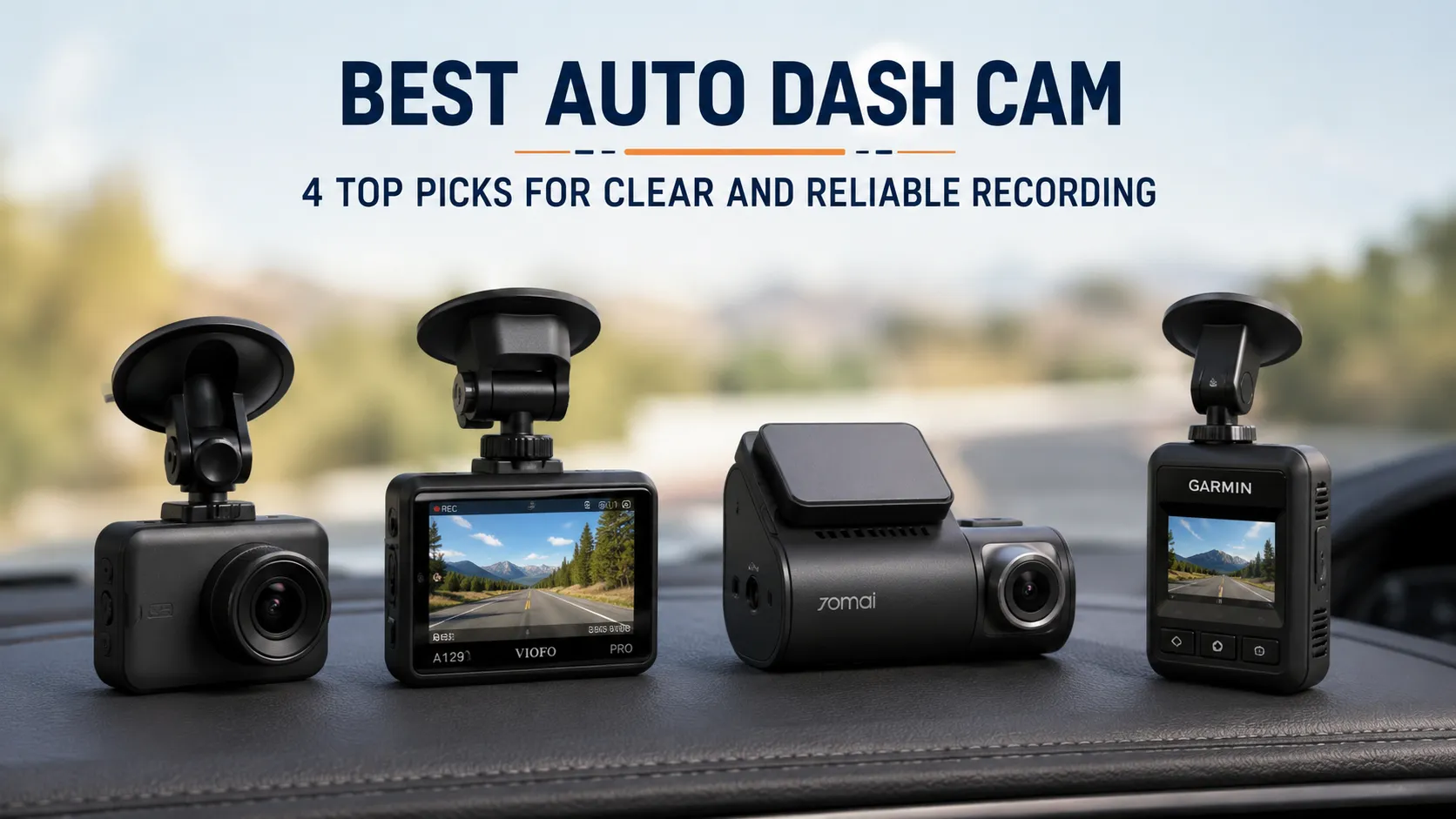
Best Auto Dash Cam: 4 Top Picks for Clear and Reliable Recording
A dependable dash cam can provide a clear record of unexpected incidents, close calls, parking impacts, and memorable road trips. The challenge is choosing the right model from dozens of cameras that promise sharp video, reliable night recording, simple mobile access, and useful parking protection. The best auto dash cam is not necessarily the model…
-
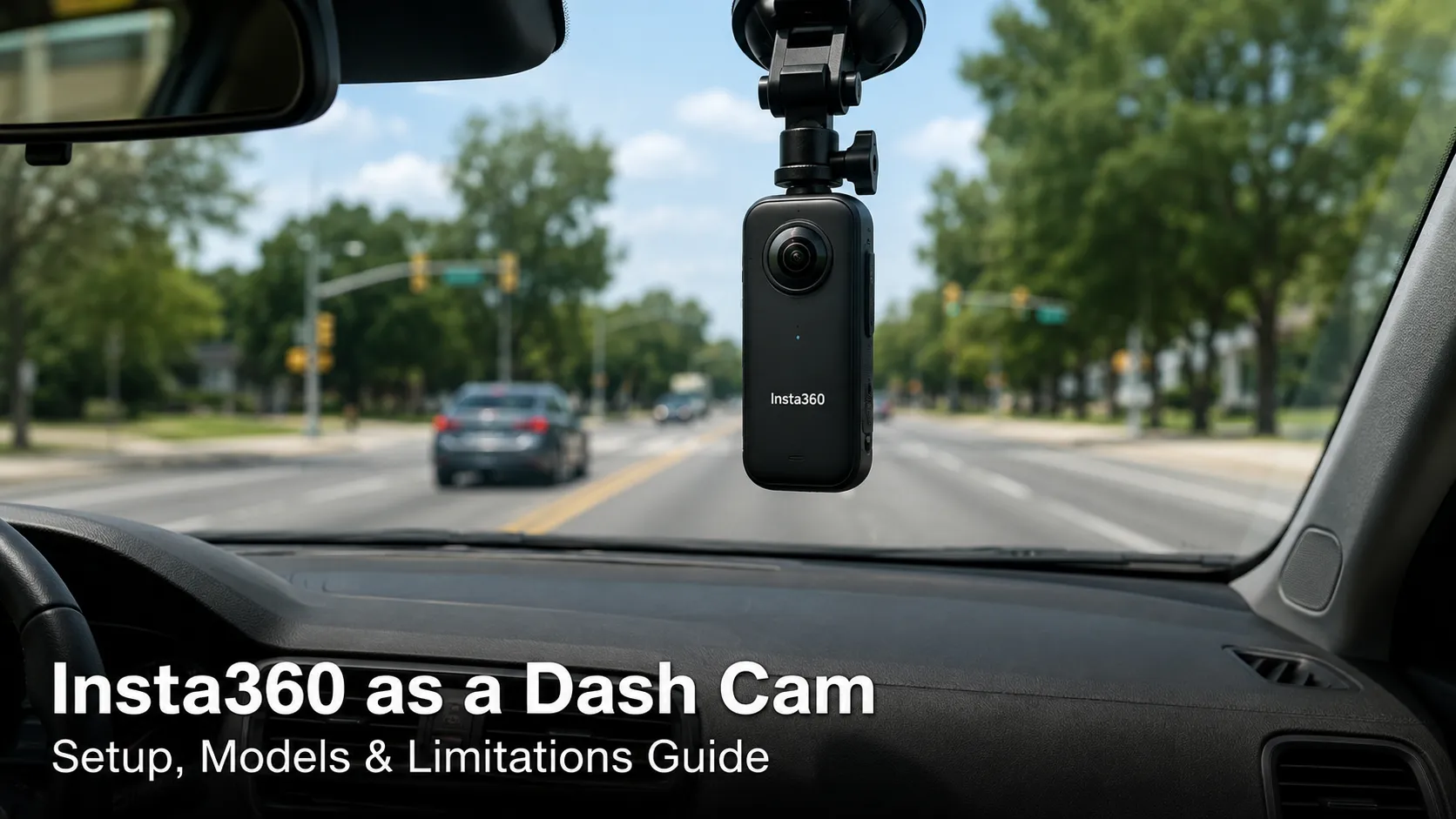
Can I Use Insta360 as a Dash Cam? Complete Setup, Models, and Limitations Guide
Yes, you can use an Insta360 as a dash cam, but whether it is a practical replacement for a dedicated dash camera depends on the model, your recording needs, and how you plan to power and mount it. Newer cameras such as the Insta360 X4, X5, and Ace Pro 2 offer a dedicated Dashcam Mode.…

Tony Kilmer is an auto mechanic and the author behind CarTruckAdvisor.com. He shares practical, no-nonsense guidance on car and truck maintenance, common problems, and repair decisions—helping drivers understand what’s going on and what to do next.