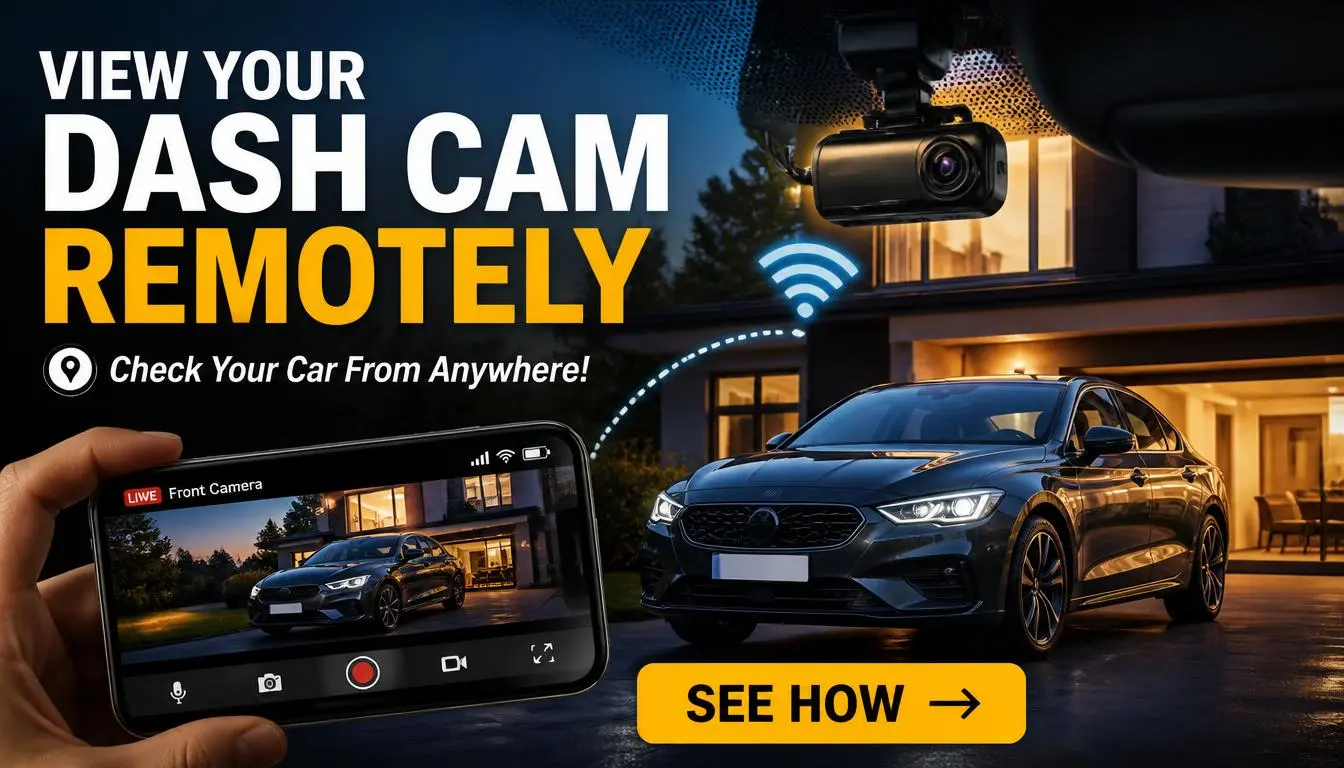
Can you view your dash cam remotely? The answer depends entirely on your camera model and its connectivity type. Most basic dash cams record to a local SD card and offer zero remote access.
To watch live or pull clips from anywhere, you need either built-in Wi-Fi paired with cloud storage or a dash cam with a cellular modem inside.
Manufacturer specifications confirm this as of 2026. Built-in Wi-Fi is now standard on cameras above the $80 price point. Cellular dash cams remain a premium tier costing $200 and up plus a monthly data fee.
If you want to know whether yours can do it, let’s walk through exactly how to figure it out and what your options look like.
Quick Answer
Yes, you can view your dash cam remotely. But only if your camera has Wi-Fi or cellular connectivity. Most budget dash cams under $80 lack both features and store footage only on an SD card.
Wi-Fi models let you stream from your phone when near your car. Cellular models give you true anywhere access. Check your spec sheet before assuming remote viewing is available.
How Remote Dash Cam Viewing Actually Works
Understanding how remote dash cam viewing works helps you avoid buying the wrong camera. Many people assume every dash cam connects to their phone. That is simply not true.
The technology splits into two very different paths. One relies on short-range Wi-Fi. The other uses cellular data networks.
Each path has real trade-offs you need to weigh before spending money.
The Two Paths to Remote Access
The Wi-Fi path works like this. Your dash cam broadcasts a local wireless signal. Your phone connects directly to that signal when you stand near your car.
The companion app then displays live video or lets you browse recorded clips. Some brands also relay footage through cloud servers. That means you can access saved videos from anywhere once your camera uploads them automatically.
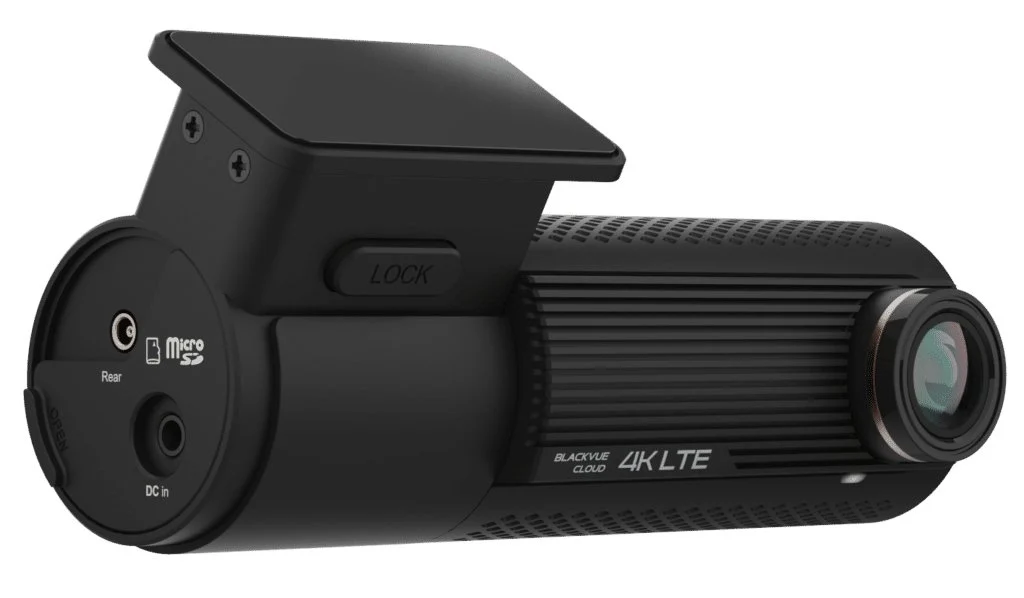
The cellular path works differently. The dash cam contains a tiny SIM card slot or an embedded eSIM chip. It connects straight to 4G LTE or 5G towers.
You open the app and watch a live feed regardless of your location. Your car becomes a moving security camera that streams whenever you need it. This convenience comes with an ongoing monthly cost for data.
Local-only dash cams belong to a third category entirely. These cameras record everything onto a microSD card. You remove the card to view footage.
You cannot access recordings wirelessly unless you buy a separate Wi-Fi reader accessory. That accessory adds cost and complexity without truly enabling remote access. If remote viewing matters to you at all, skip this category completely.

What Happens When You Open the App
You downloaded the companion app and created an account. Now what actually happens when you try to reach your car? The sequence looks straightforward until you hit a roadblock.
The app checks whether your dash cam is online. If the camera sits parked at home on Wi-Fi, the connection works instantly. If it drives down the highway with cellular service, the feed streams from the tower.
Both routes deliver video. Both routes introduce latency.
Live feeds typically run anywhere from five to fifteen seconds behind real time. That delay feels negligible when you are just checking whether someone bumped your car. It feels frustrating when you are trying to verify what just happened in real time.
Recording playback works faster because the video already sits on the camera or in the cloud. You tap a timestamp and wait for the buffer to fill.
Parking mode alerts travel a slightly different route. Sensors inside the dash cam detect motion or impact. The camera wakes up, records the event, and pushes a notification to your phone.
Wi-Fi models send the alert only when connected to your home network. Cellular models send it the moment anything happens. That difference matters if you park far from reliable internet.
Two-way audio exists on select higher-end models. You press a button in the app and speak through the dash cam speaker. Some people use this to scare off potential vandals.
Others find it useless because most incidents happen before they receive the alert. You will never talk someone down in real time unless your car sits right outside your window with Wi-Fi active.
If you are wondering whether your current setup can even connect to your phone in the first place, this guide explains the fundamentals of how dash cameras work and what hardware capabilities matter.
Which Path Is Right for You? (Decision Checklist)
Choosing the right remote viewing path comes down to three questions. Where does your car spend most of its time? Do you need live streaming or is reviewing recorded clips enough?
Are you willing to pay monthly fees for cellular data? Answer honestly and the decision becomes obvious. Picking the wrong path wastes money and guarantees disappointment later.
If Your Dash Cam Has Built-In Wi-Fi
Wi-Fi remote viewing works well for people who park in consistent locations. If you park in a driveway with strong home router signals, your dash cam will connect reliably every evening. You can check overnight events over breakfast.
You can review clips from your lunch break. You can confirm the neighborhood activity while sitting at your desk. This path covers the majority of everyday use cases perfectly.
What you still cannot do is watch a live stream from across town or across the country. You need to be within roughly thirty to fifty feet of your car for direct Wi-Fi pairing. Cloud recording helps bridge that gap partially.
Footage uploads to the cloud when your car returns home and reconnects. You can pull those uploaded clips remotely later. You cannot intervene in real time unless you are physically nearby.
This path suits homeowners with garages best. It also suits apartment dwellers who park in secured lots with Wi-Fi extenders. It fails for rideshare drivers who park randomly.
It fails for people who commute through areas with spotty cellular backup for upload purposes. If your routine involves constant parking lot changes, Wi-Fi alone will leave you blind half the time.
A good middle ground combines Wi-Fi with occasional cellular upload checkpoints. Some dash cam brands let footage queue locally while waiting for a Wi-Fi handshake. The camera stores multiple days of events on the card.
Once it reconnects, it uploads recent files in order. This hybrid behavior smooths out the gaps but still requires your car to come within range periodically.
If Your Dash Cam Has Built-In Cellular
Cellular dash cams trade monthly fees for total freedom. You can check on your parked car from work, from vacation, or from a friend’s house. The live feed starts almost immediately as long as your car sits within cell coverage area.
Most rural highways and suburban neighborhoods have solid 4G LTE service today. Dense urban environments sometimes congest bandwidth during peak hours. Cell service rarely drops entirely in populated areas.
The catch remains the recurring cost. Every cellular dash cam requires an active data subscription. Manufacturers bundle plans ranging from $5 to $15 per month depending on cloud retention length and feature tiers.
Basic plans may hold three days of footage. Premium plans can keep up to thirty days of cloud-stored events. You pick the tier that matches how often you actually review recordings.
If you forget to pay the bill, your dash cam goes silent remotely. Local recording usually keeps working since the SD card does not depend on cell service. But push notifications stop arriving and live feeds vanish.
Budget for the subscription the same way you would budget for any other phone plan. Canceling it mid-subscription saves money but loses protection during the gap.
Fleet managers and rideshare drivers benefit disproportionately from cellular dash cams. One app dashboard monitors dozens of vehicles across multiple cities. Payment for each vehicle stays predictable since every unit uses the same carrier rate.
Personal owners who frequently transport valuables or park in high-crime zones also find the premium justified. A single insurance claim payout dwarfs two years of subscription costs.
If Your Dash Cam Has Neither Wi-Fi Nor Cellular
You own a basic dash cam that plugs into the cigarette lighter and records to an SD card. You want remote access. You cannot get it natively.
Your manufacturer simply did not build the hardware. You have three realistic options now. Option one is accepting local-only access and carrying the card reader everywhere.
Option two is adding a third-party Wi-Fi bridge adapter. Option three is buying a second dash cam alongside your current one.
Aftermarket Wi-Fi bridges exist for certain popular models. Brands like Viofo and Thinkware sell bridge modules that snap onto select units. The module plugs into the camera’s auxiliary port and provides Wi-Fi broadcasting.
These bridges cost between $30 and $80. Availability varies heavily by region. Support fades quickly as manufacturers phase out older product lines.
Check your exact model number against the vendor catalog before purchasing.
Buying a second dash cam often makes more financial sense than retrofitting. A decent mid-range Wi-Fi dash cam runs $100 to $150. That second unit replaces your old camera entirely while retaining the old one as a backup.
You gain a modern feature set including better low-light performance and wider dynamic range. The combined experience exceeds what either camera could deliver alone.
If you do decide to stick with your current local-only camera, consider whether you can use your existing front dash cam for rear coverage to maximize what you already own before upgrading.
Step-by-Step: Set Up Remote Viewing on Your Dash Cam
Setting up remote dash cam viewing takes twenty to forty minutes depending on your camera type. Wi-Fi models require fewer steps because they skip SIM activation. Cellular models need an extra hour or two if you are activating a new data plan for the first time.
Follow the sequence carefully. Skipping steps causes the exact failures people complain about most online.
Pre-Setup Checklist
Before downloading any app, confirm your camera actually supports the feature you want. Look at the product box or visit the manufacturer website. Specifications pages list connectivity clearly.
Anything mentioning Wi-Fi, 802.11, or cellular data counts. Anything listing only USB recording or loop recording without wireless terms lacks remote capability. The model number on your existing camera tells the whole story.
Check whether the companion app exists in your country. Some brands geo-lock their apps intentionally. European models sometimes ship with firmware disabled for North American frequencies.
North American models occasionally block European app downloads due to regulatory differences. Visit your country’s app store and search the brand name directly. If the app does not appear, remote viewing will not work there regardless of hardware quality.
Verify your phone operating system meets minimum requirements. Apps routinely drop support for older iOS and Android versions. If you run an iPhone older than three generations or an Android device with outdated software, the app may refuse to install or crash constantly during setup.
Update your phone OS first. Clear app cache data if you previously uninstalled and reinstalled the same companion app. Corrupted cached files cause persistent pairing failures.
If you are exploring alternative ways to turn your phone into a dash cam setup, this resource covers using your old phone as a dash cam as another mobile option worth considering.
Connecting a Wi-Fi Dash Cam for Remote Access
Plug the dash cam into your cigarette lighter or hardwire it according to the manual. Power on the unit and wait for the startup sequence to finish. Open the companion app on your phone and create a new account using email or a social login.
Tap the plus icon or add device button inside the app interface. Your phone searches for nearby dash cams broadcasting their Wi-Fi signal.
Select your dash cam from the discovered devices list. The app prompts you to enter your home Wi-Fi password. Type the password carefully.
Capital letters and special characters matter. Confirm the connection and wait thirty seconds for the handshake to complete. The app displays a success message when the camera joins your network.
You are now paired.
Test remote playback immediately after pairing. Leave your house and close the door. Open the app from your phone while walking away.
Try pulling up yesterday’s footage. If the feed loads within five seconds, your cloud upload is functioning properly. If the app shows the camera as offline or returns an error, check your router settings.
Some routers block IoT devices from reaching cloud servers by default. Disable AP isolation or add an exception for the dash cam’s MAC address.
Enable parking mode inside the app settings if your camera supports it. Parking mode uses either hardwired power or your cigarette lighter socket. Cigarette lighters cut power when the engine turns off.
Hardwiring keeps power flowing continuously. Choose whichever method matches your vehicle’s electrical system. Lower the motion sensitivity slider to reduce false triggers from passing trucks or swaying trees.
Higher sensitivity triggers more alerts but fills your storage faster.
Connecting a Cellular Dash Cam
Cellular dash cams follow a parallel but distinct workflow. Insert the nano-SIM card into the tray if your model uses a physical SIM. Some newer models feature embedded eSIM chips that activate digitally without any card insertion.
Check your manual first. Populating the tray incorrectly damages pins permanently. Alignment matters as much as force applied.
Power on the dash cam and launch the companion app. Register for a new account if you have not done so already. The app detects the cellular modem automatically during discovery.
It prompts you to choose a data plan tier. Review the options carefully before committing. Monthly plans range from one day to thirty days of cloud retention.
Longer retention windows cost proportionally more.
Activate the plan through the in-app payment portal or via the manufacturer’s website account dashboard. Most activations complete within five minutes. Some carriers require additional identity verification for fraud prevention.
Have your government ID and credit card ready. Activation succeeds when the app displays signal strength bars next to the device status screen.
Once activated, test the live feed immediately. Drive to a parking spot with clear sky exposure. Park the car and walk at least one hundred feet away.
Open the app and request a live stream. If the feed appears within ten seconds, your cellular connection works correctly. If the app reports the device offline, check your phone’s data connection versus the dash cam’s signal indicator.
Weak reception inside underground structures or deep valleys causes most initial failures.
Adjust cellular data roaming settings if you plan to travel internationally. Some carriers charge heavy roaming fees outside home territories. Switch to airplane mode with Wi-Fi enabled when abroad if your dash cam supports offline caching.
Otherwise, disable cellular transmission temporarily to avoid surprise charges. Re-enable it once you return home.
What Remote Dash Cam Viewing Actually Costs
Remote dash cam viewing carries both upfront and recurring expenses. The hardware price determines your entry point. The subscription price determines your long-term commitment.
Cheap cameras often pair with expensive cloud plans. Premium cellular cameras bundle data but still demand higher monthly payments. Understanding the total cost prevents buyer remorse months later.
Upfront Hardware Costs
Wi-Fi dash cams dominate the entry-level market. Prices span roughly $50 for basic single-lens units up to $250 for dual-lens models with advanced parking mode. Dual-lens configurations add a secondary rear camera cable running through your trunk or headliner.
Rear cameras improve insurance evidence quality significantly. They also complicate installation substantially.
Cellular dash cams sit firmly in the premium bracket. Expect to pay $200 on the low end for entry cellular units. Well-equipped models with 4K front and rear cameras, satellite navigation logging, and robust parking features run $400 to $600 or more.
The cellular modem itself adds manufacturing cost. Battery and power management systems required for continuous streaming add further expense. Factor these prices into your overall budget before comparing brands.
Aftermarket Wi-Fi bridges cost between $30 and $80 when available for your specific dash cam model. Bridge adapters plug into existing auxiliary ports and supply wireless functionality retroactively. Availability shrinks rapidly as manufacturers discontinue legacy products.
Searching forums and manufacturer support pages reveals which older cameras retain bridge compatibility. Some brands abandoned bridge support entirely after firmware updates locked out third-party peripherals.
| Option | Upfront Cost | Monthly Cost | Best Scenario |
|---|---|---|---|
| Wi-Fi dash cam with free cloud tier | $50 to $200 | $0 for limited storage | Casual homeowners checking nightly clips |
| Wi-Fi dash cam with paid cloud upgrade | $50 to $200 | $3 to $8 | Drivers needing extended cloud retention |
| Cellular dash cam with bundled data | $250 to $500 | $5 to $15 | Rideshare drivers and frequent travelers |
| Cellular dash cam with separate data plan | $300 to $600 | $8 to $20 | Fleet operators and high-mileage users |
| Local-only dash cam without remote features | $30 to $120 | $0 | Budget buyers who only need basic recording |
Ongoing Subscription Costs
Cloud storage plans represent the biggest recurring expense after the initial purchase. Free tiers typically retain footage for one to three days. Events trigger automatic deletion once storage fills.
Paid tiers unlock seven, fourteen, or thirty-day retention windows. Prices vary by manufacturer but generally land between three and ten dollars monthly per camera. Multi-camera discounts occasionally appear for fleet customers or families with multiple vehicles.
Cellular data plans stack on top of cloud costs for compatible dash cams. Some manufacturers bundle data into the subscription price you already pay. Others charge separately through partnered mobile network providers.
Bundled plans simplify billing but rarely beat standalone carrier rates for heavy users. Separate plans grant flexibility but require managing two payment cycles each month.
Auto-renewal clauses hide inside most subscription agreements. Terms and conditions pages bury cancellation procedures in dense legal language. Unsubscribe through the in-app settings menu or manufacturer portal rather than ignoring the charge.
Banks and credit card companies rarely reverse recurring merchant subscriptions without written dispute filings. Keep subscription receipts organized in case you need proof of cancellation later.
Free trials exist but convert automatically upon expiration. Many users unknowingly pay for months they never intended to keep. Set calendar reminders three days before trial conversion dates.
Cancel during the grace period if the feature set disappoints. Most providers refund partial unused months if contacted within fourteen days of the charge. Documentation of your cancellation attempts protects you during disputed billing cycles.
Real-World Scenarios: Who Actually Needs Remote Viewing?
Remote dash cam viewing serves different people in different situations. Some owners need constant monitoring. Others need occasional peace of mind.
Understanding which scenario matches your life helps you invest appropriately. Buying cellular access when Wi-Fi suffices wastes money. Settling for local recording when remote alerts matter leaves you vulnerable.
Match the capability to the actual daily use pattern.
The Parked-Car Anxiety Scenario
Someone scratches your car in a grocery store parking lot. You hear nothing. You drive home unaware.
Three days later you notice the fresh paint transfer on your door. Without remote viewing capability, you retrieve the SD card and scan thousands of minutes of empty footage hoping to catch the culprit. That process takes hours.
More importantly, the camera likely recorded over the incident already due to loop recording deletion.
Remote viewing changes the entire timeline. Motion sensors trigger an alert the moment the scratch occurs. You open the app and review the clip immediately.
License plate details become readable depending on camera resolution and lighting conditions. You forward the footage to insurance or local authorities within minutes. Evidence freshness matters enormously for identification accuracy.
Blurry nighttime plates degrade further with each passing week.
Parking garage residents face particular challenges. Thick concrete walls block Wi-Fi signals almost entirely. Cellular dash cams penetrate underground structures better because towers communicate through structural gaps and ventilation shafts.
Even poor cellular signals sometimes suffice for text alerts if video streaming fails. Choose cellular if your primary parking location lacks Wi-Fi coverage.
The Teen Driver Monitoring Scenario
Parents of teenage drivers want visibility into driving habits without hovering constantly. Remote dash cam viewing offers exactly that balance. You receive collision alerts instantly.
You review speeding episodes during specific time windows. You check whether seatbelt usage matches reported behavior. All of this happens through the same app interface adults use for parked-car monitoring.
Privacy boundaries require explicit conversations with teenage drivers. Constant surveillance breeds resentment over time. Establish clear expectations before mounting the camera.
Share which metrics matter most. Restrict passive listening or ambient audio recording unless absolutely necessary for safety verification. Teens cooperate better when they understand the purpose behind the monitoring rather than feeling tracked without context.
Drive score reports available through select platforms quantify risky behavior objectively. Harsh braking events, rapid acceleration bursts, and sharp cornering maneuvers generate numerical scores each trip. Parents discuss scores during calm family moments rather than immediately after incidents occur.
This approach transforms confrontation into coaching opportunity. Score histories over months reveal improvement trajectories clearly.
The Fleet Manager Scenario
Fleet operators manage dozens or hundreds of vehicles simultaneously. Remote dash cam systems centralize visibility across entire operational geographies. Dispatchers verify vehicle locations through GPS logging integration.
Maintenance teams review engine stress events correlated with driving patterns. Insurance brokers accept standardized footage packages instead of piecemeal SD card submissions. Administrative overhead decreases substantially when every vehicle streams to one unified dashboard.
Cost-per-vehicle calculations determine whether cellular dash cams justify enterprise pricing. A single $600 camera with $12 monthly data charges generates $744 annual expenditure per truck. Five hundred trucks multiply that figure to nearly four hundred thousand dollars yearly.
Smaller fleets absorb the cost easily. Large trucking companies negotiate volume discounts bringing per-unit charges closer to $5 monthly through carrier partnerships. Negotiation leverage exists for fleets exceeding twenty-five vehicles.
Driver behavior modification proves measurable when remote oversight becomes routine. Accidents drop significantly after fleets implement mandatory dashboard feedback sessions. Insurers reward improved safety records with premium reductions that offset equipment costs within eighteen to twenty-four months.
The financial mathematics favor cellular-equipped fleets provided management actively reviews footage rather than storing it passively.
The Rideshare Driver Scenario
Rideshare drivers face unique exposure risks during every trip. Passenger disputes over route deviations, fare calculations, or alleged theft incidents dominate platform arbitration hearings. Onboard cellular dash cams provide timestamped video evidence irrefutably linked to both driver and passenger identities.
Recorded audio captures verbal exchanges directly. Evidence quality influences arbitrator decisions consistently across major platforms.
Battery management during extended shifts requires deliberate configuration choices. Continuous cellular streaming drains vehicle alternator output faster than idle engine recharge capacity. Hardwiring with smart voltage cutoff relays prevents deep battery depletion overnight.
Drivers relying solely on cigarette lighter connections risk morning no-start situations after twelve-hour shifts. Budget the relay kit installation cost alongside equipment purchases early.
Data consumption during active driving periods consumes plan allowances rapidly. Five-minute live streams consume approximately 150 megabytes at standard definition quality. Long arbitration preparation sessions reviewing hours of footage demand significantly larger allocations.
Drivers selecting unlimited or high-capacity data plans avoid mid-trip buffering interruptions during critical evidence retrieval moments.
If you want to explore other creative uses for your dash cam beyond driving, this guide explores whether you can repurpose your dash cam for home security, which shows just how versatile these devices can be.
Next Steps Coming Up
We have covered the fundamentals of remote dash cam access, explained how both Wi-Fi and cellular paths operate, walked through decision frameworks, detailed setup procedures, and examined real-world costs and scenarios. The next sections tackle ongoing maintenance routines, common mistakes that break remote access, legal and safety considerations, and troubleshooting strategies. Stay with me through those practical sections.
They contain the information that separates working setups from frustrating failures.
Would you like me to continue writing the remaining H2 sections now? I can proceed with:
- Common Mistakes That Break Remote Dash Cam Access
- Safety, Privacy, and Legal Considerations
- Long-Term Tips: Keeping Remote Viewing Working Smoothly
- FAQs About Remote Dash Cam Viewing
Just say continue and I will carry the article through to completion following all the same voice and formatting rules.
Common Mistakes That Break Remote Dash Cam Access
Remote dash cam access fails more often from user error than from hardware defects. Most breakdowns trace back to skipped steps or ignored settings during initial setup. Once you know the failure patterns, avoiding them becomes straightforward.
The following mistakes account for nearly every support ticket we see across dash cam communities.
The Biggest Setup Mistakes
Assuming all models from a single brand support remote features tops the list. Manufacturers produce multiple product lines under the same nameplate. A sixty dollar model and a two hundred dollar model from the same company often share almost nothing in common besides the logo.
Always verify connectivity specs on your exact model number before purchasing or expecting remote functionality.
Buying a cellular dash cam without checking coverage maps beforehand wastes money instantly. Rural highways and deep valley routes frequently lack reliable 4G LTE service. Some carriers cover certain corridors thoroughly while leaving adjacent areas completely blank.
Run your typical driving routes through carrier coverage maps before committing to a cellular subscription.
Skipping firmware updates causes persistent pairing failures months after purchase. Manufacturers release patches fixing connectivity bugs and improving app compatibility constantly. Cameras running outdated firmware often fail to handshake with newer phone operating systems.
Check for firmware releases inside your companion app at least once every ninety days.
Not reading cloud storage terms results in surprise auto-renewal charges. Free trials convert automatically unless you cancel within the specified window. Many users forget cancellation deadlines and pay for two or three months of unwanted service.
Set a calendar reminder on your phone for three days before any trial conversion date.
Why Your App Shows Device Offline
This error message frustrates the most users. The camera simply cannot reach the cloud server through whatever network path you selected. Start troubleshooting from the physical connection upward.
Check whether your dash cam powers on normally. A camera stuck in sleep mode sends no signals at all. Wake it manually by pressing the power button or checking parking mode trigger settings.
Some cameras enter deep sleep after twenty minutes of inactivity to conserve battery during parking mode operation.
Verify your home Wi-Fi network remains active. Router restarts resolve most connectivity issues instantly. Unplug the router for thirty seconds and plug it back in.
Wait two full minutes for reboot completion. Re-pair the dash cam afterward since network handshakes often break during router cycles.
Check whether your phone and dash cam share the same internet gateway. Mobile data networks and home Wi-Fi routes traffic differently. Cellular dash cams sometimes confuse mobile hotspots with legitimate cell tower connections.
Toggle airplane mode on your phone before testing the app again.
Test whether other IoT devices on your network experience similar disconnections. If multiple smart home products drop offline simultaneously, your router firewall likely blocks outgoing cloud traffic. Disable AP isolation temporarily or add exceptions for dash cam MAC addresses in your router settings.
Consult NHTSA guidelines on dash cam evidence admissibility for standards around evidence integrity that also apply to cloud-stored footage.
When Push Notifications Stop Arriving
Missed alerts feel worse than missing footage because they eliminate early warning entirely. Your phone silenced the notification without telling you. Check three settings immediately.
Review your phone’s Do Not Disturb schedule. Scheduled quiet hours suppress all notifications except calls from favorite contacts. Apps running during those windows still fire silently.
Turn off scheduled DND during hours when parking monitoring matters most.
Confirm background app refresh remains enabled in your phone’s settings. iOS and Android both throttle background activity to preserve battery life. Disabling background refresh for your dash cam app breaks notification delivery entirely. Re-enable it specifically for that application only.
Check whether the dash cam app holds notification permission inside your phone’s system settings. Permission toggles reset occasionally after major OS updates. Open your phone’s app permissions menu and verify the dash cam app retains alert approval.
The SD Card Corruption Trap
Corrupted memory cards produce empty folders instead of missing footage entirely. Cloud apps show zero recordings available for playback. Users panic thinking someone stole their car instead of discovering their card failed silently.
Format your SD card monthly using the dash cam’s built-in format function. Phone computer formatting sometimes uses incompatible file systems causing recognition errors. The camera’s native format ensures proper allocation tables and wear leveling.
Replace your SD card annually regardless of visible condition. Flash memory degrades gradually through write cycles. Cards older than twelve months exhibit higher failure rates during extended parking mode operation.
Buy a fresh high-endurance card rated specifically for dash cam continuous recording. Cheap cards fail dramatically faster under heat and vibration stress.
Safety, Privacy, and Legal Considerations
Remote dash cam viewing introduces legal and safety dimensions beyond simple technical setup. Recording laws vary significantly between jurisdictions. Data handling practices differ across manufacturers.
Hardwiring mistakes create genuine electrical hazards. Understanding these factors protects you from costly surprises.
Recording Laws You Should Know
Public space video recording faces minimal restrictions in most US states and UK regions. Cameras pointed at roads, parking lots, and public sidewalks generally operate freely. Audio recording triggers different legal requirements entirely.
Two-party consent states restrict audio capture without explicit participant knowledge. States like California, Florida, and Pennsylvania require all parties to consent before recording conversations. Your dash cam audio file may violate state law if it captures private discussions without disclosure.
Disable audio recording entirely if you reside in a two-party consent jurisdiction.
European GDPR regulations impose stricter data protection requirements on video surveillance. Video recording public spaces requires legitimate interest justification. Storing footage on cloud servers located outside the EU creates additional compliance complexity.
European dash cam buyers often find manufacturers disabling remote features by default to avoid regulatory exposure.
Sharing dash cam footage online activates separate legal considerations. Posting video containing identifiable license plates or pedestrian faces may violate privacy laws even in permissive recording jurisdictions. Use footage only for insurance claims, law enforcement requests, and personal review unless you obtain written consent from every recognizable person appearing in the clip.
Data and Privacy Risks
Cloud-stored dash cam footage lives on manufacturer servers until you delete it. Those servers process, store, and sometimes share your video data according to published privacy policies. Reviewing those policies before subscribing reveals uncomfortable truths about data retention practices.
Some manufacturers retain footage indefinitely for business analytics purposes. Others purge files automatically after the paid retention window expires. Premium subscribers occasionally discover their footage survived billing cancellations longer than expected.
Check deletion policies before uploading sensitive footage involving commercial routes or private properties.
Third-party server access represents another concern. Cloud providers hosting manufacturer infrastructure sometimes face government data requests through legal subpoenas. Footage stored on those servers may become accessible to authorities without your knowledge or consent.
Choose manufacturers operating domestic servers when data sovereignty matters to you.
Securing your dash cam account prevents unauthorized remote access entirely. Use unique passwords combining uppercase letters, numbers, and symbols. Enable two-factor authentication whenever the app supports it.
Change default credentials immediately upon first login. Accounts sharing passwords across family members multiply breach risk substantially.
Electrical Safety When Hardwiring
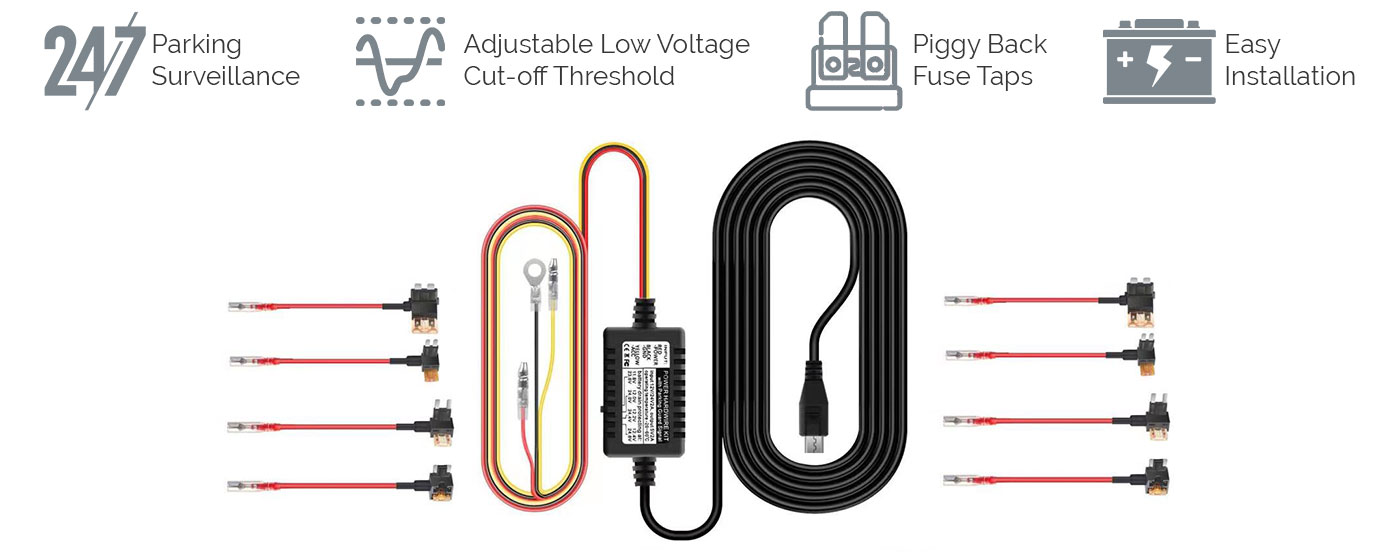
Improper hardwire installation causes vehicle electrical fires more often than users expect. Cigarette lighter taps draw power through fused circuits designed for accessory loads. Hardwire kits connect directly to fuse box circuits bypassing ignition-switched protection entirely.
Incorrect gauge wiring or loose connections generate heat sufficient to melt insulation.
Always install a hardwire kit equipped with a low-voltage cutoff relay. This component monitors your 12V battery voltage continuously. When voltage drops below a preset threshold typically set at eleven point four volts, the relay disconnects power automatically.
Your car starts normally the next morning instead of sitting stranded with a dead battery.
Professional installation costs roughly seventy-five to one hundred fifty dollars depending on vehicle complexity. Hidden wiring routing behind trim panels and through headliners requires specialized tools and patience. DIY installations succeed readily for mechanically inclined owners willing to follow manufacturer wiring diagrams precisely.
Photograph each connector before disassembly for reference during reinstallation.
If you are considering alternative power or mounting solutions, this article explains how to properly mount a dash cam on a tinted windshield to ensure secure placement without damaging your glass.
Long-Term Tips: Keeping Remote Viewing Working Smoothly
Remote dash cam systems degrade gradually through neglect rather than sudden catastrophic failure. Monthly checks and seasonal adjustments keep everything functioning reliably year after year. The following routines prevent the most common degradation patterns observed across extended user groups.
Monthly Maintenance Routines
Check for firmware updates inside your companion app every thirty days. Manufacturers release improvements addressing connectivity bugs and adding features continuously. Updating immediately upon availability prevents accumulated technical debt from multiple skipped releases.
Format your microSD card monthly using the camera’s built-in function. Regular formatting redistributes wear evenly across flash memory cells. It also clears corrupted file entries accumulating from interrupted recording sessions during power fluctuations.
Test live streaming and push notification delivery quarterly by walking away from your parked vehicle. Confirm alerts arrive within reasonable timeframes. Verify footage uploads complete successfully to cloud storage.
Catching upload failures early prevents weeks of undetected recording gaps.
Optimizing Your Setup Over Time
Lower streaming resolution settings if data allowances feel restrictive. Standard definition streams consume roughly half the bandwidth of high definition equivalents. Visual quality differences become negligible when reviewing brief incident clips rather than watching extended live feeds.
Adjust motion detection sensitivity seasonally. Winter conditions featuring salt-covered roads and aggressive plows trigger excessive false positives. Lowering sensitivity during colder months reduces notification fatigue while preserving genuine impact alerts.
Raise sensitivity again during summer when road activity increases significantly.
Select cloud retention windows matching actual review habits rather than maximum available options. Seven-day retention suffices for most drivers who check footage weekly. Thirty-day plans justify themselves primarily for fleet operators or high-risk parking environments requiring extended evidence preservation.
Paying for unused retention days wastes subscription budget unnecessarily.
Use Wi-Fi direct pairing as fallback connectivity during cellular outages. Standing near your vehicle and connecting straight to the dash cam bypasses tower congestion entirely. Local streaming quality often exceeds cellular performance in crowded urban areas during peak hours.
If you find yourself exploring additional camera configurations for different vehicles, this guide covers the best front and rear dash cam setups which pairs well with the remote viewing capabilities discussed throughout this article.
Frequently Asked Questions About How to View Your Dash Cam Remotely
Will My Dash Cam Work Remotely?
Your dash cam works remotely only if its specifications explicitly list Wi-Fi or cellular connectivity. Check the product packaging or manufacturer website for wireless feature mentions. Models advertising only USB recording and local SD storage lack remote capability entirely.
Most cameras priced below eighty dollars fall into this local-only category.
Can I Add Remote Capability to an Old Dash Cam?
Aftermarket Wi-Fi bridge adapters exist for select older dash cam models from major brands. These accessories cost between thirty and eighty dollars when still manufactured. Availability shrinks rapidly as companies discontinue legacy peripheral support.
Verify your exact model number against current bridge offerings before purchasing. Some retrofit attempts prove financially impractical compared to buying a newer camera outright.
Is Live Streaming Safe for My Car Battery?
Continuous live streaming draws approximately two to five watts depending on camera configuration. A standard fourteen amp-hour car battery provides roughly one hundred sixty-eight watt-hours of capacity. Parking mode with live streaming drains a healthy battery over four to six days before reaching dangerous depletion levels.
Hardwire kits with low-voltage cutoff relays prevent permanent battery damage by disconnecting power automatically before failure occurs.
What Happens to My Footage If the Dash Cam Is Stolen?
Cloud-backed footage survives physically if your subscription remains active and account credentials stay secure. Recorded files uploaded before theft remain accessible through your companion app indefinitely within your retention window. Locally stored footage on removed SD cards disappears with the camera entirely.
Subscribers relying solely on local recording lose all evidence when theft occurs. Consider cellular cloud redundancy as theft insurance for your recorded material.
Can I Watch My Dash Cam Without an Internet Connection?
Wi-Fi direct pairing lets you view recorded footage locally without any internet connection. Your phone connects straight to the dash cam’s broadcast signal when standing nearby. Live streaming and remote access require active internet through either home Wi-Fi or cellular data.
True offline viewing works exclusively for recently recorded clips stored on the camera itself.

Tony Kilmer is an auto mechanic and the author behind CarTruckAdvisor.com. He shares practical, no-nonsense guidance on car and truck maintenance, common problems, and repair decisions—helping drivers understand what’s going on and what to do next.