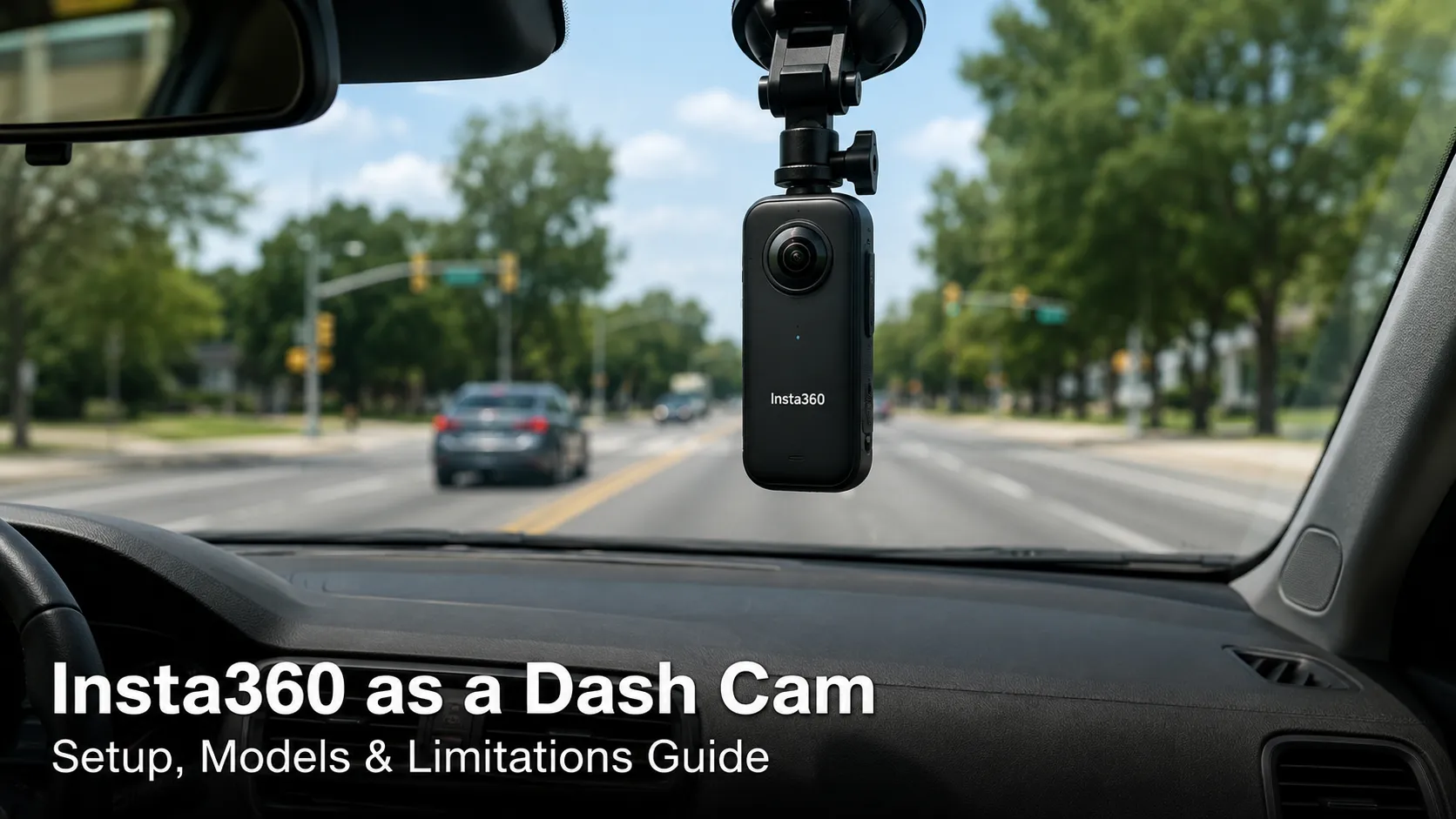
Yes, you can use an Insta360 as a dash cam, but whether it is a practical replacement for a dedicated dash camera depends on the model, your recording needs, and how you plan to power and mount it.
Newer cameras such as the Insta360 X4, X5, and Ace Pro 2 offer a dedicated Dashcam Mode. Older models such as the Insta360 X3 rely mainly on Loop Recording. An Insta360 can be excellent for road trips, rental cars, rideshare recording, and capturing a wide view around your vehicle.
However, it may not provide the dependable parking surveillance, automatic collision protection, heat resistance, or instant evidence management offered by a purpose-built dash cam.
This guide explains which Insta360 models can work as dash cams, how to set one up, the best recording settings, storage requirements, overheating risks, legal considerations, and whether you should trust it as your primary driving camera.
Can You Really Use an Insta360 as a Dash Cam?
You can use many Insta360 cameras to continuously record the road while driving. Depending on the model, you will use either Dashcam Mode or Loop Recording.
Dashcam Mode records continuously within a selected amount of storage. When that storage space becomes full, the camera starts replacing the oldest files with new recordings. Loop Recording also records continuously, but it normally retains only a selected recent period rather than using a larger dedicated storage allocation.
Insta360’s current X-series documentation lists Dashcam Mode as an in-vehicle recording feature on supported newer models. The X3 instead provides Loop Recording, which keeps the most recent portion of a continuous recording.
Using an Insta360 as a dash cam makes the most sense when:
- You already own a compatible Insta360 camera.
- You need a portable camera for a road trip or rental car.
- You want to capture more than a standard forward-facing view.
- You create driving, travel, or automotive content.
- You want to reframe a 360-degree recording after the drive.
- You need temporary cabin coverage for rideshare driving.
- You do not require continuous parking protection.
A dedicated dash cam is normally the safer choice when your main priority is daily accident evidence, automatic incident detection, parking surveillance, or a system that starts and stops without regular user involvement.
Which Insta360 Models Can Be Used as a Dash Cam?
Not every Insta360 camera works in exactly the same way. Before creating your setup, check the available recording modes on your specific camera and install the latest firmware.
| Insta360 modelCan it work as a dash cam? | Main recording option | Best use | |
|---|---|---|---|
| Insta360 X5 | Yes | Dashcam Mode or Loop Recording | Wide 360-degree driving coverage |
| Insta360 X4 | Yes | Dashcam Mode or Loop Recording | Road trips, cabin and side coverage |
| Insta360 X3 | Yes, with limitations | Loop Recording | Occasional or temporary driving footage |
| Insta360 Ace Pro 2 | Yes | Dedicated Dashcam Mode | Traditional forward-facing recording |
| Insta360 Ace Pro | Yes, with limitations | Loop Recording and power-based recording options | Standard action-camera view |
| Insta360 Ace | Yes, with limitations | Loop Recording and power-based recording options | Basic forward-facing setup |
| Insta360 GO series | Limited | Model-dependent recording modes | Short drives and secondary angles |
Insta360’s current manuals show dedicated Dashcam Mode on supported X-series cameras such as the X4 and X5. The Ace Pro 2 also has a Dashcam Mode that saves continuous footage in one-minute segments within a selected Loop Space. The X3’s documented solution is Loop Recording rather than the same dedicated Dashcam Mode workflow.
Insta360 X5 as a Dash Cam
The Insta360 X5 is one of the most flexible options for drivers who want 360-degree coverage. Its Dashcam or Road Mode continuously records within a defined storage allocation and overwrites the earliest recording when that space becomes full. It can capture the road, sides, and parts of the vehicle interior from one position.
The main advantage is flexibility. You can record first and choose the exact viewing angle later. However, the resulting workflow may require more editing than a traditional dash cam, especially when recording in 360 mode.
Insta360 X4 as a Dash Cam
The X4 is also suitable for an in-car setup. Its current manual describes Dashcam Mode as continuous recording with automatic loop overwriting within a selected storage limit. It also offers traditional Loop Recording.
The X4 is a good choice for road trips, travel videos, rideshare cabin recording, and drivers who want footage from multiple directions. The trade-offs are heat, large files, extra editing, and the possibility that wide 360 footage may not show distant licence plates as clearly as a dedicated narrow-angle camera.
Insta360 X3 as a Dash Cam
You can use the Insta360 X3 as a dash cam, but the workflow is less convenient than on models with a dedicated Dashcam Mode.
The X3’s Loop Recording mode continuously records while preserving only the latest selected section. This makes it useful when you are waiting for an event to happen, but it is not identical to a full storage-based dash-cam loop.
For example, if you select a limited loop duration, earlier parts of a long drive will not remain available. You must therefore understand the selected loop length and stop the recording or save the footage soon after an important event.
Insta360 Ace Pro 2 as a Dash Cam
The Ace Pro 2 provides a more traditional forward-facing setup. In its Dashcam Mode, you select the amount of Loop Space reserved for driving footage. The camera then records continuously and saves videos in one-minute segments.
This format makes individual files easier to review than one extremely long recording. It is a strong option when you want action-camera image quality without the reframing process associated with a 360 camera.
Dashcam Mode vs Loop Recording: Which Should You Use?
Although the terms sound similar, Dashcam Mode and Loop Recording may preserve footage differently.
| Feature | Dashcam Mode | Loop Recording |
|---|---|---|
| Recording method | Continuous | Continuous |
| Retention method | Uses selected storage space | Keeps a selected recent period |
| Older footage | Replaced when allocated space is full | Replaced as the loop duration progresses |
| Best for | Regular driving | Capturing a recent expected event |
| File organisation | Often divided into short segments | Depends on model and settings |
| Main risk | An old incident may eventually be overwritten | Earlier parts of the journey may not be retained |
Use Dashcam Mode when your camera supports it and you want a more conventional driving-recording experience.
Use Loop Recording when Dashcam Mode is unavailable or when you only need the latest part of a journey. The X3, for example, is better treated as a temporary loop-recording camera than as a complete traditional dash cam.
In both cases, copy important footage as soon as possible. Continuous overwriting is useful for storage management, but it can also remove the evidence you intended to preserve.
What Do You Need to Use an Insta360 as a Dash Cam?
A reliable setup requires more than the camera itself. You will need:
- A compatible Insta360 camera
- A secure windscreen or dashboard mount
- A high-quality USB-C power cable
- A suitable vehicle USB adaptor
- A compatible microSD card
- Enough card capacity for your recording quality
- A clean windscreen
- An optional quick-release adaptor
- An optional GPS accessory or smartphone connection
- A way to remove or cover the camera when parked
Insta360 sells a dedicated Dash Cam Mount with a strong adhesive attachment and quick-release design. The company lists models including the X3, X4, X5, Ace, and Ace Pro among the compatible cameras, although Ace-series cameras may require an additional adaptor.
Choose a mount that keeps the camera stable. A flexible or weak mount may create vibration, make licence plates harder to read, and allow the camera to move during sudden braking.
How to Set Up an Insta360 as a Dash Cam
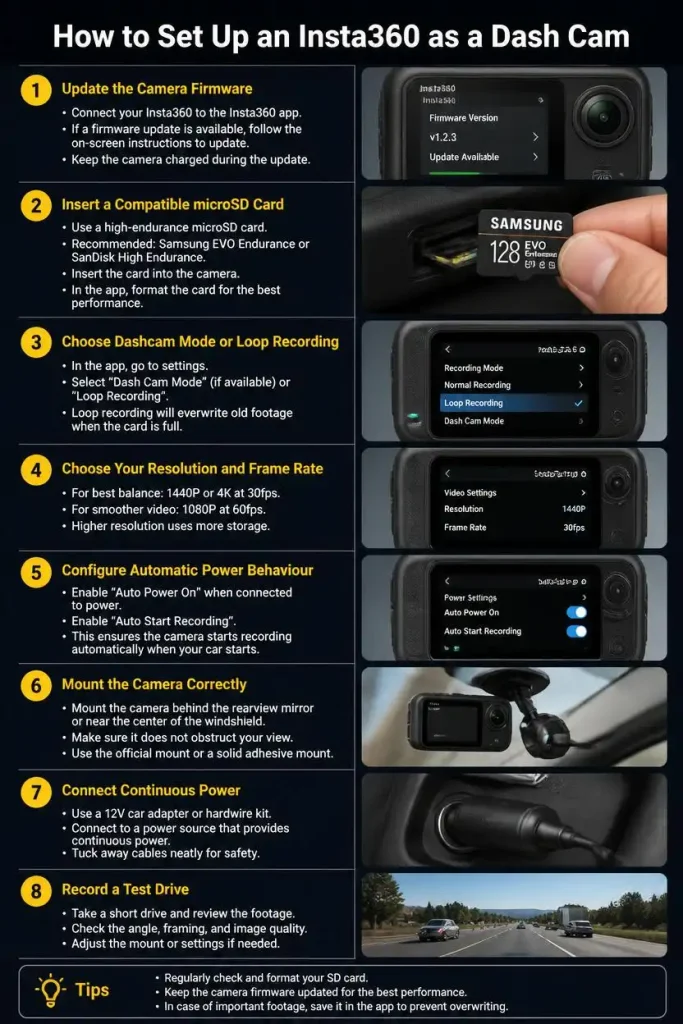
Step 1: Update the Camera Firmware
Connect your camera to the Insta360 app and check for firmware updates. New firmware may improve stability, fix recording problems, and add or refine shooting options.
After updating, restart the camera and confirm that Dashcam Mode or Loop Recording appears in the shooting menu.
Step 2: Insert a Compatible microSD Card
Use a reputable microSD card that meets the requirements for your camera. For the X4, Insta360 recommends a UHS-I card with a V30 or higher speed rating, formatted as exFAT. It supports compatible cards up to 1TB. Using a slow or incompatible card can interrupt recording or damage files.
Format the card inside the camera before the first use. Remember that formatting deletes existing content, so back up anything important first.
Step 3: Choose Dashcam Mode or Loop Recording
Open the shooting-mode menu.
For supported X4, X5, or Ace Pro 2 cameras, select Dashcam Mode. On an X3, select Loop Recording.
If the camera offers Loop Space, choose how much storage should be reserved for dash-cam files. Larger space keeps a longer driving history before older segments are replaced.
Step 4: Choose Your Resolution and Frame Rate
There is no single perfect setting for every camera, vehicle, climate, or lighting condition. A practical starting point is:
- Use 5.7K at 30fps for balanced 360-degree recording.
- Use 4K at 30fps for a traditional forward-facing Ace-series setup.
- Use a lower resolution during very long drives or hot weather.
- Use 30fps rather than a high frame rate at night unless testing shows a clear benefit.
- Avoid using the highest available resolution automatically.
Higher resolution can preserve more detail, but it also produces larger files, requires more processing, and may increase heat. Test your chosen setting during the day and at night before depending on it.
Step 5: Configure Automatic Power Behaviour
On supported cameras, open the Power-off Charging settings and choose an option such as “Charge and record” or “Start Recording.”
Insta360’s X-series documentation states that a camera in Dashcam Mode can begin recording when connected to external power if the appropriate Power-off Charging option is enabled.
This works best when the vehicle’s USB port turns on and off with the ignition. Some vehicle ports remain powered after the engine is turned off, which may cause the camera to keep recording and potentially drain the vehicle battery.
Step 6: Mount the Camera Correctly
Place the camera where it:
- Does not obstruct your view
- Remains within the cleared area of the windscreen
- Does not interfere with mirrors or safety sensors
- Is not positioned in an airbag deployment zone
- Has a clear view through the glass
- Can receive some airflow
- Can be removed without damaging the cable
A traditional forward-facing camera usually works well behind or near the rear-view mirror. A 360 camera may benefit from a more central position, but the driver’s visibility and local mounting laws must take priority.
Step 7: Connect Continuous Power
Connect the camera to a reliable USB vehicle adaptor. Route the cable around the edge of the windscreen rather than allowing it to hang across the driver’s view.
Do not use a damaged cable or loose adaptor. An unstable power supply can stop recording, corrupt files, or repeatedly restart the camera.
Step 8: Record a Test Drive
Before relying on the setup, record a drive that includes:
- Bright sunlight
- Shade
- Oncoming headlights
- Night-time roads
- Road vibration
- Stops and restarts
- Licence plates at different distances
Review the original footage rather than judging quality only from the camera screen. Check the time, viewing angle, audio, sharpness, reflections, and whether the camera continues recording without interruption.
Does Insta360 Automatically Record When the Car Starts?
Supported Insta360 models can start recording when external power becomes available, but the correct setting must be enabled first.
The usual process is:
- Select Dashcam Mode or the relevant recording mode.
- Open the Power-off Charging settings.
- Choose “Charge and record” or “Start Recording.”
- Connect the camera to a vehicle port controlled by the ignition.
- Turn the vehicle off and on to test the behaviour.
The result depends partly on your vehicle. If the USB port remains live after the ignition is switched off, the camera may continue operating. If power is cut immediately, recording may stop when the engine is turned off.
Automatic recording is helpful, but you should still check the recording indicator before driving. A disconnected cable, full card, card-speed error, overheated camera, or changed setting can prevent recording.
Best Insta360 Settings for Day and Night Driving
Recommended Daytime Settings
For a 360 camera, begin with a moderate high-resolution setting such as 5.7K at 30fps. This normally provides a better balance of detail, storage use, processing demand, and heat than recording at the maximum specification throughout every journey.
For a forward-facing Ace-series camera, 4K at 30fps is a practical starting point. Position the camera close enough to the glass to reduce reflections.
Use automatic exposure initially. After reviewing test footage, reduce the exposure value slightly if the sky and reflective licence plates are consistently overexposed.
Recommended Night Settings
At night, a very high frame rate can reduce the amount of light captured in each frame. Start with 30fps and compare the result with your camera’s low-light mode where available.
The X5 includes PureVideo for low-light recording, but the best option still depends on movement, headlights, street lighting, and the supported settings within the selected mode.
Keep the windscreen clean inside and outside. Fingerprints, dust, and haze can turn headlights into large flares that hide important details.
Should You Use HDR?
HDR can help balance bright skies and dark vehicle interiors, but it can also increase processing and heat. It may produce motion artefacts in difficult conditions.
Test HDR on the same road with it enabled and disabled. Do not assume the more advanced mode will always produce better evidence.
Can Insta360 Capture Licence Plates Clearly?
An Insta360 may capture licence plates clearly in favourable conditions, but no action camera can guarantee readable plates in every situation.
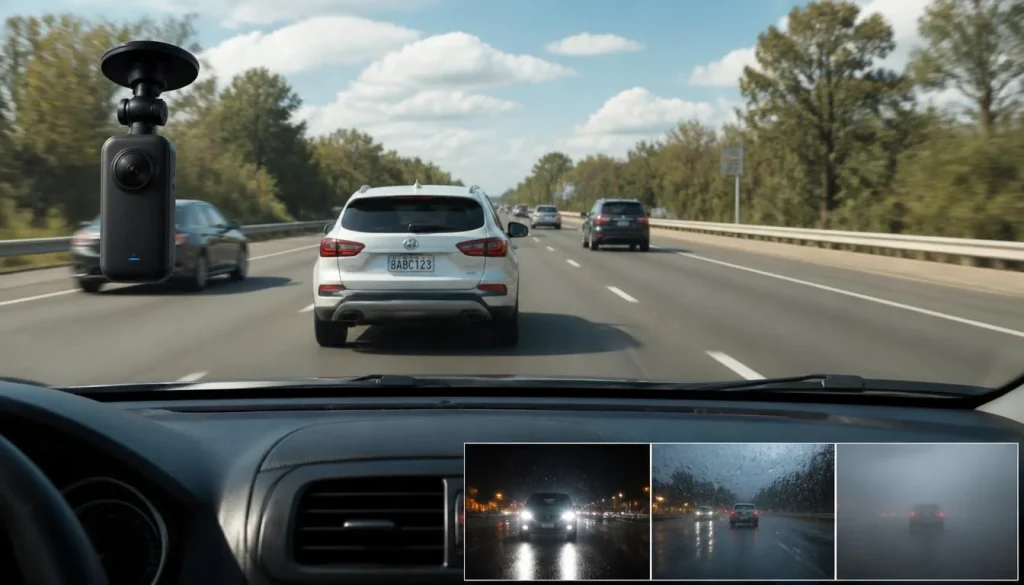
Plate clarity depends on:
- Distance from the other vehicle
- Relative speed
- Lighting
- Headlight glare
- Rain or fog
- Camera position
- Windscreen cleanliness
- Motion blur
- Resolution
- Frame rate
- Exposure
- Compression
- The viewing direction selected during export
A 360 camera spreads its available image detail across a much wider field of view than a narrow forward-facing camera. That means it can capture more directions, but a distant plate may contain fewer useful pixels after reframing.
For the best chance of readable plates:
- Mount the camera securely.
- Keep the lens and windscreen clean.
- Avoid pointing the lens through a heavily tinted area.
- Use a suitable high-resolution setting.
- Reduce exposure slightly if plates are consistently blown out.
- Review exported footage rather than only the low-resolution preview.
- Position a forward-facing camera directly towards the road.
Drivers whose main priority is licence-plate evidence may get more dependable results from a high-quality dedicated dash cam with a narrower forward-facing lens.
Can One Insta360 Replace Front and Rear Dash Cams?
A centrally mounted 360 camera can capture the front, sides, and parts of the cabin at the same time. This gives it a coverage advantage over a single-channel dash cam.
However, 360-degree coverage is not the same as having two dedicated cameras. A front-and-rear dash-cam system places separate lenses close to the front and rear glass. That positioning usually gives each camera a clearer view of the road and nearby plates.
A single Insta360 may work well for:
- Road-trip documentation
- Rideshare cabin coverage
- Recording side-impact events
- Capturing interactions around the vehicle
- Creating reframed driving videos
It may be less suitable when you need:
- A clear view through a distant rear windscreen
- Dedicated rear licence-plate detail
- Automatic rear incident recording
- A permanently installed security system
The best setup depends on whether you value coverage or evidence detail. For creative and contextual footage, a 360 camera is excellent. For dependable front-and-rear evidence, separate cameras are often more practical.
How Much Storage Do You Need?
Storage use varies with the camera, recording mode, resolution, frame rate, and scene complexity. Instead of relying on a universal estimate, perform a simple test:
- Format the card.
- Record for 10 minutes using your intended settings.
- Check the total file size.
- Multiply the result to estimate one hour.
- Compare that figure with the Loop Space or available card capacity.
For regular driving, 256GB is a practical starting point for many users. A 128GB card may be sufficient for short journeys, while 512GB or more can provide a longer history for high-resolution recording.
Capacity alone is not enough. The card must also meet the required speed standard. Insta360 recommends compatible UHS-I, V30-or-higher, exFAT cards for cameras such as the X4.
Check the card regularly. Repeated loop recording places continuous write demands on storage, and even a compatible card can eventually fail.
Will Accident Footage Be Saved Automatically?
Do not assume that an Insta360 will protect accident footage in the same way as a dedicated dash cam.
Dashcam Mode and Loop Recording are designed to overwrite older footage. Insta360 confirms that when Dashcam Mode reaches its preset storage limit, new recordings replace older files.
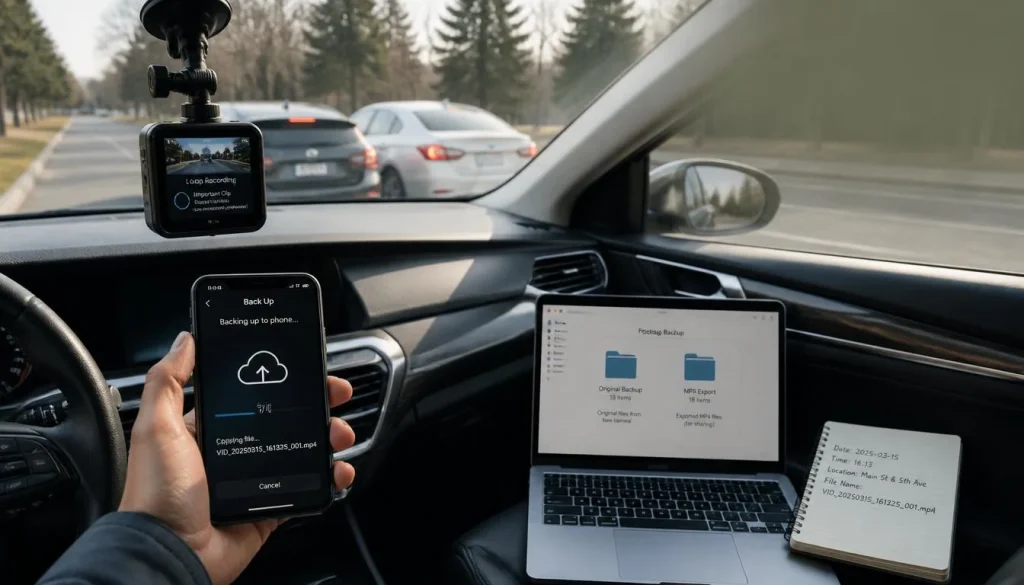
Unless your exact camera and firmware documentation explicitly confirms collision-triggered file protection, treat every recording as potentially overwritable.
After an incident:
- Stop recording when it is safe.
- Do not continue driving for hours without checking the footage.
- Turn the camera off before the relevant segment is replaced.
- Copy the original files to a phone or computer.
- Keep an untouched backup.
- Export a viewable MP4 copy.
- Record the date, time, location, and file names.
On the Ace Pro 2, the power button can mark a clip as important while recording, which can make it easier to locate during editing. However, easier identification should not be confused with guaranteed protection against loop overwriting.
How to View, Reframe, and Export Insta360 Dash-Cam Footage
X-series 360 recordings may be stored as INSV files, while single-lens recordings may be stored as MP4. Insta360’s specifications identify INSV as the 360 recording format and MP4 as an export format.
To process a 360 recording:
- Copy all files belonging to the clip.
- Open the files in the Insta360 mobile app or Insta360 Studio.
- Select the direction you want to show.
- Add keyframes or use automatic tracking where appropriate.
- Export the selected view as an MP4.
- Keep the original INSV files as evidence.
Insta360 advises copying all files generated for a 360 clip, because one recording may include more than one associated file. Insta360 Studio supports importing INSV media and exporting formats including MP4.
For police or insurance purposes, preserve the original files even after creating a reframed video. The original recording contains the wider context that may not appear in your exported view.
Avoid repeatedly editing and recompressing your only copy. Create a duplicate for editing and keep the original files unchanged.
Can Insta360 Record While the Car Is Parked?
An externally powered Insta360 may continue recording while the car is parked, but that does not automatically make it a true parking-mode dash cam.
A dedicated parking mode may include:
- Motion-triggered recording
- Impact detection
- Buffered recording
- Low-frame-rate monitoring
- Automatic event locking
- Low-voltage battery protection
Continuous Insta360 recording does not necessarily provide those features.
To record while parked, you would need a power source that remains active after the ignition is turned off. This could create several problems:
- Vehicle-battery drain
- Camera overheating
- Unnecessary storage use
- Overwriting of earlier footage
- Theft risk
- Battery stress
- Cable-management issues
Do not connect the camera permanently to the vehicle battery without appropriate voltage protection and professional advice. A normal USB adaptor may continue drawing power until the vehicle battery becomes weak.
For overnight or unattended surveillance, a dedicated dash cam with a compatible hardwire kit and low-voltage cut-off is generally safer.
Will Insta360 Overheat Inside a Car?
Overheating is one of the most important limitations of using an action camera as a dash cam.
The camera can generate heat from recording, processing, screen use, and charging. A closed vehicle or direct sunlight adds even more heat. Insta360 states that high ambient temperatures and recording while charging increase heat generation. A camera may automatically stop recording when its internal temperature becomes too high.
To reduce overheating:
- Avoid leaving the camera in a parked vehicle.
- Keep it out of direct sunlight where possible.
- Use a lower resolution or frame rate during long drives.
- Turn off unnecessary wireless connections.
- Reduce screen brightness.
- Avoid heavy cases that trap heat.
- Position the camera near air-conditioned airflow without blocking vents.
- Allow the camera to cool before charging after intensive use.
- Remove the camera when the vehicle is parked in hot weather.
- Monitor the camera during your first long recording test.
Insta360’s battery guidance warns against charging some camera batteries above 104°F or 40°C because high-temperature charging may cause damage, leakage, expansion, or overheating.
If the camera displays a temperature warning or stops recording, switch it off and move it to a cool, ventilated location. Do not place a hot camera directly into a refrigerator or expose it to sudden condensation.
How to Reduce Windscreen Glare and Reflections
Windscreen reflections can make an otherwise sharp recording difficult to use. The problem becomes worse at night when dashboard lights, infotainment screens, and streetlights reflect in the glass.
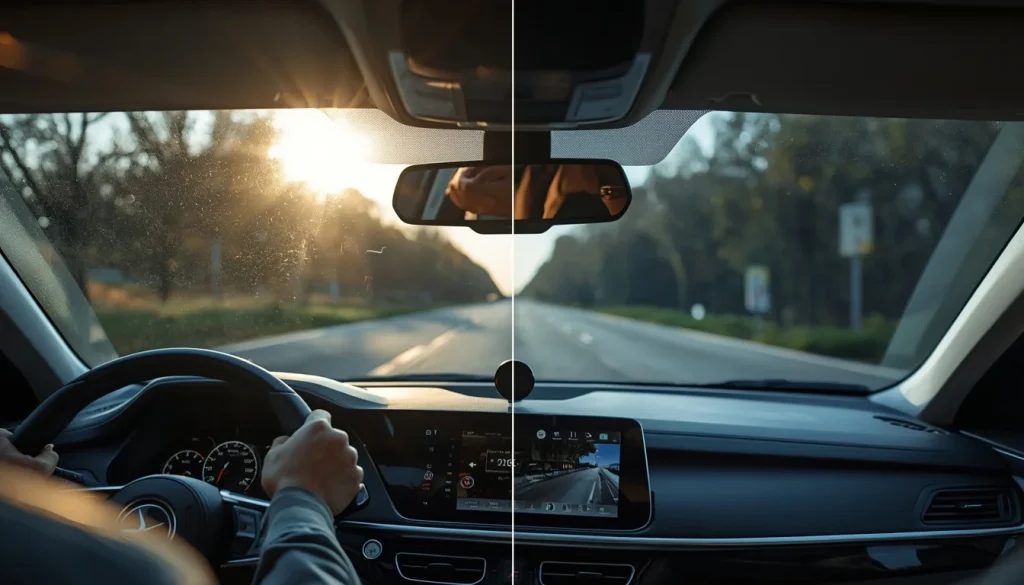
To reduce glare:
- Clean both sides of the windscreen.
- Place the camera close to the glass.
- Avoid mounting it directly above a glossy dashboard surface.
- Reduce unnecessary dashboard brightness.
- Adjust the camera angle.
- Remove reflective objects from the dashboard.
- Test the camera in sunlight and darkness.
- Consider a compatible polarising filter if one is available for your setup.
A polarising filter may reduce some reflections, but it also reduces the amount of light reaching the camera. That can make night footage darker. Test it before using it permanently.
With a 360 camera, check both lenses. Fixing the reflection visible through one lens may create a new problem on the other side.
Does Insta360 Record GPS, Speed, Date, and Time?
Some Insta360 workflows can add GPS and activity data, but you should not assume that every video automatically contains embedded speed and location information.
The Insta360 app can use a connected phone to record GPS Activity Stats. Supported data may include speed, distance, elevation, acceleration, date, and route information. The data can later be synchronised with compatible footage.
You may also be able to use a compatible GPS remote or supported third-party activity device.
Before an important journey:
- Connect the camera to the Insta360 app.
- Synchronise the camera time.
- Enable GPS Activity Stats where supported.
- Confirm that the phone or accessory is recording data.
- Record a test clip.
- Export the clip and verify the overlay.
GPS overlays are helpful for explaining a route, but they are not a substitute for preserving the original video and independently documenting the incident location.
Can Insta360 Record Audio Inside the Car?
Insta360 cameras can record audio, including conversation inside the vehicle, depending on the microphone position and settings.
Cabin audio may help document:
- Horns or collision sounds
- Conversations after an incident
- Passenger behaviour
- Interactions with another driver
- The driver’s description of an event
However, audio recording can create additional privacy and consent issues. This is especially important for taxis, rideshare vehicles, business vehicles, and any recording involving passengers or employees.
Consider disabling audio when it is unnecessary. When cabin audio is important, provide clear notice to passengers and check the consent rules that apply in your state, province, territory, or country.
Insta360 vs a Dedicated Dash Cam
| FeatureInsta360Dedicated dash cam | ||
|---|---|---|
| 360-degree coverage | Excellent on X-series models | Uncommon |
| Creative reframing | Excellent | Usually unavailable |
| Front-facing simplicity | Good on Ace series | Excellent |
| Automatic start | Model and setup dependent | Usually standard |
| Loop recording | Available | Standard |
| Collision file protection | Must be verified by model | Common |
| Parking mode | Limited | Common on compatible models |
| Heat tolerance | Potential limitation | Designed for vehicle use |
| GPS | App or accessory dependent | Often built in |
| File management | May require editing | Usually simple |
| Theft risk | Higher because of camera value | Generally lower |
| Best use | Travel, content and wide coverage | Daily evidence and security |
Choose an Insta360 when you want versatility, portability, 360-degree coverage, and creative control.
Choose a dedicated dash cam when you want a permanent system designed primarily for accident evidence, automatic operation, and parking security.
Some drivers may benefit from using both: a dedicated dash cam for everyday protection and an Insta360 for road trips or wider contextual footage.
Is It Legal to Use an Insta360 as a Dash Cam?
Dash-camera laws vary by location. Mounting, audio recording, privacy, and the use or publication of footage may be governed by different rules.
United States
In the United States, windscreen-mounting and audio-consent rules vary by state. Check the current rules published by your state’s motor vehicle authority and state legislature.
Keep the camera outside the driver’s primary field of vision and avoid adjusting it while driving. For cabin audio, verify whether your state requires consent from one participant or all recorded participants.
United Kingdom
UK rules require the driver’s windscreen and windows to remain free from obstructions to vision. Government guidance also states that a hands-free mounted device must not block the driver’s view of the road and traffic ahead.
Business use creates additional data-protection responsibilities. The Information Commissioner’s Office advises businesses using dash cams to notify people, protect the footage, define an appropriate retention period, and meet applicable data-protection requirements.
Canada
Rules differ among provinces and territories. Check provincial vehicle-equipment and privacy requirements.
For example, Ontario’s inspection standard contains specific placement provisions for forward-facing camera safety devices near the top of the windscreen. This should not be treated as a universal Canadian rule.
Commercial surveillance may also fall under federal or provincial privacy laws when identifiable individuals are recorded. Canada’s Privacy Commissioner has issued guidance and decisions involving video and audio surveillance by businesses.
Australia
Australian requirements can vary by state or territory. The Office of the Australian Information Commissioner notes that the federal Privacy Act generally does not cover a security camera operated by an individual in a private capacity, but state or territory laws may still apply.
Business, workplace, rideshare, or published recordings may require greater care. Check the relevant road authority, privacy regulator, and surveillance-device laws before recording passengers or audio.
This section provides general information, not legal advice. Always check the latest local rules before installing or using an in-car camera.
Common Insta360 Dash-Cam Problems and Solutions
| Problem | Likely cause | Recommended solution |
|---|---|---|
| Camera stops recording | Heat, slow card, power interruption or full storage | Cool the camera, check power and use a compatible V30 card |
| Camera does not start with the car | Incorrect power setting or permanently powered USB port | Enable Charge and Record and test the vehicle port |
| Footage was overwritten | Loop Space or loop duration was reached | Back up incident files immediately |
| Video is blurry | Dirty lens, vibration, motion or low light | Clean the lens, strengthen the mount and test exposure |
| Licence plates are unreadable | Distance, glare, motion blur or wide field of view | Improve positioning and test a forward-facing mode |
| Files are too large | High-resolution 360 recording | Reduce resolution or increase storage |
| Windscreen reflection is visible | Camera is too far from the glass | Move it closer and reduce dashboard reflections |
| GPS data is missing | GPS Activity Stats was not enabled | Connect the app or compatible accessory before recording |
| Camera keeps recording after parking | Vehicle USB port remains powered | Disconnect it or use an ignition-controlled source |
| File will not open | Incomplete transfer or corruption | Copy all associated files and try Insta360’s repair workflow |
Do not wait until an accident to discover a problem. Review your setup regularly and perform another test after changing firmware, cards, cables, mounts, or recording settings.
Is It Worth Buying an Insta360 Only for Dash-Cam Use?
Buying an Insta360 only for dash-cam use is difficult to justify for most drivers.
An Insta360 is worth considering when:
- You also want an action or travel camera.
- You create automotive content.
- You need 360-degree recording.
- You frequently use rental cars.
- You want to capture the road and cabin together.
- You enjoy reframing and editing footage.
A dedicated dash cam offers better value when:
- Driving evidence is your only goal.
- You need reliable automatic operation.
- You want front-and-rear cameras.
- You need genuine parking surveillance.
- You do not want to edit 360 files.
- You live in a very hot climate.
- You want a less visible permanent installation.
If you already own an X4, X5, X3, or Ace-series camera, experimenting with a dash-cam setup can be worthwhile. If you are purchasing a camera exclusively for daily protection, a dedicated model will normally be simpler and more dependable.
Final Verdict
So, can you use an Insta360 as a dash cam? Yes. A compatible Insta360 can record your drives, overwrite older footage, run from external power, and provide coverage that a normal single-lens dash cam cannot match.
The X4, X5, and Ace Pro 2 provide the most convenient current workflows because they offer dedicated Dashcam Mode. The X3 can still work, but its Loop Recording mode requires more attention to recording duration and footage retention.
The biggest advantages are wide coverage, stabilisation, portability, and creative reframing. The biggest limitations are overheating, file management, parking-mode performance, potential overwriting, and the absence of guaranteed traditional collision protection across every model.
Use an Insta360 for road trips, creative driving footage, rental cars, rideshare coverage, or temporary recording. Use a dedicated dash cam when you need a permanent, low-maintenance security system you can depend on every day.
Frequently Asked Questions About Can I Use Insta360 as a Dash Cam
Can Insta360 record continuously as a dash cam?
Yes. Supported models can record continuously using Dashcam Mode or Loop Recording. Dashcam Mode normally uses an allocated amount of storage, while Loop Recording preserves only a selected recent period. Older footage is eventually overwritten, so important recordings must be backed up promptly.
Can I use Insta360 X3 as a dash cam?
Yes, but the X3 mainly relies on Loop Recording rather than the dedicated Dashcam Mode available on newer models. It is better for occasional driving or road trips than unattended daily vehicle surveillance.
Does Insta360 X4 have Dashcam Mode?
Yes. Insta360’s current X4 documentation describes Dashcam Mode as continuous in-vehicle recording with automatic loop overwriting within a selected storage limit.
Does Insta360 X5 have Dashcam Mode?
Yes. The current X5 interface includes a road-focused recording mode that records within selected storage space and overwrites the earliest files when that space is full.
Can Insta360 Ace Pro 2 be used as a dash cam?
Yes. The Ace Pro 2 has a dedicated Dashcam Mode. You can select Loop Space, after which the camera records continuously in one-minute segments.
Can an Insta360 start recording automatically?
Supported models can begin recording when external power is connected if the correct Power-off Charging option is enabled. The behaviour also depends on whether the vehicle’s USB port switches with the ignition.
Can an Insta360 record while charging?
Yes, supported cameras can record while connected to power. However, recording while charging generates additional heat and may cause the camera to stop if it becomes too hot.
Will an Insta360 overheat in a car?
It can. Direct sunlight, high cabin temperatures, charging, high-resolution recording, and continuous processing increase the risk. Test the camera under realistic conditions and never leave it unattended in a hot parked vehicle.
Can Insta360 record when the car is turned off?
It can continue recording if the power source remains active, but this is not necessarily a true parking mode. Continuous recording may drain the vehicle battery and expose the camera to excessive heat.
Does Insta360 have collision detection?
Features vary by model and firmware. Do not assume the camera automatically detects a collision or permanently locks the relevant file unless the manual for your exact model explicitly confirms it.
Can Insta360 footage be used for insurance?
It may help document an incident, but acceptance depends on the insurer, jurisdiction, footage quality, and circumstances. Preserve the original files, export a viewable copy, and provide footage promptly when requested.
Does Insta360 record speed and GPS location?
GPS and speed data may be added through the Insta360 app, a compatible GPS remote, or supported activity devices. The feature must normally be enabled and synchronised correctly before export.
What is the best microSD card for an Insta360 dash cam?
Use a reputable card that meets the requirements for your camera. For models such as the X4, Insta360 recommends UHS-I, V30-or-higher cards formatted as exFAT.
Is a 360 camera better than a normal dash cam?
A 360 camera is better for wide contextual coverage and reframing. A dedicated dash cam is normally better for automatic operation, parking protection, simpler file management, and focused front or rear evidence.
Is it legal to mount an Insta360 on the windscreen?
It may be legal when mounted correctly, but placement rules vary by country, state, province, and territory. The camera must not obstruct the driver’s view. Check the current rules where you drive.

Tony Kilmer is an auto mechanic and the author behind CarTruckAdvisor.com. He shares practical, no-nonsense guidance on car and truck maintenance, common problems, and repair decisions—helping drivers understand what’s going on and what to do next.